If you spend long hours on a MacBook, a wireless trackball mouse can reduce wrist movement, save desk space, and make navigation feel more controlled.
We focused on models that pair easily, support modern charging or batteries, and offer the comfort and precision most MacBook users want.
Best 10 Wireless Trackball Mouse for MacBook Picks for 2026
Quiet Comfort Pick
Logitech ERGO M575S for PC/Mac

- Thumb trackball reduces hand movement
- Bluetooth or Logi Bolt connection
- Up to 18 months battery life
Best For: MacBook users wanting quiet ergonomic comfort
Multi-Device Value Pick
SABLUTE MAM2 for PC, Mac, iPad

- Connects to up to 3 devices
- Rechargeable with silent click buttons
- 5 DPI settings for precise control
Best For: People switching between a MacBook and other devices
Premium Ergo Pick

- Thumb control with ergonomic shaping
- Bluetooth or Logi Bolt receiver
- 18-month battery life with AA battery
Best For: MacBook owners who want a light-colored ergonomic trackball
Feature-Rich Pick

- 3-device Bluetooth and 2.4G connectivity
- 16-degree angle for ergonomic comfort
- Rechargeable battery with 5 DPI levels
Best For: MacBook users wanting a loaded ergonomic trackball
Premium Ergonomic Control
Logitech MX Ergo S Advanced Wireless Trackball Mouse for Mac

- 20-degree tilt supports a more natural posture.
- 6 programmable buttons boost productivity.
- Bluetooth or Logi Bolt receiver for easy pairing.
Best For: Mac users who want premium ergonomics and customizable controls.
Best for Everyday Use
seenda Wireless Trackball Mouse for Mac and PC

- Pairs with up to 3 devices via Bluetooth or USB.
- 5 DPI levels let you adjust pointer speed.
- Rechargeable design helps cut battery swaps.
Best For: People who want a simple, rechargeable multi-device trackball.
Quiet Multi-Device Option
Nulea M511 Wireless Trackball Mouse for Mac
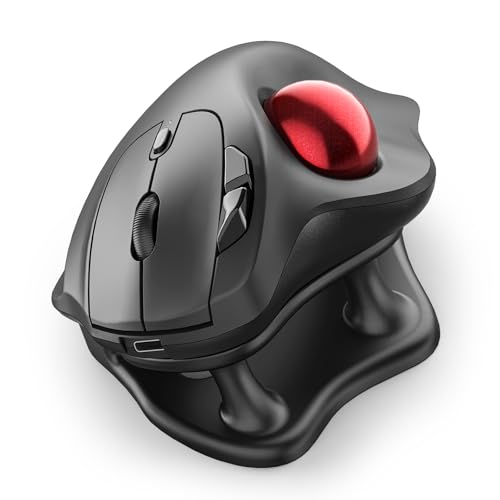
- True silent control reduces distraction.
- 21.7° tilt stand improves wrist positioning.
- Pairs with up to 3 devices via Bluetooth or USB.
Best For: Users who want a quiet, comfortable trackball for shared workspaces.
Adjustable Comfort Pick
ProtoArc EM01 NL Wireless Trackball for MacBook

- 0–20° adjustable angle for a more natural grip
- Bluetooth and 2.4G support for up to 3 devices
- Rechargeable design with 5 DPI settings
Best For: MacBook users who want an adjustable, multi-device thumb trackball
Multi-Device Efficiency Pick
Nulea M501 Wireless Trackball for MacBook

- Thumb control helps reduce wrist and arm movement
- Bluetooth or USB dongle connects up to 3 devices
- Rechargeable battery plus back/forward buttons
Best For: MacBook users who want easy multi-device switching and thumb control
Value Bluetooth Pick
Nulea M501 Bluetooth Trackball for MacBook

- Bluetooth-only connection for simple MacBook pairing
- Rechargeable design with ergonomic thumb control
- Back and forward buttons for everyday navigation
Best For: MacBook users who want a simple Bluetooth trackball with rechargeable power
Quiet Comfort Pick – Logitech ERGO M575S for PC/Mac
If you want a wireless trackball mouse for MacBook use that helps reduce hand movement, the Logitech ERGO M575S is built around thumb control and a sculpted ergonomic shape. It’s a practical fit for compact desks, long work sessions, and users who want smooth cursor control without sliding the mouse around.
Best For: MacBook users who want an ergonomic thumb trackball with quiet clicks and long battery life.
Pros:
- Thumb-controlled trackball keeps your hand still and saves desk space
- Quiet clicks and ergonomic shaping are designed for all-day comfort
- Connects via Bluetooth or the included Logi Bolt receiver
- Up to 18 months of battery life with the included AA battery
Cons:
- Right-hand design only
- Only two main buttons, so customization is more limited than some rivals
- Requires adaptation if you are new to trackball mice
This is a solid choice if comfort and simplicity matter more than extra features. The ERGO M575S leans into reliable everyday use, with a familiar Logitech feel and a design that works especially well on smaller setups.
Multi-Device Value Pick – SABLUTE MAM2 for PC, Mac, iPad
The SABLUTE MAM2 is a wireless trackball mouse for MacBook setups that also needs to handle multiple devices. With Bluetooth, 2.4GHz wireless, and support for up to three devices, it is built for people who jump between a laptop, desktop, or tablet during the day.
Best For: Users who want a rechargeable multi-device trackball with adjustable DPI and silent clicking.
Pros:
- Supports up to 3 devices with quick switching
- Rechargeable design avoids disposable batteries
- 5 DPI levels help fine-tune cursor speed for different tasks
- Silent click design is useful for shared workspaces
Cons:
- New trackball users may need 1–2 weeks to adjust
- Batteries are not included according to the listing details
- Not as clearly Mac-focused as some competing options
For a flexible desk setup, the MAM2 stands out more for versatility than premium finishing touches. It offers a useful mix of comfort, device switching, and sensible office-friendly features at a practical level.
Premium Ergo Pick – Logitech ERGO M575S Off-White
This Logitech ERGO M575S is the same thumb-control trackball concept in an off-white finish, making it a strong wireless trackball mouse for MacBook users who want an ergonomic daily driver. It focuses on reduced hand movement, smooth tracking, and a shape designed to support better forearm posture.
Best For: MacBook users who prefer a light-colored ergonomic trackball with Bluetooth and long battery life.
Pros:
- Thumb control keeps cursor movement precise with less arm motion
- Bluetooth or Logi Bolt USB receiver support
- Up to 18 months of battery life with the included AA battery
- Three customizable buttons add useful workflow flexibility
Cons:
- Right-hand only design
- Trackball layout may take time to get used to
- Only two main buttons are listed in the hardware details
If you like the ERGO M575S shape but want a lighter color to match your setup, this version keeps the same core strengths. It is a dependable ergonomic option for users who value comfort and battery life over flashy extras.
Feature-Rich Pick – TECKNET Pro Trackball Mouse
The TECKNET Pro is a feature-heavy wireless trackball mouse for MacBook and desktop users who want multi-device support, adjustable sensitivity, and a rechargeable battery. Its 16-degree vertical angle and thumb-control layout are aimed at reducing strain while keeping cursor control accurate in tight spaces.
Best For: Users who want a rechargeable, multi-device trackball with a vertical ergonomic angle.
Pros:
- Connects to up to 3 devices using Bluetooth and 2.4G
- 16-degree vertical angle is designed to reduce forearm strain
- Rechargeable 500mAh battery with fast charging support
- 5 DPI levels and silent buttons add control and flexibility
Cons:
- Designed mainly for medium to large hands
- Battery life is listed as 24 hours in the details, so expect frequent charging use
- New trackball users may need a short adjustment period
TECKNET packs in a lot for users who want more than the basics, especially if you care about posture and switching between devices. It is a strong pick when you want modern convenience in a trackball format without giving up ergonomic goals.
Premium Ergonomic Control – Logitech MX Ergo S Advanced Wireless Trackball Mouse for Mac
If you want a wireless trackball mouse for MacBook that leans into comfort and productivity, the Logitech MX Ergo S is built for longer desk sessions. Its thumb-controlled trackball keeps your hand in place, while the 20-degree tilt and customizable buttons make it a strong fit for users who want a more refined ergonomic setup.
Best For: Mac users who want premium ergonomics, quieter clicks, and advanced customization.
Pros:
- 20-degree tilt helps support a more natural forearm position.
- 80% quieter clicks make it better for shared workspaces.
- 6 programmable buttons add useful shortcuts through Logi Options+.
- Bluetooth and Logi Bolt connectivity give you flexible pairing options.
Cons:
- Right-hand design only, so it won’t suit left-handed users.
- Best suited to medium- and large-sized hands.
- USB-C charging cable is not included.
The MX Ergo S stands out if you want a more advanced trackball mouse for MacBook use and are willing to pay for comfort-focused features. It is especially appealing for productivity workflows where tilt, quiet clicks, and button customization matter.
Best for Everyday Use – seenda Wireless Trackball Mouse for Mac and PC
The seenda wireless trackball mouse for MacBook is a practical choice if you want thumb control, rechargeable power, and multi-device flexibility without overcomplicating the setup. It is designed for comfortable all-day use, and the adjustable DPI options make it easier to match the pointer speed to your work style.
Best For: Users who want an affordable, rechargeable trackball with easy switching across multiple devices.
Pros:
- Connects to up to 3 devices using Bluetooth or the 2.4G USB receiver.
- 5 DPI settings let you fine-tune cursor speed from 200 to 1600.
- Rechargeable battery reduces the need for disposable batteries.
- Thumb-accessible trackball keeps hand movement to a minimum.
Cons:
- Right-hand design only.
- Full-size shape may be better for medium to large hands.
- Product notes emphasize comfort and style, but not advanced software customization.
This is a solid everyday trackball if your priority is convenience across devices and a comfortable palm-oriented shape. It suits Mac users who want simple switching, rechargeable operation, and adjustable pointer control.
Quiet Multi-Device Option – Nulea M511 Wireless Trackball Mouse for Mac
If you need a wireless trackball mouse for MacBook that emphasizes quiet operation and flexible device switching, the Nulea M511 is an easy product to consider. Its thumb-controlled trackball, tilt stand, and 3-device connectivity make it a practical office mouse for focused work at a desk or in shared spaces.
Best For: Mac users who want a quiet trackball mouse with a comfortable tilt and multi-device support.
Pros:
- True silent control keeps clicks, scrolls, and trackball movement quiet.
- 21.7° tilt stand supports a more natural wrist position.
- Connects to up to 3 devices through Bluetooth or the USB receiver.
- 4 DPI levels provide useful control for editing, multitasking, and daily work.
Cons:
- Batteries are not included, despite being battery powered.
- Right-hand design only.
- Minimum OS requirement is Mac OS 14 Sonoma, so compatibility may be limiting for older systems.
The M511 is a strong fit if silence is a priority and you want a trackball that stays comfortable over long sessions. Its combination of tilt, quiet operation, and easy multi-device switching makes it appealing for MacBook users who work in shared environments.
Adjustable Comfort Pick – ProtoArc EM01 NL Wireless Trackball for MacBook
If you want a wireless trackball mouse for MacBook that can adapt to longer work sessions, the ProtoArc EM01 NL stands out for its adjustable 0–20° hinge and thumb-controlled navigation. It’s built for tighter spaces and shared desks, with Bluetooth and 2.4G support plus a rechargeable battery for everyday convenience.
Best For: MacBook users who want an adjustable, ergonomic thumb trackball with multi-device switching.
Pros:
- 0–20° adjustable angle helps you find a more natural hand position.
- Thumb trackball control is useful when desk space is limited.
- Connects to up to 3 devices via Bluetooth or 2.4G wireless.
- Rechargeable battery and 5 DPI levels add flexibility for daily use.
Cons:
- Scroll wheel and side buttons are not silent.
- Trackball and rollers may need occasional cleaning to stay smooth.
Overall, this is a practical ergonomic option if you care most about comfort, switching between devices, and a more controlled cursor feel. It’s especially appealing for users who spend long hours at a MacBook and want a trackball that can be tuned to fit their hand.
Multi-Device Efficiency Pick – Nulea M501 Wireless Trackball for MacBook
The Nulea M501 is a wireless trackball mouse for MacBook users who want simple thumb control and easy switching between devices. Its ergonomic shape, rechargeable battery, and Bluetooth or USB receiver connection make it a strong fit for working on a laptop, couch, or crowded desk.
Best For: MacBook users who want a comfortable thumb trackball with 3-device switching.
Pros:
- Smooth thumb trackball reduces wrist and arm movement.
- Connects to up to 3 devices using Bluetooth or a USB dongle.
- Rechargeable battery helps avoid disposable battery swaps.
- Back and forward buttons add convenience for everyday browsing.
Cons:
- Buttons are not programmable.
- The 2.4G USB receiver is stored at the bottom of the mouse.
This model focuses on comfort and straightforward productivity rather than customization. If you want a MacBook-friendly trackball that’s easy to live with and simple to move between devices, it covers the basics well.
Value Bluetooth Pick – Nulea M501 Bluetooth Trackball for MacBook
This wireless trackball mouse for MacBook is aimed at users who want Bluetooth-only convenience, rechargeable power, and the same thumb-led ergonomic shape. The M501 is designed for precise cursor control on tight surfaces, while still keeping the setup simple for laptop and iPad use.
Best For: MacBook users who prefer a Bluetooth-only trackball with rechargeable battery support.
Pros:
- Bluetooth connectivity keeps the setup simple for MacBook use.
- Ergonomic thumb control helps reduce wrist and arm strain.
- Rechargeable battery avoids disposable battery changes.
- Back and forward buttons support quicker navigation.
Cons:
- Buttons are not programmable.
- It does not include a USB receiver in the connectivity spec here.
If you mainly want a straightforward Bluetooth trackball for macOS, this version keeps the feature set focused. It’s a solid fit for users who value comfort and easy wireless pairing over advanced customization.
How We Picked the Best Wireless Trackball Mouse for MacBook
For this roundup, we prioritized Mac-friendly connectivity, reliable cursor tracking, and ergonomic thumb-ball designs that work well on compact desks. We also looked at battery life, charging convenience, button layout, and whether each model supports both Bluetooth and a dongle for flexible setup.
Because a Wireless Trackball Mouse for MacBook should feel effortless day to day, we gave extra weight to scroll quality, angle adjustability, and how easy it is to switch between devices.
Quick Comparison
In general, simpler models are best if you want a straightforward setup and basic comfort, while premium trackballs are better for users who spend many hours editing, browsing, or working across multiple screens. Multi-device support is especially useful if you move between a MacBook, iPad, or desktop.
Key Buying Factors for a Wireless Trackball Mouse for MacBook
Connectivity
Bluetooth is the cleanest choice for most MacBook users, but a USB dongle can improve compatibility and reduce connection issues. If you use several devices, look for easy switching.
Ergonomics and Hand Fit
Thumb-operated trackballs vary a lot in shape and angle. A more vertical or tilt-based design may feel better for larger hands or longer sessions, while a flatter profile can suit everyday browsing and light office work.
Tracking and DPI
Adjustable DPI helps you tune cursor speed for precise work or faster navigation. Higher precision matters if you edit photos, work in spreadsheets, or use a smaller display.
Charging and Battery Life
Rechargeable models are convenient for daily use. If you travel often, check whether the mouse can be used while charging and how long a full charge lasts.
Mac Compatibility
Most modern trackballs work well with macOS, but button customization software may vary. If you rely on shortcuts, confirm the app support before buying.
Who Should Buy Which Wireless Trackball Mouse for MacBook?
If you want a simple, budget-friendly option, choose a basic Bluetooth trackball with standard thumb control. If comfort is your top priority, look for an ergonomic model with a tilt stand or adjustable angle. Power users and multitaskers should favor a premium Wireless Trackball Mouse for MacBook with multi-device switching, USB-C charging, and customizable controls.
For most buyers, the best choice is the model that matches your hand size, desk setup, and how often you move between devices. That balance matters more than extra features you may never use.