Choosing a drawing tablet with touch controls for Mac comes down to more than pen pressure alone. The best options balance smooth gesture input, reliable Mac compatibility, and shortcut controls that speed up real creative work.
In this roundup, we focus on tablets that make sketching, editing, and navigation feel more natural on macOS, whether you want a compact portable model or a more advanced display tablet.
Best 10 Drawing Tablet with Touch Controls for Mac Picks for 2026
Touch-Gesture Beginner Pick
VEIKK A30 V2 10x6 Inch Graphics Tablet

- Touch gesture pad with 4 customizable keys
- 8192-pressure battery-free pen
- Mac-compatible with a large 10x6 area
Best For: Beginners and students who want touch controls on Mac
Pro Pen Display With Dials
HUION Kamvas 13 Gen 3 Pen Display

- 13.3-inch fully laminated display
- Dual dials and 5 shortcut keys
- 99% sRGB with PenTech 4.0 pen
Best For: Mac artists who want a pen display with dials
Premium Wireless Studio Choice

- Bluetooth and USB connectivity
- 10 ExpressKeys plus 2 mechanical dials
- Pro Pen 3 with tilt and 8192 levels
Best For: Professional Mac users who want wireless control
Touch Ring Value Pick
GAOMON M10K 10x6 Graphics Tablet

- Touch ring for zoom and scrolling
- 10 hot keys plus battery-free stylus
- Mac-compatible 10 x 6.25-inch area
Best For: Value-focused Mac users who want touch-ring control
Editor’s Pick

- Red dial roller and 8 shortcut keys
- Full-featured USB-C connection for cleaner Mac setups
- Fully laminated 13.3-inch display with anti-glare film
Best For: Mac artists who want a portable pen display with tactile shortcut control
Budget-Friendly Control

- Battery-free pen with Wacom EMR technology
- 4 customizable ExpressKeys for shortcuts
- Works with Mac, Android, Chromebook, and Windows
Best For: Beginners on Mac who want a compact, dependable pen tablet
Shortcut-Rich Display
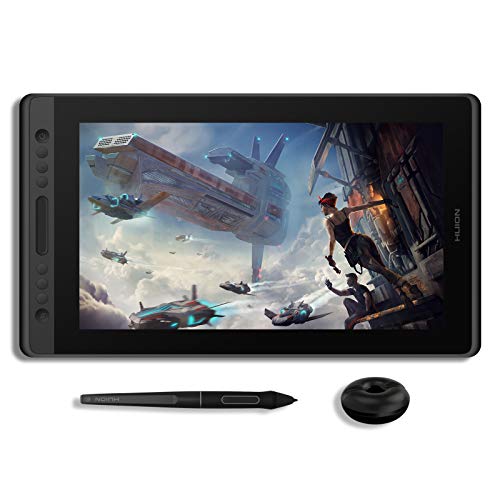
- 6 express keys plus programmable touch bar
- Fully laminated 15.6-inch anti-glare screen
- Battery-free pen with 8192 pressure levels
Best For: Mac artists who want a larger pen display with touch-style shortcut control
Budget-Friendly Beginner Pick

- 16,384 pressure levels with tilt support
- 8 customizable shortcut keys
- Large 10 x 6.25-inch active area
Best For: Beginners and students using Mac who want a simple, roomy pen tablet
Portable Bluetooth Favorite

- Bluetooth or USB-A connection options
- Battery-free pen with 4,096 levels
- 4 customizable ExpressKeys
Best For: Mac users who want a compact, wireless tablet for drawing and notes
Larger Workspace Choice

- 10 x 6.25-inch active area
- 12 programmable press keys plus 16 soft keys
- Battery-free pen with 60-degree tilt
Best For: Mac artists who want a roomy tablet with lots of shortcut customization
Touch-Gesture Beginner Pick – VEIKK A30 V2 10×6 Inch Graphics Tablet
If you want a drawing tablet with touch controls for Mac that keeps things simple, the VEIKK A30 V2 is a practical budget-friendly choice. Its touch pad, 4 customizable touch keys, and 10×6-inch active area make it easy to handle sketching, teaching, and everyday design work without a steep learning curve.
Best For: Beginners, students, and casual Mac users who want touch gestures plus a roomy active area.
Pros:
- Unique touch gesture pad with 4 customizable touch keys
- 8192 pressure levels and a battery-free pen for uninterrupted drawing
- Works with macOS 10.12+ plus Windows, Android, and Linux
- Large 10×6-inch active surface with reversible Type-C port
Cons:
- No built-in display, so you draw on a separate screen
- Only 4 hotkeys, which may feel limited for heavy workflow customization
The A30 V2 stands out if you want touch controls without paying for a premium pen display. It is especially appealing for first-time tablet buyers who value easy setup, broad compatibility, and a generous drawing area.
Pro Pen Display With Dials – HUION Kamvas 13 Gen 3 Pen Display
The HUION Kamvas 13 (Gen 3) is a strong drawing tablet with touch controls for Mac if you want an integrated screen and faster creative navigation. It pairs a fully laminated 13.3-inch display with dual dials, shortcut keys, and a single-cable USB-C workflow, making it a solid fit for artists who want a more connected drawing experience.
Best For: Mac creators who want a pen display with shortcut dials, strong color, and a large viewing surface.
Pros:
- Fully laminated 13.3-inch pen display with Canvas Glass 2.0
- Dual dial buttons plus 5 programmable shortcut keys
- 99% sRGB coverage and factory color calibration report
- PenTech 4.0 with 16,384 pressure levels and low initial activation force
Cons:
- Must be connected to a computer or laptop to work
- USB-C single-cable setup depends on supported devices and cable options
For Mac users who want more than a basic pen tablet, this model offers a polished display workflow with useful physical controls. It is a compelling pick when color accuracy, shortcut access, and screen-based drawing matter most.
Premium Wireless Studio Choice – Wacom Intuos Pro Medium 2025
If you need a drawing tablet with touch controls for Mac and want a premium desk-friendly setup, the Wacom Intuos Pro Medium (2025) is built around speed and precision. With Bluetooth, 10 ExpressKeys, and 2 mechanical dials, it is designed for creators who want efficient control and a compact footprint on a Mac workstation.
Best For: Professional Mac users who want wireless control, customizable inputs, and Wacom’s Pro Pen 3.
Pros:
- Pro Pen 3 with 8192 pressure levels, tilt support, and customizable grip options
- 10 ExpressKeys and 2 mechanical dials for workflow control
- Bluetooth wireless support plus USB options
- Thin 4mm profile with a durable magnesium build
Cons:
- Works with macOS 13 or later, so older Macs are not supported
- No built-in display for direct screen drawing
This is the most polished control-focused option in the group for Mac users who value responsiveness and desk organization. It is especially attractive if you want a wireless tablet with serious customization and a compact professional design.
Touch Ring Value Pick – GAOMON M10K 10×6 Graphics Tablet
The GAOMON M10K is a practical drawing tablet with touch controls for Mac if you want shortcut-friendly navigation at a lower price point. Its touch ring, 10 shortcut keys, and 10 x 6.25-inch working area make it a useful option for drawing, editing, writing, and remote work on macOS.
Best For: Mac beginners and value-minded users who want a touch ring plus lots of shortcut keys.
Pros:
- Touch ring supports zooming, brush adjustment, and page scrolling
- 10 programmable hot keys for workflow shortcuts
- 8192-pressure battery-free stylus with 2 pen side buttons
- Compatible with macOS 10.12+ and many creative apps
Cons:
- USB-only connection, so there is no wireless option
- No display, so you work on an external screen
The M10K gives you a lot of control features for the money, especially if the touch ring matters more than a premium finish. It is a solid pick for Mac users who want an easy-to-learn tablet with practical workflow tools.
Editor’s Pick – XP-PEN Artist 13.3 Pro V2
If you want a drawing tablet with touch controls for Mac that also doubles as a portable display, the XP-PEN Artist 13.3 Pro V2 is built for a streamlined workflow. Its red dial roller and 8 shortcut keys make zooming, brush changes, and undo actions quick, while the full-featured USB-C connection helps keep your desk setup cleaner.
Best For: Mac users who want a compact pen display with lots of shortcut control and a premium included accessory kit.
Pros:
- Red dial roller plus 8 customizable express keys for fast control in creative apps
- Full-featured USB-C support for a cleaner single-cable setup on compatible Macs
- Fully laminated 13.3-inch screen with anti-glare film for reduced parallax and more comfortable viewing
- Includes foldable stand, pen holder, replacement nibs, and glove for immediate use
Cons:
- Requires a compatible USB3.1/DP1.2 device for the single-cable USB-C setup
- Not a standalone tablet, so it must be connected to a computer
The Artist 13.3 Pro V2 is a strong choice if you value shortcut-heavy control and a laminated screen in a travel-friendly size. It is especially appealing for Mac-based artists who want more tactile efficiency than a basic pen tablet.
Budget-Friendly Control – Wacom Intuos Small
The Wacom Intuos Small is a compact drawing tablet with touch controls for Mac users who want simple, reliable pen input and a few quick-access buttons. It doesn’t include a screen, but the battery-free pen, 4 ExpressKeys, and wide compatibility make it a practical entry point for drawing, editing, and note work.
Best For: Beginners and Mac users who want a small, dependable pen tablet for everyday creative tasks.
Pros:
- Battery-free Wacom pen technology with a pen-on-paper feel
- 4 customizable ExpressKeys for shortcuts and workflow speed
- Compatible with Mac, Windows, Android, and Chromebook
- Software and training included with purchase
Cons:
- No built-in display, so you draw on the tablet while looking at your screen
- Smaller active area may feel limited for larger hand movements
This is the most straightforward option in the group if you want trusted pen accuracy without paying for a display. For Mac users who prioritize portability and easy setup, it covers the basics well.
Shortcut-Rich Display – HUION KAMVAS Pro 16
If you’re shopping for a drawing tablet with touch controls for Mac and want a larger pen display, the HUION KAMVAS Pro 16 stands out with its 6 express keys and programmable touch bar. Its fully laminated, anti-glare screen and battery-free pen are designed to keep strokes accurate and comfortable during long sessions.
Best For: Mac artists who want a larger screen drawing display with both buttons and a touch bar for quick control.
Pros:
- 6 customizable express keys plus a programmable touch bar for zoom, brush, and scrolling controls
- Fully laminated 15.6-inch HD screen with anti-glare glass for reduced parallax
- Battery-free pen with 8192 pressure levels and 60° tilt support
- Compatible with Mac OS 10.12 or later and major drawing software
Cons:
- Not a standalone tablet and requires connection to a computer
- Uses USB/HDMI-style cabling rather than a single-cable display workflow
The KAMVAS Pro 16 is a good fit if you want more screen space and physical controls for a smoother Mac workflow. The touch bar adds a useful layer of speed when you are zooming or adjusting tools on the fly.
Budget-Friendly Beginner Pick – XPPen Deco 01 V3
If you want a drawing tablet with touch controls for Mac that keeps setup simple, the XP-Pen Deco 01 V3 is a practical starter option. It pairs a large 10 x 6.25-inch work area with 8 customizable hotkeys, plus a battery-free stylus with 16,384 pressure levels and tilt support for smoother sketching and shading.
Best For: Beginners, students, and Mac users who want a large, easy-to-learn pen tablet with shortcut keys.
Pros:
- 16,384 pressure levels and 60-degree tilt support for natural line control
- 8 customizable shortcut keys for faster workflow and easier navigation
- Large 10 x 6.25-inch active area with slim, portable design
- Compatible with macOS 10.13 or later, plus USB-C to USB-C connectivity
Cons:
- The supplied notes mention shortcut keys, not true touch gestures
- Mac users are advised to update to macOS 12 first for best support
- Not a display tablet, so you draw on the tablet while looking at your screen
Overall, the Deco 01 V3 is a strong value choice if you want a spacious, beginner-friendly tablet with useful controls on Mac. It focuses on core drawing essentials rather than extras, which makes it easy to recommend for first-time digital artists.
Portable Bluetooth Favorite – Wacom Intuos Small Bluetooth
The Wacom Intuos Small Bluetooth is a compact drawing tablet with touch controls for Mac users who value portability and reliable basics. It offers Bluetooth wireless support, a battery-free pen, and 4 customizable ExpressKeys, making it a flexible pick for drawing, photo editing, note-taking, and other everyday creative tasks.
Best For: Mac users, students, and creators who want a lightweight Bluetooth tablet for general creative work.
Pros:
- Bluetooth connectivity or USB-A wired use for flexible setup
- Battery-free Wacom pen with 4,096 pressure levels
- 4 customizable ExpressKeys for quick shortcuts
- Very portable design for desk, sofa, classroom, or travel use
Cons:
- Smaller active area may feel limited for broad sketching
- Only 4 ExpressKeys, so control options are modest compared with larger tablets
- Touch controls are limited to the ExpressKeys; it is not a touchscreen tablet
If you want a trusted brand and an easy wireless experience on Mac, this Intuos model is a straightforward choice. It is especially appealing when portability matters more than a huge drawing surface or advanced controls.
Larger Workspace Choice – HUION Inspiroy H1060P
The HUION Inspiroy H1060P is a strong drawing tablet with touch controls for Mac if you want more room to work and plenty of shortcut options. Its 10 x 6.25-inch surface, battery-free stylus, and 12 programmable press keys make it a practical fit for artists who want a comfortable, customizable setup on macOS.
Best For: Mac artists and hobbyists who want a larger tablet with lots of shortcut customization.
Pros:
- Large 10 x 6.25-inch working area for comfortable drawing
- 12 programmable press keys plus 16 programmable soft keys
- Battery-free stylus with 60-degree tilt support
- Compatible with macOS 10.12 or later and major creative software
Cons:
- Mac connection requires a USB adapter
- Like other pen tablets, it is not a screen display
- The notes mention Android and Linux support, but Mac setup is the main fit here
For Mac users who want more customizable controls and a larger active area, the H1060P stands out as a well-rounded choice. It leans toward productivity and comfort, which makes it especially useful for longer drawing sessions or shortcut-heavy workflows.
How We Picked the Best Drawing Tablet with Touch Controls for Mac
We prioritized Mac compatibility, touch and gesture control quality, pen responsiveness, shortcut flexibility, and overall workflow value. We also favored models that make it easier to move around the canvas, zoom, undo, and switch tools without constant keyboard use.
Quick Comparison
If you want the most natural drawing experience, a display tablet can feel closest to pen and paper. If you want portability, battery-free pens and customizable hotkeys often matter more than a built-in screen. For buyers focused on a Drawing Tablet with Touch Controls for Mac, the best fit depends on how much you value gestures versus portability, display size, and desk space.
Key Buying Factors for a Drawing Tablet with Touch Controls for Mac
Touch Features and Shortcut Control
Look for touch rings, gesture pads, dial controls, or well-designed express keys. On Mac, these controls can reduce reliance on the keyboard and improve speed in apps like Photoshop, Illustrator, Clip Studio Paint, and Affinity Photo.
Mac Compatibility and Driver Support
Confirm that the tablet supports your Mac model and current macOS version. Stable drivers matter just as much as hardware, especially if you want touch functions, custom shortcuts, and pen buttons to behave consistently.
Pen Feel and Pressure Response
Pressure levels are only part of the story. Tilt support, low-latency response, and a comfortable battery-free stylus can make long sessions feel more precise and less fatiguing.
Screen or Non-Screen
Pen displays are easier for many artists to adopt, while non-screen tablets usually cost less and can be more portable. If you already use a color-accurate Mac monitor, a non-display tablet may deliver better value.
Who Should Buy Which Drawing Tablet with Touch Controls for Mac?
Choose a compact tablet if you need portability or mostly edit on the go. Choose a mid-size tablet if you want enough active area for drawing without taking over your desk. Choose a display tablet if you want a direct on-screen drawing experience and plan to spend hours illustrating, photo retouching, or designing on Mac.
For most buyers, the best Drawing Tablet with Touch Controls for Mac is the one that matches your workflow: gesture-heavy navigation, lots of programmable shortcuts, or a pen display that keeps the creative process fast and intuitive.