Choosing a KVM switch with EDID emulation for Mac is about more than simply sharing a keyboard and mouse. The right model helps keep displays, resolutions, and connected peripherals stable when you switch between devices.
That matters especially for Mac users using dual monitors, USB-C docking workflows, or mixed laptop-and-desktop setups where display handoff can otherwise cause flicker, rearranging windows, or reconnect delays.
Best 10 KVM Switch with EDID Emulation for Mac Picks for 2026
Dual-Display Workhorse

- EDID simulation helps preserve resolution and window order.
- Supports 3 computers across 2 monitors in extend or copy mode.
- Includes 4 USB 3.0 ports plus wired remote control.
Best For: Dual-monitor users who want stable switching and shared USB access
Four-Source Controller

- Handles 4 computers through one HDMI monitor.
- Adaptive EDID emulation helps preserve display settings.
- Includes hotkeys, mouse gestures, front button, and IR remote.
Best For: One-monitor setups that need to switch across four computers
Desktop-Friendly Dock

- Combines dual-monitor KVM switching with docking features.
- EDID emulation helps keep switching smooth and fast.
- macOS is limited to mirrored display mode.
Best For: Users who want a dock-style dual-monitor switch for two computers
Dual-Monitor 4-PC Pick
4 Computers, 2 Monitors, 8K EDID

- 4-PC dual-monitor sharing
- EDID keeps display settings stable
- Includes USB 3.0 and remote switching
Best For: Multi-computer desks that need dual monitors and stable EDID behavior
Single-Monitor Performance Hub

- EDID emulators on every port
- Shares monitor, USB, audio, and Ethernet
- Supports 8K@60Hz and 4K@144Hz
Best For: Single-monitor users who want EDID stability plus Ethernet and audio
Budget Dual-Monitor Choice
4-PC 4K60 EDID Dual-Monitor KVM
- 4 computers share 2 monitors
- EDID emulation with copy/extend modes
- Works with Mac OS and other systems
Best For: Budget-minded buyers needing dual monitors and Mac compatibility
Mac-Friendly Dual-Monitor Dock
AV Access iDock C10 dual-monitor KVM dock

- EDID emulation reduces flicker and window resets
- 12-in-1 dock adds USB, LAN, SD, and audio ports
- macOS support is mirrored display only
Best For: Mac users who need a stable dual-monitor KVM dock and can work in mirrored mode
Hybrid 4-Port KVM
Reyoten mixed-port 4-computer KVM

- Switches one USB-C laptop and three desktop PCs
- Dual monitors support up to 4K@60Hz
- Optional EDID helps keep window layout stable
Best For: Users managing a Mac laptop and several desktop PCs at one dual-monitor desk
Dual-Laptop KVM Dock
AV Access 2-monitor USB-C KVM dock

- Dual USB-C laptops share two HDMI monitors and peripherals
- EDID emulation plus auto wake-up speeds switching
- MacOS does not support MST, so displays mirror on Mac
Best For: Dual-laptop Mac workflows where mirrored dual displays are acceptable
Dual-Display Workhorse – 3 PC KVM for Two Monitors
If you need a KVM switch with EDID emulation for Mac or mixed-PC setups, this dual-monitor HDMI model is built for switching between three computers on two displays without losing your screen layout. It supports extend or copy modes, includes EDID simulation to preserve resolution behavior, and adds USB 3.0 sharing for common peripherals.
Best For: Users who want a 3-in-2-out dual-monitor KVM for shared peripherals and stable display handoff.
Pros:
- EDID emulation helps keep monitor resolution and window order stable when switching.
- Supports 3 PCs on 2 monitors with extend or copy display modes.
- Includes 4 USB 3.0 ports for keyboard, mouse, printer, scanner, and other devices.
- Supports up to 4K@60Hz and includes a wired remote plus power adapter.
Cons:
- Dual-monitor setups require two HDMI connections per computer.
- Works best when computers use the same resolution.
- For systems with discrete and integrated graphics, both HDMI outputs need to come from the discrete GPU.
Overall, this is a practical pick if your priority is clean dual-monitor switching with EDID support and broad USB sharing. It is especially appealing when you want to preserve desktop order and avoid constant display reconfiguration.
Docking-Switch Hybrid – Dual Monitor KVM for Two Laptops
This KVM switch with EDID emulation for Mac is aimed at laptop users who want a desk setup that behaves like a docking station. It connects two USB-C laptops to two monitors, adds shared ports and Ethernet, and uses EDID emulation plus auto wake-up for quick switching between workspaces.
Best For: Home office users who want a dual-monitor laptop KVM with charging, Ethernet, and docking features.
Pros:
- Dual-monitor switching for 2 laptops with 2 HDMI outputs.
- EDID emulation and automatic wake-up help speed up switching.
- Offers 100W charging per PC, 1G Ethernet, USB ports, SD card slot, and headset support.
- Front button and wired remote make it easy to change sources.
Cons:
- macOS only supports mirror mode.
- USB-C MST dual-output is limited on some laptops, especially integrated-graphics models.
- Not compatible with desktop towers.
For Mac users, the key limitation is mirror-only display behavior, so this model makes most sense when you value docking convenience more than extended dual-screen output. If that matches your workflow, it combines several desk essentials into one tidy unit.
Four-Source Controller – 4 PC 1-Monitor HDMI KVM
If you are comparing a KVM switch with EDID emulation for Mac-compatible desktops and laptops, this 4-port HDMI model is designed for a single monitor shared across four computers. It focuses on stable source switching, keeps display settings consistent with adaptive EDID emulation, and adds multiple control methods for fast day-to-day use.
Best For: Users who need one monitor shared across four computers with flexible switching options.
Pros:
- Supports 4 computers on one monitor with HDMI input switching.
- Adaptive EDID emulation helps prevent resolution or icon changes during switching.
- Offers four switching methods: hotkeys, front button, mouse gestures, and IR remote.
- Supports USB pass-through mode for keyboard and mouse responsiveness.
Cons:
- Only one monitor is supported.
- IR remote batteries are not included.
- The notes include a conflicting reference to a 2-PC setup, so buyers should verify their exact use case.
This model makes sense if you want a straightforward one-monitor command center with EDID behavior that helps keep your workflow intact between machines. The extra switching options are useful when you change sources often.
Desktop-Friendly Dock – 2 Computer Dual Monitor KVM
This is a practical KVM switch with EDID emulation for Mac users who only need mirrored displays and want a cleaner dual-monitor desk setup. It connects two computers to two monitors, adds docking-style ports, and uses EDID emulation with automatic wake-up to make source changes smoother.
Best For: Home office and gaming users who want a dual-monitor docking KVM for two computers.
Pros:
- Supports 2 computers and 2 monitors in an all-in-one docking layout.
- EDID emulation and automatic device wake-up enable quick switching.
- Includes 3x USB 3.0, 2x USB 2.0, USB-C, 1G Ethernet, SD card slot, and 3.5mm AUX audio.
- Supports 100W USB-C charging and up to 4K@60Hz output.
Cons:
- macOS only supports mirrored mode.
- Desktop use requires USB-B, HDMI, and DP connections to be attached.
- Ethernet is described as providing network access for the laptop only.
As a dual-monitor dock and KVM in one, this model is strongest when you want fewer cables and fast handoffs between two machines. Mac buyers should mainly consider it if mirrored displays are acceptable.
Dual-Monitor 4-PC Pick – 4 Computers, 2 Monitors, 8K EDID
If you need a KVM switch with EDID emulation for Mac or mixed-platform setups, this 4-computer, dual-monitor model is built around flexible switching and display stability. It lets one workstation share two HDMI monitors plus four USB 3.0 peripherals, while the EDID emulator helps preserve resolution and window placement when switching between systems.
Best For: Users who want to share two monitors and four USB devices across multiple Macs or PCs without losing display layout.
Pros:
- Supports 4 computers sharing 2 monitors and 4 USB 3.0 peripherals.
- EDID emulation helps keep resolution stored and windows from rearranging after switching.
- Offers panel-button switching and IR remote switching.
- Claims support for very high resolutions, including up to 8K@60Hz and 4K@144Hz.
Cons:
- Each computer must have two HDMI ports.
- Highest resolution depends on the source, monitor, and HDMI cables all supporting it.
This is the most feature-rich dual-monitor option in the group if you care about EDID behavior and high-resolution headroom. It makes the most sense for desk setups where display consistency matters as much as easy switching.
Single-Monitor Performance Hub – 8K 4-PC KVM with Ethernet
For a KVM switch with EDID emulation for Mac users who also want strong connectivity, this TESmart unit centers on one-monitor sharing with a full-featured docking-style layout. It supports 4 PCs, includes EDID emulators on each port, and adds Ethernet, audio, microphone, and charging features for a more complete workstation switch.
Best For: Users who want a single-monitor KVM with EDID stability, network sharing, and extra desk-friendly ports.
Pros:
- EDID emulators on each port help prevent icons and display settings from scrambling after switching.
- Supports 8K@60Hz and 4K@144Hz, with HDMI 2.1 and 48 Gbps bandwidth noted.
- Built-in 1G Ethernet lets connected PCs share a wired network connection.
- Includes USB 3.0 ports, audio, microphone, and multiple switching methods.
Cons:
- Designed for one monitor rather than a dual-display setup.
- AAA batteries for the IR remote are not included.
This model stands out when you want more than basic USB and video switching. It is a practical fit for Mac-friendly desks that need EDID protection plus networking and peripheral integration in one box.
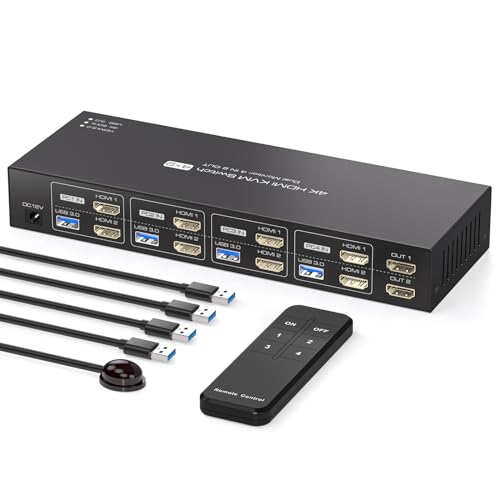
Budget Dual-Monitor Choice – 4-PC 4K60 EDID Dual-Monitor KVM
If you’re shopping for a KVM switch with EDID emulation for Mac on a more practical budget, this dual-monitor 4-PC model focuses on the essentials. It shares two HDMI displays and four USB 3.0 devices, supports copy and extend modes, and uses EDID emulation to help keep the desktop experience steadier during switching.
Best For: Buyers who want a straightforward dual-monitor KVM with EDID support and 4K60 output.
Pros:
- Supports 4 computers sharing 2 displays and 4 USB 3.0 peripherals.
- EDID emulation helps preserve display behavior when moving between PCs.
- Offers copy and extend modes for mirrored or extended desktop use.
- Plug-and-play design with broad compatibility listed for Windows, Mac OS, Linux, and Unix.
Cons:
- Maximum resolution is 4K@60Hz, not the higher refresh rates of premium options.
- Each computer must have 2 HDMI ports.
This is the most straightforward pick here if you mainly want dependable dual-monitor switching without paying for extra premium features. It fits office and shared-workstation use well, especially when Mac compatibility is a priority.
Mac-Friendly Dual-Monitor Dock – AV Access iDock C10 dual-monitor KVM dock
If you want a KVM switch with EDID emulation for Mac and also need docking features for a mixed laptop-and-desktop setup, the AV Access iDock C10 is built for a tidy home office. It shares two monitors, keyboard, mouse, and peripherals between a USB-C laptop and a desktop, while keeping switching stable with EDID simulation and auto wake-up. Just note that macOS support is mirrored display only, so it is not meant for dual extended screens on a MacBook.
Best For: Users who want a dual-monitor KVM dock for a Mac and desktop setup, and are okay with mirrored display mode on macOS.
Pros:
- EDID emulation helps prevent screen flicker and window rearrangement during switching
- Combines KVM switching with a 12-in-1 dock, including USB, SD card, LAN, and audio ports
- Built-in 60W power delivery helps keep a USB-C laptop charged
- Automatic wake-up supports quick 2–3 second switching
Cons:
- macOS supports mirrored output only, not dual extended displays
- Requires direct connections without extra adapters, docks, or converters in between
- Gigabit LAN is for the USB-C laptop side only
This is a practical pick if you value stable switching and an all-in-one desk setup more than advanced Mac display flexibility. For Mac users who only need mirrored mode, it delivers a lot of convenience in one unit.
Hybrid 4-Port KVM – Reyoten mixed-port 4-computer KVM
For shoppers comparing a KVM switch with EDID emulation for Mac alongside multiple PCs, the Reyoten mixed-port model is aimed at a busy, multi-system desk. It lets you switch one USB-C laptop and three desktop PCs across two monitors, and its optional EDID setting is designed to keep windows from jumping around when you change inputs.
Best For: People who want one dual-monitor KVM to manage a Mac laptop plus several desktop systems from a single workstation.
Pros:
- Supports one USB-C laptop plus three desktop PCs in a single switch
- Dual-monitor output reaches 4K@60Hz
- Optional EDID emulation helps preserve window arrangement during switching
- Includes 100W USB-C Power Delivery and a 3-port USB 3.0 hub
Cons:
- Maxed-out Mac use may depend on your specific display and port setup
- The EDID feature is described as optional rather than always on
- Better suited to mixed-device desks than simple two-computer setups
This is a strong choice if your desk rotates between a laptop and multiple desktops and you want fewer cable swaps. The mixed-port design and EDID option make it especially useful when workflow continuity matters.
Dual-Laptop KVM Dock – AV Access 2-monitor USB-C KVM dock
If you want a KVM switch with EDID emulation for Mac and need a clean dual-laptop workspace, this AV Access KVM dock focuses on speed and simplicity. It connects two USB-C laptops to two HDMI monitors, shares common peripherals, and uses EDID emulation plus auto wake-up to keep switching smooth. The important limitation is that macOS does not support MST here, so the two screens will mirror on Mac.
Best For: Dual-laptop users who want a dock-style KVM and are fine with mirrored displays on macOS.
Pros:
- Combines a dual-monitor KVM switch with a 12-in-1 docking station
- Each laptop can receive up to 60W charging
- EDID emulation and auto wake-up support fast 2–3 second switching
- Includes Ethernet, USB, SD card, and headset connections for a fuller workstation
Cons:
- macOS does not support MST, so mirrored content is displayed on both screens
- Extended dual-screen mode requires a compatible USB-C laptop with DP alt mode and DP MST
- Not compatible with 5K displays or 49-inch ultrawide setups beyond the stated limits
This model is best when you want an all-in-one dock and KVM for two laptops rather than a more general multi-device switch. It offers strong convenience, but Mac buyers should plan around the mirrored-display limitation.
How We Picked the Best KVM Switch with EDID Emulation for Mac
We focused on models that make Mac switching smoother, not just cheaper. Priority went to KVM switches with EDID emulation, reliable video output for single- and dual-monitor setups, and practical port layouts for modern Mac accessories.
We also considered USB-C support, docking features, Ethernet passthrough, power delivery, and the ability to handle common Mac resolutions without forcing constant display resets.
Quick Comparison
If you want the simplest setup, a single-monitor HDMI KVM is usually the easiest fit. If you use a MacBook with a dock-like workflow, a dual-monitor KVM with USB-C and charging can reduce cable clutter. For higher-performance desks, look for 4K at 60Hz or above, while gaming-oriented users may prefer higher refresh support on compatible PCs.
Key Buying Factors for a KVM Switch with EDID Emulation for Mac
Display Setup
Match the switch to your actual monitor layout: one monitor, dual monitors, or mixed HDMI/DP systems. Mac users should confirm whether the switch supports MST, extended desktop mode, or the specific display arrangement they need.
EDID Emulation Quality
EDID emulation helps preserve the monitor handshake so macOS does not re-detect displays every time you switch. This is one of the biggest quality-of-life features for Mac workflows, especially with multiple windows and docked laptops.
USB-C, Power Delivery, and Docking
If you use a MacBook, look for USB-C models with meaningful charging support. A KVM Switch with EDID Emulation for Mac that also powers the laptop can replace part of a dock and cut down on desk clutter.
Peripheral and Network Support
USB 3.0 ports, Ethernet passthrough, and audio out are useful if your Mac setup includes storage, webcams, headsets, or a wired network connection. These features make the switch more versatile day to day.
Who Should Buy Which KVM Switch with EDID Emulation for Mac?
Buy a dual-monitor USB-C KVM if you run a MacBook as your main machine and want one-cable convenience. Choose a simple HDMI model if you only need stable screen and peripheral switching. Pick a higher-bandwidth option if you care about smoother motion, more demanding visuals, or future-proofing across multiple computers.
For mixed Mac and PC desks, the most important thing is compatibility: confirm video inputs, charging limits, and EDID behavior before buying so your setup stays predictable after every switch.