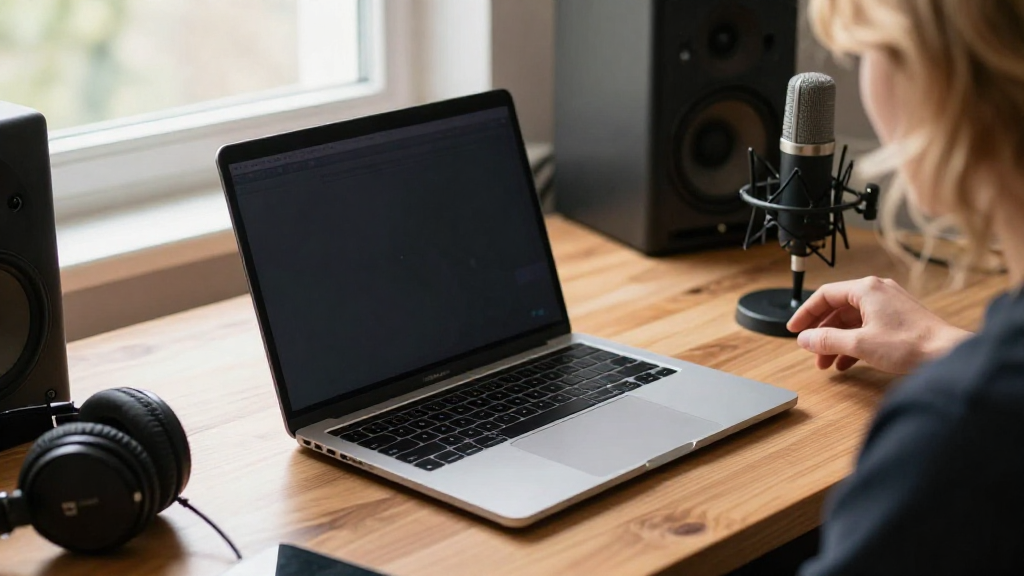
If you’ve ever wondered how to record audio on Mac, you’re not alone. Many users, whether for podcasting, music creation, or simple voice notes, seek to master their audio recording skills on Apple’s sleek operating system. In this guide, we’ll answer common questions about recording audio on a Mac and provide you with step-by-step instructions.
What Tools Do You Need to Record Audio on Mac?
Before diving into the recording process, you should gather the necessary tools for audio recording. Here’s a quick checklist:
- Microphone: Depending on your needs, you can choose:
- Built-in microphone
- External USB microphone
-
XLR microphone (which would require an audio interface)
-
Audio Recording Software: Several applications cater to different recording requirements:
- GarageBand: A free, fully capable studio for Mac users.
- QuickTime Player: A straightforward option for quick audio recordings.
-
Audacity: A powerful and free open-source audio editor.
-
Headphones: Useful to monitor audio without inducing feedback.
How Do You Use GarageBand to Record Audio on Mac?
GarageBand offers extensive features tailored for musicians and sound designers but is also a great choice for basic audio recording.
Steps to Record in GarageBand:
-
Open GarageBand: Launch the application.
-
Create a New Project:
– Click on “New Project.”
– Select “Voice” for voice recording or “Music” for musical instruments. -
Choose Your Microphone:
– From the track header, select your microphone.
– Ensure it’s connected and detected by the system. -
Set Levels:
– Speak into the microphone.
– Watch the input level meter to adjust the gain. -
Record:
– Click the red record button at the top of the screen.
– Begin speaking or playing your instrument. -
Stop Recording:
– Hit the space bar to stop. -
Edit and Mix:
– Post-recording, you can trim, add effects, or mix your tracks. -
Export:
– Go to “Share” > “Export Song to Disk” to save your recording.
Can You Use QuickTime Player for Simple Recordings?
Yes, QuickTime Player is one of the simplest tools available on your Mac.
Steps to Record Audio Using QuickTime Player:
-
Open QuickTime Player: Locate it in your Applications folder.
-
Select New Audio Recording:
– From the menu, select “File” > “New Audio Recording.” -
Choose Your Microphone:
– Click the arrow next to the record button to select your microphone. -
Adjust Volume Levels:
– Use the slider to ensure the input levels are appropriate. -
Hit Record:
– Click the red button to start recording. -
Stop Recording:
– Click the stop button when finished. -
Save Your Audio:
– Go to “File” > “Save” and choose your location and format.
What About Using Audacity on a Mac?
Audacity is a feature-rich and free alternative for recording and editing audio.
Steps to Record in Audacity:
-
Download and Install Audacity: Fetch it from the official website.
-
Open Audacity:
– Launch the application once installed. -
Select Your Microphone:
– Go to the drop-down menu in the toolbar to choose your microphone. -
Set Preferences:
– Explore preferences for input levels and quality settings. -
Start Recording:
– Click the red record button to capture your audio. -
Playback:
– Use the space bar to replay and review your recording. -
Editing and Exporting:
– Edit if necessary, then go to “File” > “Export” to save your self-made audio piece.
How to Overcome Common Recording Issues on Mac?
Learning how to record audio on Mac might involve troubleshooting occasional issues. Here are common problems and solutions:
- No Sound:
- Check your microphone connection.
-
Ensure it’s selected in your audio settings.
-
Poor Quality:
- Use a higher-quality microphone.
-
Record in a quiet environment.
-
Lagging or Delay:
- Reduce any unnecessary background processes.
- Ensure your software is up to date.
Do You Need Special Hardware?
While the built-in microphone on a Mac works fine for many purposes, investing in external hardware can significantly improve audio quality.
-
USB Microphones: Often provide better clarity than built-in options.
-
Audio Interfaces: Necessary for professional-grade microphones (XLR types).
-
Headphones: To monitor audio without causing feedback loops.
How Can You Edit Your Recorded Audio?
Editing your recordings allows you to cut out mistakes, add effects, and refine the audio before sharing.
- Basic Methods:
- Trimming: Cut off silence or mistakes at the beginning/end of recordings.
-
Adjusting Levels: Balance the input to ensure a consistent volume.
-
Adding Effects:
- Use compressors, equalizers, and reverb to enhance sound quality.
Where to Save and Share Your Recordings?
Once you’ve recorded and edited your audio, sharing it is straightforward.
- Saving Format:
-
Save as MP3 or WAV for compatibility across platforms.
-
Sharing Options:
- Upload to cloud storage (Google Drive, Dropbox).
- Share via email or post on social media platforms like SoundCloud.
Conclusion
Mastering how to record audio on Mac opens up a world of creativity, whether you’re recording a podcast, creating music, or simply making voice notes.
With tools like GarageBand, QuickTime Player, and Audacity, you have everything you need right at your fingertips.
Using high-quality hardware, honing your editing skills, and knowing where to save and share your recordings can significantly enhance your audio projects.
So grab your gear and start recording your voice or instruments on your Mac today!