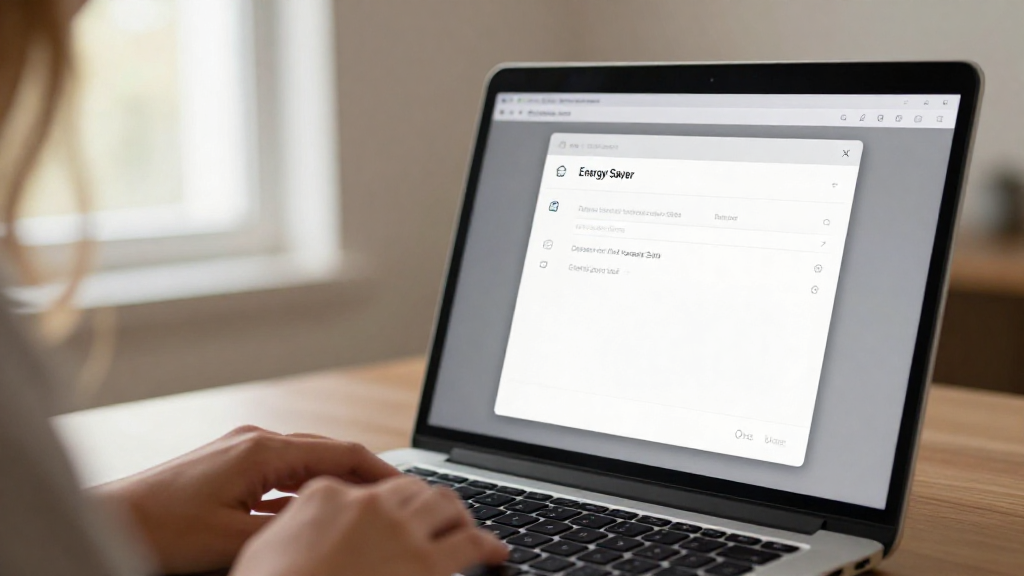
If you’re looking to manage your time better and automate your Mac’s power settings, learning how to schedule a shutdown Mac is essential.
This simple guide will walk you through the steps needed to set a scheduled shutdown on your macOS device.
Why Would You Want to Schedule a Shutdown on Mac?
Scheduling a shutdown on your Mac can be useful for several reasons:
-
Power Conservation: Automatically shutting down your computer can save energy, especially if you often forget to turn it off.
-
Scheduled Tasks: If you have tasks that run late at night or just need your Mac to be off at specific times, scheduling helps in managing this routine.
-
System Maintenance: Restarting or shutting down your Mac regularly can help maintain system performance and free up memory.
How to Schedule a Shutdown Mac: What Are the Steps?
Here’s a simple way to schedule a shutdown on your Mac:
Step 1: Open System Preferences
- Click on the Apple logo at the top left of your screen.
- Select System Preferences from the dropdown menu.
- Once in System Preferences, look for Battery (or Energy Saver on older versions).
Step 2: Access Schedule Settings
- In the Battery or Energy Saver menu, locate the Schedule button.
- Click on this option to open the scheduling window.
Step 3: Set Your Shutdown Time
- You will see options for Start up or wake and Sleep.
- Check the box next to Shutdown to enable this option.
- Set the desired day (every day, weekdays, or specific days) and time you want your Mac to shut down.
Step 4: Confirm Your Settings
- Click the OK button to save your settings.
- Your Mac will now automatically shut down at the scheduled time you selected.
What Are the Alternatives to Scheduling a Shutdown?
If you prefer a different method or need more flexibility, there are alternatives to know how to schedule shutdown Mac.
Using Terminal
For users comfortable with command-line interfaces, you can use Terminal to set your scheduled shutdown:
- Open Terminal: You can find it in Applications > Utilities.
-
Type the following command:
sudo shutdown -h +60
This command will schedule a shutdown 60 minutes from now. -
Press Enter and enter your admin password when prompted.
Setting Up an Automator Script
- Open Automator from Applications.
- Choose New Document and select Workflow.
- Drag the Run Shell Script action into the workflow area.
- Enter the shutdown command:
osascript -e 'tell application "System Events" to shut down' - Save your workflow and schedule it using Calendar.
How Can You Ensure Scheduled Shutdowns Work?
To make sure you have successful scheduled shutdowns after learning how to schedule a shutdown Mac, consider these tips:
-
Keep macOS Updated: Ensure you have the latest version of macOS, as updates may fix issues related to scheduled tasks.
-
Check Energy Saver Settings: Make sure other settings, like Wake for network access, do not conflict with scheduled shutdowns.
-
Be Aware of Open Applications: Remember that unsaved work may lead to data loss if applications do not prompt you to save before shutdown.
What to Do If Your Scheduled Shutdown Does Not Work?
If your scheduled shutdown does not occur as intended, you can troubleshoot by:
-
Verifying System Preferences: Double-check the settings in your Battery or Energy Saver panel.
-
Restarting Your Mac: A simple restart can sometimes resolve temporary glitches that prevent scheduled tasks.
-
Checking Permissions: Make sure your user account has the required permissions to execute scheduled tasks.
Final Thoughts on How to Schedule Shutdown Mac
Knowing how to schedule shutdown Mac is a useful skill that can save energy and help organize your computer usage.
With just a few clicks in System Preferences or through alternatives like Terminal, you can ensure your Mac operates on your chosen schedule.
As you continue to explore macOS features, remember to experiment and find what best suits your needs. Whether for power conservation or daily routine management, scheduling shutdowns can significantly enhance your productivity and system management.
If you have further questions or need assistance, feel free to reach out for support or consult Apple’s official documentation for additional resources.
By mastering the process of scheduling shutdowns, you’ll be better equipped to manage your Mac efficiently while enjoying the benefits of automation.