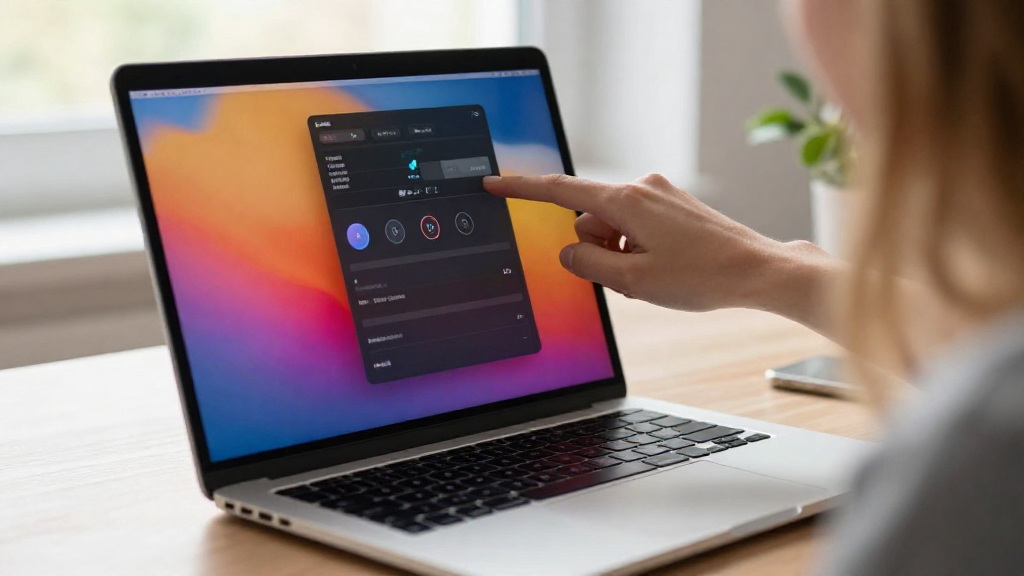
Are you wondering how to stop screen from dimming mac? You’re not alone. Many Mac users face this frustrating issue that disrupts their workflow and viewing experience.
In this article, we’ll explore effective solutions to tackle the problem of screen dimming on your Mac. Let’s dive into the settings, features, and potential fixes to keep your display bright and clear.
What Causes Screen Dimming on Mac?
Understanding why your Mac screen dims can help in finding the right solutions. Here are some common reasons:
– Energy Saver Settings: Your Mac might be configured to dim the display to save battery life.
– Ambient Light Sensor: This sensor automatically adjusts screen brightness based on the surrounding light.
– Display Preferences: Certain display settings might be reducing your brightness.
– Hardware Issues: In some cases, a malfunctioning display or graphics card may lead to dimming.
By identifying the cause, you can effectively customize your settings to prevent screen dimming.
How to Stop Screen from Dimming Mac: Simple Steps
Now, let’s break down how to stop the screen from dimming on your Mac. Here’s a step-by-step guide to resolve this issue:
1. Adjust System Preferences
- Open System Preferences from the Apple menu.
- Click on Displays.
- Navigate to the Display tab.
- Uncheck the box for “Automatically adjust brightness.”
This will stop your Mac from automatically dimming the screen based on ambient light.
2. Tweak Energy Saver Settings
If you want to know how to stop the screen from dimming mac, you’ll need to check your Energy Saver settings too.
- Go to System Preferences.
- Click on Energy Saver.
- Look for the option “Turn display off after”.
- Adjust the slider to “Never” if you want your screen to stay on indefinitely while plugged in.
This will prevent your display from dimming during periods of inactivity.
3. Disable Night Shift
Night Shift is another feature that can alter your screen brightness subtly. Here’s how to disable it:
- Open System Preferences.
- Select Displays.
- Click on the Night Shift tab.
- Turn off the Night Shift feature or adjust the schedule to a different setting, if necessary.
If Night Shift is on, it could contribute to the dimming effect you’re experiencing.
4. Check Keyboard Shortcuts
A quick tip: You might be accidentally using keyboard shortcuts that dim the screen. Here’s what to watch out for:
- F1: Dims the screen.
- F2: Brightens the screen.
If you find yourself unintentionally hitting these keys, consider turning on function key mode, which changes how these keys function:
- Open System Preferences.
- Navigate to Keyboard.
- Check the box for “Use F1, F2, etc. keys as standard function keys.”
5. Look for Hardware Issues
If you’ve tried everything above and your screen still dims, you may need to consider hardware issues:
- Reset the PRAM/NVRAM: Sometimes, resetting the parameter RAM can resolve display issues.
-
Restart your Mac and hold down Command + Option + P + R keys until you hear the startup sound twice.
-
Check for MacOS Updates: Ensure that your operating system is up to date. Bugs can sometimes cause display issues that are fixed in later updates.
- Go to System Preferences > Software Update.
Can External Monitors Cause Dimming?
When using an external monitor, you may also encounter screen dimming. Here are some considerations:
-
Monitor Settings: Check the settings on the external monitor itself. Many monitors allow for brightness control that might be set too low.
-
Connection Type: Certain connection types (like HDMI) might affect brightness. Test with different cables to see if it addresses the issue.
What to Do if the Problem Persists?
If your search for how to stop screen from dimming mac hasn’t led to a resolution, consider these steps:
-
Create a New User Account: Sometimes, the user profile might become corrupted. If a new user account doesn’t show the dimming issue, your main account may need resetting or repair.
-
Apple Diagnostics: Run Apple Diagnostics to check for hardware issues.
- Disconnect all external devices except for your keyboard, mouse, and display.
-
Restart your Mac and hold down the D key. This will initiate the diagnostics tool.
-
Consult Apple Support: If all else fails, reaching out to Apple Support can help determine if there’s an underlying issue that needs professional attention.
Conclusion
In this guide, we explored how to stop the screen from dimming on Mac effectively using system preferences, energy saver settings, and other tweaks.
From adjusting your display settings to checking for potential hardware issues, you have multiple routes to keep your screen shining brightly.
If you’ve followed the steps and still face difficulties, don’t hesitate to reach out to Apple’s customer service for assistance.
Feel free to share your experience or tips with screen dimming on Mac below. Keeping your workflow uninterrupted and visual experience satisfying is paramount. Here’s to brighter screens ahead!