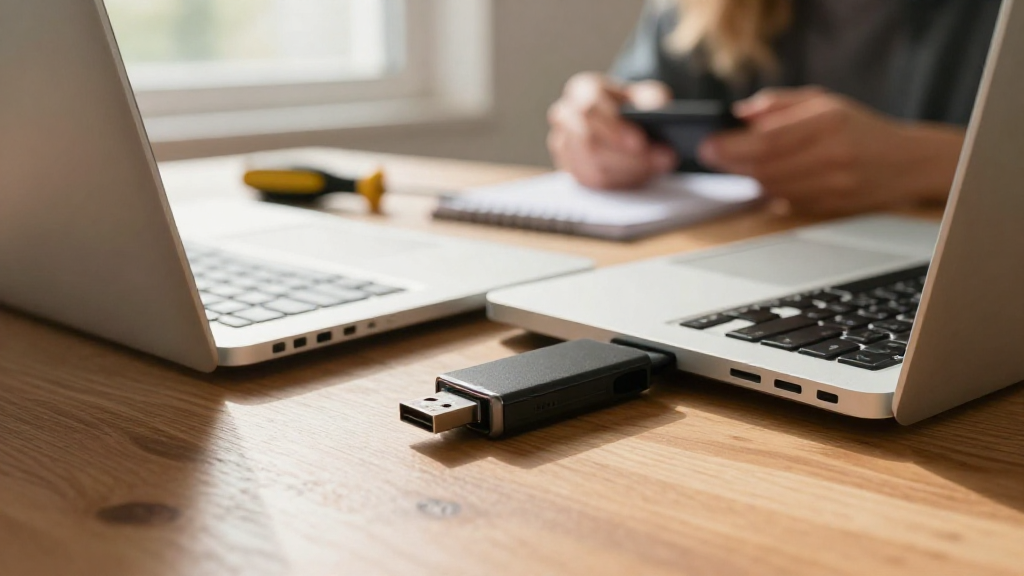
If you’re wondering how to fix a corrupted USB Mac, you’re not alone. A corrupted USB drive can be frustrating, but thankfully, there are several methods to help you restore its functionality.
What Causes USB Drive Corruption on Mac?
Understanding the reasons behind USB drive corruption can help you prevent it in the future. Some common causes include:
- Improper Ejection: Not ejecting your USB drive safely can lead to file system corruption.
- Power Failures: Sudden power outages while data is being written can corrupt the drive.
- Virus Infections: Malware or viruses can damage files on your USB drive.
- Hardware Failures: Physical defects in the USB drive itself can lead to corruption.
By being aware of these factors, you can reduce the risk of facing corruption issues.
How Can You Identify a Corrupted USB Drive on Mac?
Before exploring how to fix a corrupted USB Mac, it’s crucial to know how to identify a corrupted USB drive:
- Inaccessible Files: If you cannot open files stored on the USB drive, it could be a sign of corruption.
- Missing Files: Files that were once visible but have suddenly disappeared may indicate issues.
- Error Messages: You might encounter pop-up errors when trying to access or eject the drive.
- Unusual Behavior: Sluggishness or failure to respond when interacting with the USB drive can indicate problems.
How to Fix a Corrupted USB Mac: Step-by-Step Guide
Now that you’ve identified the issue, let’s dive into how to fix a corrupted USB Mac. Here’s a step-by-step guide you can follow:
1. Check for Physical Damage
Before proceeding with software solutions, inspect the USB drive for physical damage.
- Look for cracks or any other signs of wear.
- Check the USB connector for bent pins.
If your USB drive is damaged, repair may not be possible and replacement is the best option.
2. Restart Your Mac
Sometimes, a simple restart can resolve minor issues:
- Disconnect the USB drive.
- Restart your Mac.
- Reconnect the USB drive after the system has booted up.
This often helps reset the system’s recognition of the drive.
3. Use Disk Utility to Repair the USB Drive
Disk Utility is a powerful tool included with macOS that can fix many USB errors. Here’s how to use it:
-
Open Disk Utility: Go to your Applications folder, then Utilities, and double-click Disk Utility.
-
Select the USB Drive: Locate your USB drive in the left sidebar.
-
Run First Aid: Click on the First Aid button and then select Run.
Disk Utility will scan and attempt to repair the corrupted USB drive.
Note: If Disk Utility reports that the drive cannot be repaired, you may need to use data recovery software or reformat the USB drive.
4. Try Data Recovery Software
If the First Aid tool fails, consider using dedicated data recovery software. Some reliable options include:
- Stellar Data Recovery
- Disk Drill
- PhotoRec
These tools can help recover your files before you attempt to format the USB drive.
5. Reformat the USB Drive
If you’ve recovered your data or don’t need the contents of the USB drive, reformatting can often fix the corruption. Here’s how to do it:
-
Back Up Your Data: If possible, ensure that all important files have been backed up.
-
Open Disk Utility again.
-
Select the USB Drive: Click on your USB drive in the left sidebar.
-
Erase the Drive: Click on the Erase button. Select the format (usually exFAT or FAT32 for compatibility) and name your drive.
-
Click Erase to confirm.
Reformatting will erase all the data on the drive, so make sure a backup exists if you need the files.
6. Use Terminal Commands
If you’re comfortable with command-line tools, you can use some Terminal commands to fix file system errors:
-
Open Terminal: You can find it in Applications > Utilities > Terminal.
-
Type the command:
bash

  diskutil list
This will display all connected drives. Identify your corrupted USB drive. -
Run the repair command:
bash

  sudo diskutil repairVolume /Volumes/YourUSBDriveName
Replace “YourUSBDriveName” with the actual name of your USB drive. This will initiate a repair process.
7. Prevent Future USB Drive Corruption
Once you’ve resolved how to fix a corrupted USB Mac, it’s essential to adopt practices that minimize future issues:
- Safely Eject: Always safely eject the USB drive before unplugging it.
-
Regular Backups: Create regular backups of the data stored on your USB drives.
-
Use Antivirus Software: Regularly scan your USB drives for malware.
-
Avoid Physical Pressure: Don’t exert pressure on the USB drive while it’s being used, as this can cause internal damage.
8. When to Seek Professional Help?
If you’ve tried all the above methods and still can’t access your USB drive, it may be time to consult a professional.
-
Data Recovery Services: Consider specialized data recovery services if the data is irreplaceable.
-
Manufacturer Support: Check if the manufacturer offers repair or replacement services under warranty.
Conclusion
In conclusion, learning how to fix a corrupted USB Mac involves a few steps that can resolve the issue efficiently.
By following the methods outlined above, you can restore your USB drive to working conditions and prevent future issues.
Regular maintenance and careful usage are key to ensuring the longevity of your USB drives.
Whether you use built-in tools like Disk Utility or third-party recovery software, knowing how to handle USB corruption will make your life easier as a Mac user.