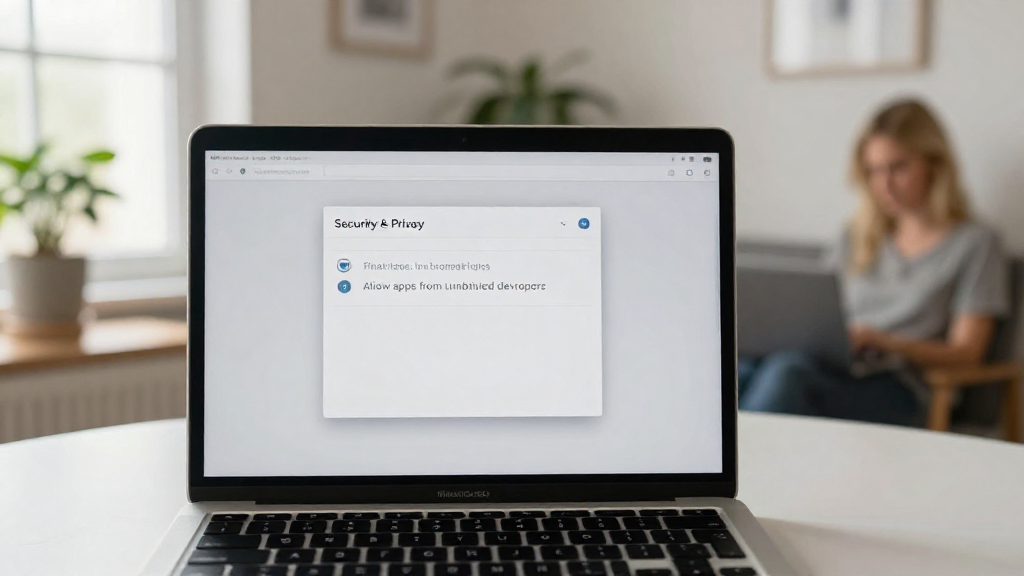
If you’re looking for information on how to allow apps from unidentified developers on Mac, you’ve come to the right place. Many Mac users encounter security settings that prevent them from installing apps from sources outside the App Store. This article will guide you through the process seamlessly.
Why Would You Need to Allow Apps from Unidentified Developers?
Mac’s security settings prioritize user safety by blocking installations from unidentified developers. This is a built-in defense mechanism aimed at preventing malware and ensuring that users only download trusted applications.
However, there may be times when you want to install third-party apps that aren’t available through the App Store, including:
- Open-source software
- Legacy applications
- App modifications
- Beta software
To use these applications, it’s essential to learn how to allow apps from unidentified developers on Mac.
How to Change Security Settings to Allow Unidentified Apps?
The process to modify the security settings on your Mac is straightforward. Here’s how to do it:
-
Open System Preferences
Click on the Apple logo in the upper left corner of your screen.
From the dropdown menu, select System Preferences. -
Access Security & Privacy
In the System Preferences window, locate and click on Security & Privacy. -
Unlock Settings
You may need to unlock changes to adjust your settings.
Click the lock icon located at the bottom left corner.
Enter your administrator password when prompted. -
Change Allow Apps Downloaded From
Under the General tab, you’ll see a section called Allow apps downloaded from:.
Here you have three options:
– App Store
– App Store and identified developers
– Anywhere (may vary, sometimes requires terminal command to enable)
Choose App Store and identified developers for added security if you want to allow certain apps.
-
Identify the App You Want to Open
Try to open the app you previously downloaded again.
A prompt will appear, stating that the app is from an unidentified developer. -
Proceed with Opening the App
Click Cancel on the dialogue box, then return to Security & Privacy settings where a new message will appear, stating that the application was blocked.
Click on Open Anyway to allow the app to run. -
Confirm Open App
Once you click Open Anyway, you will receive another prompt to confirm.
Click Open, and the app should launch without further issues.
What If You Don’t See the “Anywhere” Option?
In some cases, modern macOS versions don’t display the Anywhere option directly. Here’s how to enable it via Terminal, which can guide your efforts in how to allow apps from unidentified developers on Mac:
-
Open Terminal
You can find Terminal in Applications > Utilities or by using Spotlight Search (press Command + Space and type “Terminal”). -
Enter the Command
Copy and paste the following command into the Terminal window, then press Enter:
bash

   sudo spctl --master-disable
-
Enter Your Password
You will likely be prompted to enter your administrator password.
Type it in (note that you won’t see any characters appear) and hit Enter. -
Close Terminal
Exit the Terminal application and revisit the Security & Privacy settings in System Preferences.
The Anywhere option should now be available. -
Select Anywhere
You can now choose Anywhere in the Allow apps downloaded from: section.
Are There Risks to Allowing Unidentified Apps?
While the ability to allow apps from unidentified developers can provide flexibility and access to more software, it comes with risks. Consider the following:
- Malware Risk: Unverified sources may offer contaminated downloads.
- System Instability: Some apps could interfere with system processes and lead to performance issues.
- Security Vulnerabilities: Unidentified developers may not have the same level of security measures as recognized developers.
Always ensure you trust the source of the application before proceeding. It’s advisable to do some research about the software to minimize risks.
How to Revert Changes If Needed?
If you ever decide to revert the settings back to their original state, follow these simple steps:
-
Open System Preferences
Just like before, go to System Preferences. -
Navigate to Security & Privacy
Click on Security & Privacy. -
Unlock Settings
Click the lock icon again and enter your administrator password. -
Change Allow Apps Downloaded From
Switch back to App Store or App Store and identified developers. -
Lock Settings Again
Don’t forget to click the lock icon once again to prevent further changes.
Important Takeaways When Allowing Apps from Unidentified Developers
Before you jump into new downloads, keep these notes in mind:
- Read Reviews: Always look for user reviews about the app and the developer.
- Use Antivirus: Consider using reputable antivirus software for added protection.
- Enable Firewall: Ensure your Mac’s firewall is active for further security.
By following these steps and precautions, you can easily learn how to allow apps from unidentified developers on Mac. This knowledge empowers you to expand your software options while keeping security in mind.
Conclusion
Understanding how to allow apps from unidentified developers on Mac is essential for those who need access to applications outside the App Store. Although macOS has robust security measures, knowing how to disable or adjust those settings can unleash a world of software options.
Always weigh the risks of downloading apps from unverified sources and follow the recommended steps. Happy downloading!