If you edit video on a Mac for hours at a time, the right mouse can make a real difference in speed, comfort, and precision. An ergonomic design helps reduce strain while keeping timeline control smooth and accurate.
Below, we focus on the best options for creators who want dependable scrolling, customizable buttons, and Mac-friendly connectivity for editing workflows.
Best 10 Ergonomic Mouse for Mac Video Editing Picks for 2026
Top Overall Pick
Logitech MX Master 3S for Mac and multi-device workflows

- Natural wrist-friendly ergonomic shape
- MagSpeed scrolling for fast timeline control
- Bluetooth for up to 3 devices
Best For: Mac editors who want comfort, speed, and customization
Most Ergonomic Shape
Logitech MX Vertical for reduced wrist strain

- 57° vertical angle supports better posture
- Handshake grip helps reduce muscular activity
- 4000 DPI sensor with cursor speed switch
Best For: Mac editors prioritizing wrist comfort over extra controls
Best Premium Mac Choice
Logitech MX Master 4 for Mac with haptics
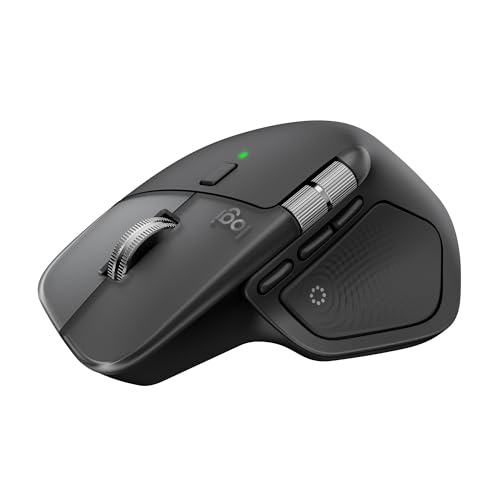
- Haptic Sense Panel for customizable feedback
- Actions Ring for app shortcuts and tools
- MagSpeed scrolling with quiet clicks
Best For: Mac editors who want premium controls and workflow shortcuts
Best Trackball Option
Logitech ERGO M575S for low-movement control

- Thumb trackball reduces hand movement
- Improved forearm posture and quiet clicks
- Bluetooth or Logi Bolt connection
Best For: Editors with limited desk space or motion-sensitive workflows
Vertical Comfort Pick
Logitech Lift Vertical Ergonomic Mouse

- 57-degree vertical shape supports a more natural arm position
- Quiet clicks and SmartWheel suit focused editing work
- Bluetooth or Logi Bolt works with macOS and iPadOS
Best For: Small to medium right hands needing all-day comfort on Mac
Multi-Device Editing Pick
Logitech MX Master 2S Bluetooth Mouse

- Hyper-fast scrolling is useful for long timelines
- Connects to up to 3 computers for switching workflows
- Ergonomic right-handed shape supports longer sessions
Best For: Editors who need fast scrolling and multi-computer flexibility
Mac-First Comfort Pick
Logitech Lift for Mac Vertical Mouse
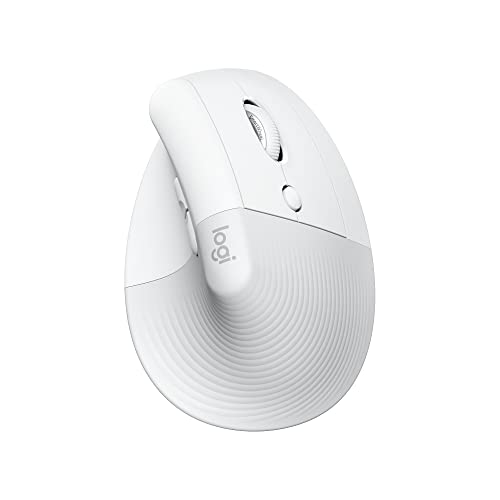
- Made for MacBook, iMac, and iPad via Bluetooth
- 57-degree vertical angle helps relieve wrist pressure
- Quiet clicks and silent SmartWheel reduce distractions
Best For: Small to medium Mac users who want quiet comfort for editing
Ultra-Fast All-Rounder
Logitech MX Master 3S for Mac Editing

- MagSpeed scrolling for fast, precise navigation
- 8K DPI tracking works on more surfaces, even glass
- Quiet clicks and 3-device Bluetooth support
Best For: Mac editors who want speed, silence, and flexible multi-device use
Trackball Comfort Pick

- Thumb trackball reduces arm and wrist movement
- 20-degree tilt supports a more relaxed posture
- Six programmable buttons for editing shortcuts
Best For: Editors who want a comfortable trackball setup with less hand movement
Premium Control Upgrade

- Haptic Sense Panel and Actions Ring add workflow controls
- MagSpeed wheel supports fast, precise timeline navigation
- Ergonomic right-handed design with quiet clicks
Best For: Editors who want premium comfort plus customizable shortcut control
Top Overall Pick – Logitech MX Master 3S for Mac and multi-device workflows
If you want an ergonomic mouse for Mac video editing that balances comfort with speed, the Logitech MX Master 3S is built for heavy desktop workflows. Its natural wrist posture, quiet clicks, MagSpeed scrolling, and 8K DPI tracking make it a strong fit for long editing sessions and timeline navigation.
Best For: Editors who want a comfortable, highly customizable mouse for Mac workflows and multi-device control.
Pros:
- Ergonomic shape supports a more natural wrist posture.
- MagSpeed scrolling is fast, precise, and ultra quiet.
- 8K DPI sensor tracks on glass and other surfaces.
- Up to 3-device Bluetooth connectivity with app-specific customization.
Cons:
- Bluetooth-only model; no USB receiver included.
- Right-handed design only.
For Mac video editors who spend hours scrubbing timelines, this model offers a well-rounded mix of comfort, control, and workflow features. It is especially appealing if you switch between devices or want a mouse that can be tuned to different apps.
Most Ergonomic Shape – Logitech MX Vertical for reduced wrist strain
The Logitech MX Vertical is a strong ergonomic mouse for Mac video editing if your priority is reducing strain during long sessions. Its 57B0 vertical angle, handshake grip, and ergonomist-tested design are all focused on improving posture while still giving you precise cursor control.
Best For: Editors who want a vertical mouse to help reduce wrist pressure and forearm fatigue.
Pros:
- 57B0 vertical angle helps improve wrist posture.
- Handshake position is designed to reduce muscular activity.
- 4000 DPI sensor and cursor speed switch support precise editing.
- Works with Windows, macOS, and iPadOS.
Cons:
- Only 4 buttons, so it is less feature-rich than MX-style productivity mice.
- Vertical shape may take time to get used to.
This is the best pick here if comfort matters more than extra controls. It trades the traditional editing-mouse layout for a posture-first design that can make long Mac sessions feel easier on the wrist.
Best Premium Mac Choice – Logitech MX Master 4 for Mac with haptics
For an ergonomic mouse for Mac video editing with more modern workflow features, the Logitech MX Master 4 for Mac adds haptic feedback and an Actions Ring to the familiar productivity formula. It keeps the natural tilt, thumb wheel, and quiet clicks, while also focusing on smooth, precise control for creative work.
Best For: Mac editors who want a premium mouse with haptics and app-focused shortcuts.
Pros:
- Haptic Sense Panel adds customizable feedback for supported actions.
- Actions Ring provides quick access to app tools and shortcuts.
- MagSpeed scrolling is fast, quiet, and precise.
- Ergonomic design includes a natural tilt and thumb scroll wheel.
Cons:
- USB-C cable is not included.
- Premium feature set may be more than casual users need.
This is the most feature-forward option in the group, especially if you edit in apps that benefit from quick shortcuts and customizable controls. It should appeal to Mac users who want a polished, comfort-oriented mouse built around productivity.
Best Trackball Option – Logitech ERGO M575S for low-movement control
The Logitech ERGO M575S is a practical ergonomic mouse for Mac video editing if you want to keep hand movement to a minimum. Its thumb-controlled trackball design lets you move the cursor without moving your hand, which can be especially useful on compact desks or during long editing sessions.
Best For: Editors who want a trackball mouse that saves desk space and minimizes hand movement.
Pros:
- Thumb trackball lets you control the cursor without moving your hand.
- Designed for less movement and improved forearm posture.
- Quiet clicks and customizable buttons support workflow use.
- Bluetooth or included Logi Bolt receiver connectivity with long battery life.
Cons:
- Trackball layout is less familiar than a standard mouse.
- Only 2 main buttons, so it is simpler than productivity mice like MX models.
If you are editing on a small setup or want to reduce repetitive hand travel, this trackball is worth a look. It is less about speed scrolling and more about stable, low-effort pointer control over long sessions.
Vertical Comfort Pick – Logitech Lift Vertical Ergonomic Mouse
If you’re looking for an ergonomic mouse for Mac video editing, the Logitech Lift focuses on comfort first. Its 57-degree vertical shape, soft thumb rest, and quiet clicks are built to reduce wrist strain during long sessions, while Bluetooth or Logi Bolt support makes it easy to use with macOS and iPadOS workflows.
Best For: Small to medium right hands that want a vertical mouse for long Mac editing sessions.
Pros:
- 57-degree vertical design promotes a more natural forearm position
- Quiet clicks and SmartWheel scrolling help keep editing sessions distraction-free
- Bluetooth Low Energy or Logi Bolt connection works with macOS and iPadOS
- Up to 24-month battery life reduces charging hassles
Cons:
- Made for right-handed users only
- Best fit is small to medium hands, so larger hands may prefer a bigger mouse
For Mac video editors who want a more upright grip without giving up modern wireless convenience, Lift is a practical comfort-first choice. It is especially appealing if you spend hours trimming clips, scrubbing timelines, and want a mouse that feels easy on the wrist.
Multi-Device Editing Pick – Logitech MX Master 2S Bluetooth Mouse
The Logitech MX Master 2S is a strong ergonomic mouse for Mac video editing if you want a productivity-first shape with smooth scrolling and multi-computer use. Its ergonomic design, hyper-fast scrolling, and support for up to three Mac or PC computers make it a flexible option for busy editors who switch between systems.
Best For: Editors who move between multiple computers and want fast scrolling with an ergonomic right-handed shape.
Pros:
- Hyper-fast scrolling helps move through long timelines quickly
- Connects to up to 3 Mac/PC computers for multi-device workflows
- Ergonomic right-handed design supports extended use
- Bluetooth connectivity keeps the desk setup wireless
Cons:
- Supplied notes list Windows compatibility details, so Mac-specific support is less explicit
- Heavier than some compact mice at 145 grams
If your editing routine includes jumping between machines, the MX Master 2S offers a proven productivity layout. It is less specialized for Mac than the Lift for Mac, but it stands out for scrolling speed and multi-computer convenience.
Mac-First Comfort Pick – Logitech Lift for Mac Vertical Mouse
The Logitech Lift for Mac is built for users who want an ergonomic mouse for Mac video editing with a Mac-specific setup in mind. Its 57-degree vertical angle, whisper-quiet clicks, and silent magnetic SmartWheel are designed for comfortable, low-distraction use on MacBook Pro, MacBook Air, iMac, and iPad models over Bluetooth.
Best For: Mac users with small to medium hands who want a quiet vertical mouse for editing and general productivity.
Pros:
- Designed for Mac and compatible with MacBook Pro, MacBook Air, iMac, and iPad models
- Vertical 57-degree angle helps reduce wrist pressure
- Whisper-quiet clicks and silent SmartWheel suit shared or quiet workspaces
- 4 customizable buttons add useful shortcuts for editing tasks
Cons:
- Right-handed only
- Four buttons is fewer than some productivity mice
For Mac editors who want a version of Lift tailored specifically to Apple devices, this model is the clearest fit. It keeps the same comfort-forward vertical design while adding Mac-focused compatibility and quiet operation for long editing days.
Ultra-Fast All-Rounder – Logitech MX Master 3S for Mac Editing
The Logitech MX Master 3S is a strong ergonomic mouse for Mac video editing if you want fast navigation, quiet clicks, and broad device support. Its MagSpeed wheel is built for rapid timeline movement, while 8K DPI tracking and track-on-glass support make it practical on a busy desk or on the move.
Best For: Editors who want a comfortable, multi-device mouse with fast scrolling and quiet operation.
Pros:
- MagSpeed scrolling is designed for fast, precise timeline and document navigation.
- 8K DPI sensor tracks on more surfaces, including glass.
- Quiet Clicks reduce click noise without changing the feel much.
- Can connect to up to 3 devices via Bluetooth and supports macOS.
Cons:
- Logi Bolt USB receiver is not included.
- Right-handed shape may not suit everyone.
- Not the most specialized choice if you specifically want a trackball layout.
For Mac editors who value speed, silence, and workflow flexibility, this is a very capable everyday option. It is especially appealing if you switch between devices or want a mouse that handles both editing and general productivity well.
Trackball Comfort Pick – Logitech MX Ergo S for Mac
The Logitech MX Ergo S is an ergonomic mouse for Mac video editing that favors comfort and control over constant hand movement. Its thumb-driven trackball, 20-degree tilt, and sculpted shape are made to reduce strain during longer editing sessions, while the customizable buttons help speed up common tasks.
Best For: Editors who want a trackball mouse with a more relaxed hand position and fewer arm movements.
Pros:
- Thumb control lets you move the pointer with less arm and wrist motion.
- 20-degree tilt is designed to improve forearm posture and reduce strain.
- Six programmable buttons can be tailored through Logi Options+.
- Bluetooth and Logi Bolt connectivity offer flexible setup options for Mac and PC.
Cons:
- Trackball design has a learning curve if you are used to a standard mouse.
- Best suited to medium- and large-sized hands.
- Lower 2048 DPI max sensitivity is less focused on speed than some traditional mice.
If your main priority is comfort during long edits, the MX Ergo S stands out with its trackball design and ergonomic tilt. It is a good fit for editors who want to reduce movement fatigue and keep their hands in a more fixed position.
Premium Control Upgrade – Logitech MX Master 4 for Mac
The Logitech MX Master 4 is a premium ergonomic mouse for Mac video editing built around speed, comfort, and app-focused controls. Its Haptic Sense Panel and Actions Ring are aimed at quicker access to shortcuts and tools, while the MagSpeed wheel and thumb scroll wheel support efficient navigation through long timelines.
Best For: Editors who want advanced shortcut control, premium ergonomics, and fast scrolling in one mouse.
Pros:
- Haptic feedback and Actions Ring add customizable control for supported workflows.
- MagSpeed scrolling is built for very fast, precise movement.
- Ergonomic shape, natural tilt, and thumb scroll wheel are designed to reduce hand stress.
- Quiet clicks and Bluetooth or USB-C dongle connectivity suit focused Mac editing setups.
Cons:
- Advanced features may be more than casual users need.
- Like the other MX Master models, it is right-handed only.
- Some app-specific tools depend on software support and setup.
For Mac editors who want the most feature-rich option here, the MX Master 4 brings the strongest mix of comfort and workflow tools. It is especially compelling if you like to customize controls and move quickly between editing actions.
How We Picked the Best Ergonomic Mouse for Mac Video Editing
For this roundup of the best Ergonomic Mouse for Mac Video Editing options, we prioritized comfort during long sessions, precise pointer control, fast navigation, and Mac compatibility. We also looked for features that matter in editing software, such as horizontal or ultra-fast scrolling, programmable buttons, multi-device pairing, and quiet clicks for shared workspaces.
Quick Comparison
Most buyers will choose between a traditional ergonomic mouse, a vertical mouse, or a trackball. Traditional ergonomic designs tend to feel familiar and are often best for users who switch between editing and general work. Vertical mice aim to reduce wrist twist, while trackballs can be ideal if you want to keep your hand in one spot and rely on thumb control for fine movement.
Key Buying Factors for Ergonomic Mouse for Mac Video Editing
Comfort Over Long Edits
Video editing often means extended use of the mouse for trimming clips, moving around timelines, and color work. Look for a shape that supports your grip style and reduces fatigue without forcing a steep learning curve.
Scrolling and Precision
Fast, smooth scrolling is valuable when jumping through long timelines or large project bins. High-DPI sensors help with precise cursor movement, while adjustable sensitivity can make fine edits easier.
Buttons and Workflow Speed
Customizable buttons can save time in Final Cut Pro, Premiere Pro, and DaVinci Resolve by mapping actions like undo, cut, zoom, or play/pause. The more you can keep common commands under your thumb, the less often you need to reach for the keyboard.
Mac Connectivity
Bluetooth is convenient for clean desk setups, but some users prefer a receiver for the most consistent connection. If you move between a MacBook, desktop Mac, and tablet, multi-device switching can be a major advantage.
Who Should Buy Which Ergonomic Mouse for Mac Video Editing?
If you want the most balanced all-around choice, a feature-rich ergonomic mouse is usually best. If wrist comfort is your top concern, consider a vertical model. If you want to minimize hand movement during editing, a trackball can be the smarter pick. And if your priority is a Mac-first setup with strong productivity controls, choose a model with Mac-focused compatibility and programmable buttons.
In short, the right Ergonomic Mouse for Mac Video Editing depends on how you edit, how long you work, and how much control you want at your fingertips. Match the shape and feature set to your workflow, and you’ll get a mouse that feels better and speeds up everyday editing tasks.