If you use a Mac Mini and MacBook together, the right KVM switch can simplify your desk fast. One setup can share a monitor, keyboard, mouse, and other USB accessories without constant cable swapping.
In this roundup, we focused on practical models that suit modern Apple workflows, from compact USB-C switches to dual-monitor KVM docks with charging and hub features.
Best 10 KVM Switch for Mac Mini and MacBook Picks for 2026
Value HDMI KVM

- 4K@60Hz HDMI output
- 4 USB 3.0 shared ports
- Manual switch, no hotkey support
Best For: Basic two-computer desk sharing with one HDMI monitor and common USB peripherals
Premium Thunderbolt 4 KVM
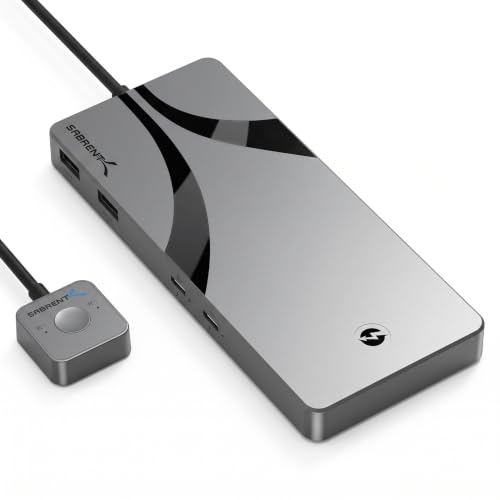
- 3 Thunderbolt 4 ports
- 4 USB-A 3.2 Gen 2 ports
- Up to 8K@60Hz or dual 4K@60Hz
Best For: Power users with Thunderbolt accessories who want top-tier USB-C sharing
USB-C Display KVM

- Dual USB-C computer inputs
- 100W USB-C PD 3.0 charging
- Front USB-C and USB-A accessory ports
Best For: USB-C Mac setups that want high-refresh video and built-in charging
Laptop-Desktop KVM

- 4K@60Hz HDMI output
- 5 USB 3.0 ports plus remote button
- 100W PD-IN for the laptop side
Best For: One laptop-plus-desktop workstation with simple one-button switching
Dual-Display USB-C Dock KVM
AV Access 2 Laptop / 2 Monitor Switch

- Dual-monitor KVM plus docking station
- 2x HDMI, USB, Ethernet, SD, audio
- Up to 60W charging per connected PC
Best For: Shared dual-monitor desks with two USB-C laptops and lots of peripherals
Mixed-Input 4K KVM
Hearvo USB 3.0 HDMI + USB-C Switch

- 1 monitor, 2 computers, mixed inputs
- 4K@60Hz with HDCP 2.2 support
- 4 USB ports and wired remote included
Best For: Single-monitor Mac mini and laptop sharing with simple peripheral switching
Compact USB-C Mini KVM
StarTech 2-Port 4K 60Hz Switch

- Compact bus-powered two-port KVM
- 4K 60Hz HDMI output
- USB-C host cables included
Best For: Portable one-monitor desks with two USB-C computers
Type-C Simplicity
Lemorele USB-C KVM for Two DP Alt Mode Devices

- 4K@60Hz HDMI output
- 100W PD input, up to 60W charging
- Direct USB-C device connections only
Best For: MacBook users with DP Alt Mode USB-C ports and one HDMI monitor
Dual-Screen Sharing
UGREEN HDMI KVM for Two Computers and Two Monitors

- Dual-monitor switching for 2 computers
- 4 USB 3.0 ports plus desktop controller
- 4K@60Hz with HDMI cables included
Best For: Dual-monitor Mac and PC setups that need shared USB peripherals
Docking-Style Power
AV Access 8K KVM Dock for Two Computers

- Dual 8K@60Hz or 4K@165Hz support
- 100W USB-C charging with Ethernet
- macOS dual-display output is mirror mode only
Best For: Users who want a feature-rich KVM dock with charging and wired networking
Value HDMI KVM – 2 PCs, 1 Monitor, 4 USB 3.0
If you want a straightforward KVM switch for Mac Mini and MacBook workflows, this UGREEN model is built around simple two-computer, one-monitor sharing. It supports Mac OS alongside Windows and Linux, and it works well when you need to switch a shared desk setup without adding complexity.
Best For: Users who want an HDMI-based KVM for one monitor plus shared keyboard, mouse, webcam, and USB storage.
Pros:
- Supports 1 monitor and 2 computers with HDMI 2.0
- Includes 4 USB 3.0 ports for shared peripherals and drives
- Offers up to 4K@60Hz with HDR, HDCP 2.2, and 3D support
- Comes with a desktop controller plus included HDMI and USB cables
Cons:
- No hotkey switching
- No EDID emulation
- Requires both USB A-to-B cables connected for power and data transfer
For a basic Mac Mini and MacBook sharing setup, this is a practical pick if you are fine with manual switching and an HDMI monitor path. It is more about dependable essentials than advanced convenience features.
Premium Thunderbolt 4 KVM – 40Gbps USB-C Sharing
For a high-end KVM switch for Mac Mini and MacBook users, the Sabrent Thunderbolt 4 model is the most capable option here for USB-C and Thunderbolt workflows. It is designed to share Thunderbolt and USB devices between two hosts while also supporting display output for modern productivity setups.
Best For: Mac and Windows users who want Thunderbolt 4 device sharing, fast USB ports, and a polished premium setup.
Pros:
- Three Thunderbolt 4 ports with up to 40Gbps transfer speeds
- Four USB-A 3.2 Gen 2 ports at up to 10Gbps
- Supports up to 8K@60Hz or dual-screen 4K@60Hz use cases
- Includes a 24V/5A power adapter and 60W PD 3.0 charging
Cons:
- Higher-end, more specialized than a basic HDMI KVM
- Best suited to Thunderbolt/DP Alt Mode capable devices
- Designed around two host computers only
This is the strongest choice if your Mac setup relies on Thunderbolt accessories and you want fewer compromises in speed and display capability. It is premium, but the feature set matches that positioning.
USB-C Display KVM – 4K@120Hz, 100W PD
This MINIX KVM switch for Mac Mini and MacBook setups is a clean USB-C option when you want dual computer control with one monitor and minimal desk clutter. It uses dual USB-C inputs, includes USB-C cables, and is aimed at modern shared workstations that prioritize high refresh display support.
Best For: USB-C laptops and desktops that need one-monitor switching with fast charging and high refresh output.
Pros:
- Dual USB-C inputs for 2 computers
- Supports up to 4K@120Hz HDR with HDCP compliance
- Integrated 100W USB-C PD 3.0 charging
- Includes 1 USB-C and 2 USB-A front ports for accessories
Cons:
- HDMI cable for the monitor is not included
- Requires devices and monitor to support 4K@120Hz for full output
- Not compatible with Apple monitors that lack HDMI input
If your MacBook setup is centered on USB-C and you want a sharper, more modern display path than standard 4K@60Hz models, this is a strong fit. Just make sure your monitor and cable choice match its higher bandwidth demands.
Laptop-Desktop KVM – 4K HDMI, 100W Charging
If you need a KVM switch for Mac Mini and MacBook use but only plan to share one laptop and one desktop, this Anker model keeps the setup simple. It is designed for a laptop-and-desktop pairing, with HDMI video, multiple USB 3.0 ports, and a magnetic remote button for easy switching.
Best For: A MacBook plus desktop setup where you want one-touch switching, shared USB devices, and charging for the laptop.
Pros:
- Supports 4K@60Hz HDMI video
- Provides 5 USB 3.0 ports for shared peripherals and storage
- Includes a magnetic remote button for one-click switching
- Offers 100W PD-IN, with charging for PC1 laptop
Cons:
- Not compatible with two USB-C laptops
- Intended for one laptop and one desktop only
- Requires a USB-C port that supports DP Alt Mode and Power Delivery
This is a good fit if your MacBook is the laptop side of the equation and your other machine is a desktop. It focuses on convenience and essentials rather than broad multi-device flexibility.
Dual-Display USB-C Dock KVM – AV Access 2 Laptop / 2 Monitor Switch
If you want a KVM switch for Mac Mini and MacBook-style USB-C workflows with two monitors, this AV Access dock is built for a dual-system desk. It combines a docking station and KVM in one unit, letting two USB-C laptops share dual HDMI displays, Ethernet, storage, audio, and USB peripherals from a single setup.
Best For: Dual-monitor home office users who want one shared dock/KVM for two USB-C laptops and mixed workstation peripherals.
Pros:
- Combines a dual-monitor KVM and docking station in one device
- Supports 2x HDMI outputs, shared USB ports, Ethernet, SD card, and audio
- Provides up to 60W charging for each connected laptop
- Features EDID emulation and fast 2-3 second switching
Cons:
- Mac OS does not support MST, so mirrored displays are expected on two screens
- Extended dual-screen mode requires a USB-C laptop with DP Alt Mode and DP MST support
- Not compatible with 5K monitors, including 5120×1440 ultrawides
This is a strong fit if your priority is reducing cable clutter while switching quickly between two USB-C systems. Just make sure your Mac setup matches the display limitations before relying on it for extended dual-monitor use.
Mixed-Input 4K KVM – Hearvo USB 3.0 HDMI + USB-C Switch
For a KVM switch for Mac Mini and MacBook setups that only need one monitor, this Hearvo unit is a practical mixed-input option. It lets one computer connect through HDMI + USB-A while the other uses a full-function USB-C cable, so it works well when you want to share a single display, keyboard, mouse, and USB devices between a desktop and a laptop.
Best For: One-monitor workstation users who need a simple shared setup between a Mac mini and a USB-C laptop or PC.
Pros:
- Designed for 1 monitor and 2 computers with mixed HDMI and USB-C input
- Supports 4K@60Hz output with HDCP 2.2 compatibility
- Includes 4 USB ports for sharing peripherals and storage devices
- Offers button switching plus a wired remote controller
Cons:
- Limited to a single monitor setup
- One connected computer uses HDMI + USB-A instead of matching USB-C on both sides
- Best suited to standard desktop sharing rather than multi-display workflows
Overall, this is a straightforward way to consolidate a Mac mini and laptop around one display without adding much complexity. Its biggest advantage is flexible input support, though it is clearly aimed at single-monitor productivity.
Compact USB-C Mini KVM – StarTech 2-Port 4K 60Hz Switch
If you need a compact KVM switch for Mac Mini and MacBook use, this StarTech model keeps the setup very simple. It is designed for two USB-C or Thunderbolt 3 computers to share one monitor, keyboard, and mouse, and it comes with the USB-C host cables included for quick deployment.
Best For: Portable or space-saving desks where two USB-C systems need to share one 4K monitor and basic peripherals.
Pros:
- Compact, bus-powered design reduces desk clutter
- Supports 4K at 60Hz over HDMI output
- Includes USB-C cables for the host computers
- Works across many systems, including macOS and Thunderbolt 3 devices
Cons:
- Only supports two USB-C or Thunderbolt 3 computers
- Single-monitor design, so it is not for multi-display desks
- Best suited to basic sharing rather than a full docking hub workflow
This is the cleanest pick in the group if you want a small, travel-friendly KVM with minimal setup. It favors simplicity and portability over expansion, which makes it easy to recommend for lean Mac mini and MacBook workstations.
Type-C Simplicity – Lemorele USB-C KVM for Two DP Alt Mode Devices
If you want a KVM switch for Mac Mini and MacBook setups that stays simple, this Lemorele model is built around two USB-C devices sharing one HDMI display and a common set of peripherals. It’s a practical fit when both computers have full-function USB-C/Thunderbolt ports with DP Alt Mode and you want one-button switching without drivers.
Best For: MacBook users who need a direct USB-C KVM setup with one HDMI monitor, shared USB devices, and pass-through charging.
Pros:
- Supports 4K@60Hz over HDMI for sharp everyday office or entertainment use.
- Includes 100W PD input and up to 60W charging for the currently active laptop.
- Shares keyboard, mouse, USB storage, and audio through multiple USB-A and USB-C data ports.
- Plug-and-play design with a physical one-click switch button.
Cons:
- Requires a USB-C port that supports DP Alt Mode; charging-only USB-C ports will not work for video.
- Not recommended for most desktop PCs without full-function USB-C video output.
- Must connect directly to the host device, not through a dock or hub.
For MacBook-based workstations, this is a clean, compact way to share one monitor and peripherals. Just make sure your USB-C ports support video output and that you use the direct cabling the unit requires.
Dual-Screen Sharing – UGREEN HDMI KVM for Two Computers and Two Monitors
This UGREEN option is a stronger fit for a KVM switch for Mac Mini and MacBook users who need two monitors rather than one. It supports dual-screen sharing between two computers, offers 4K@60Hz output, and includes USB 3.0 ports for common peripherals like keyboards, mice, printers, and storage devices.
Best For: Two-computer setups that need dual monitors, USB 3.0 sharing, and a straightforward plug-and-play HDMI KVM.
Pros:
- Supports two monitors with extend mode and mirror mode.
- Includes 4 USB 3.0 ports for sharing peripherals and storage devices.
- Supports 4K@60Hz, HDMI 2.0, HDCP 2.2/1.4, HDR, and HDR10+.
- Comes with HDMI cables, USB cables, power adapter, and a desktop controller.
Cons:
- EDID emulation is not supported.
- No hotkey switching; control is by button or desktop controller only.
- Each computer must connect with 2 HDMI cables plus 1 USB-A cable for proper use.
If your Mac Mini and MacBook both support the required display connections, this switch offers a practical dual-monitor workflow. It’s especially useful when you want more USB ports and don’t need shortcut-based switching.
Docking-Style Power – AV Access 8K KVM Dock for Two Computers
For buyers looking for a KVM switch for Mac Mini and MacBook use cases with more docking-station features, this AV Access model combines dual-monitor switching, fast charging, wired networking, and a broad port selection. It is built for users who want one hub-like device to handle displays, peripherals, Ethernet, audio, and storage.
Best For: Power users who want a KVM docking station with dual monitors, 100W USB-C charging, Ethernet, and high-speed USB expansion.
Pros:
- Supports dual 8K@60Hz or 4K@165Hz on desktops, plus dual 4K@60Hz on laptops via USB-C.
- Includes 100W USB-C charging, Gigabit Ethernet, audio, SD, and multiple USB ports.
- Both connected systems can stay online through shared Ethernet even when not selected.
- Switches by top button or wired remote without drivers or software.
Cons:
- macOS does not support extended dual displays here; MacBooks are limited to mirror mode.
- Requires attention to host compatibility, since extended mode is reserved for Windows and Linux.
- More feature-rich than a basic KVM, so it may be overkill for simple single-monitor setups.
This is a strong choice when you want a workstation hub as much as a KVM. Mac users should note the mirror-mode limitation, but the hardware package is compelling for mixed-device desks.
How We Picked the Best KVM Switch for Mac Mini and MacBook
We looked for models that fit real-world KVM Switch for Mac Mini and MacBook setups: stable video output, reliable USB peripheral sharing, and enough power delivery for a laptop workflow. We prioritized options with clear Mac-friendly connection paths, strong resolution support, and features that reduce desk clutter rather than add complexity.
Quick Comparison: What Matters Most
The biggest difference between models is whether they support one monitor or two, and whether they connect through HDMI, USB-C, or both. Single-display users usually want the simplest setup and widest compatibility. Dual-monitor buyers should check for MST support, Mac compatibility notes, and the number of video outputs your Mac actually supports.
Key Buying Factors for a KVM Switch for Mac Mini and MacBook
1. Video Ports and Resolution
Match the switch to your monitor setup first. Many Mac users will be best served by 4K at 60Hz, while creators and high-refresh users may want 4K at 120Hz or dual-monitor support. Make sure the switch and your Macs can both handle the same output standard.
2. USB-C, HDMI, or Mixed Inputs
USB-C KVMs are often cleaner for MacBook users, while HDMI-based switches can be ideal for a Mac Mini already connected to a display. Mixed-input models are useful if you plan to share a monitor between a MacBook and a desktop-style setup.
3. Power Delivery
If you want one cable to handle both connection and charging, look for adequate USB-C power delivery. For a MacBook, 60W may be enough for lighter use, while 100W is safer for more demanding charging needs.
4. Peripheral and Hub Support
Consider how many devices you want to share. Beyond keyboard and mouse, some buyers need audio, Ethernet, printers, webcams, or external SSDs. Extra USB ports can make a KVM feel more like a docking station.
Who Should Buy Which KVM Switch for Mac Mini and MacBook?
If you want the simplest Mac Mini and MacBook sharing setup, choose a basic single-monitor KVM with reliable USB 3.0 support. If you use two displays or want a more complete desk hub, a dual-monitor KVM dock is the better fit. If you depend on a single-cable MacBook workflow, prioritize USB-C input and meaningful power delivery. For mixed fleets or future flexibility, pick the model with the most conservative compatibility requirements and the video standard your monitors already use.