If you’re trying to share one desk setup between two Macs, the right KVM switch can save time, reduce cable clutter, and make switching devices feel seamless.
This roundup focuses on practical options for dual-display, USB-C, HDMI, and DisplayPort setups so you can match the switch to your Mac workflow.
Best 10 KVM Switch for Two Macs Picks for 2026
Dual-Display MacBook KVM Dock

- Dual HDMI switch with docking station features
- 100W PD, Ethernet, and multiple USB ports
- No software required; EDID helps stabilize switching
Best For: MacBook plus one Windows PC users who need dual monitors
Compact HDMI-USB-C KVM
1-Monitor HDMI + USB-C KVM Switch

- Shares one monitor between two computers
- 4 USB ports for keyboard, mouse, and peripherals
- 4K@60Hz with button or wired remote switching
Best For: One-monitor setups with a Mac mini or laptop
Dual-Laptop KVM Dock
2-Laptop, 2-Monitor USB-C KVM Dock

- Dual HDMI monitors with two USB-C laptop inputs
- Up to 60W charging per laptop plus Ethernet
- Fast switching with EDID emulation and auto wake
Best For: Two USB-C laptops sharing a dual-monitor setup
Basic 4K HDMI KVM

- One monitor sharing for two computers
- 4K@60Hz with plug-and-play setup
- Includes HDMI and USB cables
Best For: Budget one-monitor switching with minimal extras
Premium Dock Pick

- Dual-monitor KVM with docking-station ports
- 100W USB-C charging and Gigabit Ethernet
- macOS dual displays work in mirror mode only
Best For: Mac users who want a dock-style KVM and can live with mirror mode
Simple HDMI Pick

- Two-monitor HDMI KVM with 4 USB 3.0 ports
- Works with macOS, Windows, and Linux
- Includes cables, power adapter, and desktop controller
Best For: Two Macs with HDMI outputs that need a simple shared dual-monitor switch
Single-Monitor Pick

- Single-monitor KVM with 8K@60Hz and 4K@165Hz support
- USB 3.0 sharing plus button and IR remote switching
- Works with macOS and other major platforms
Best For: Two Macs sharing one high-resolution monitor and USB peripherals
Single-Screen HDMI Switcher
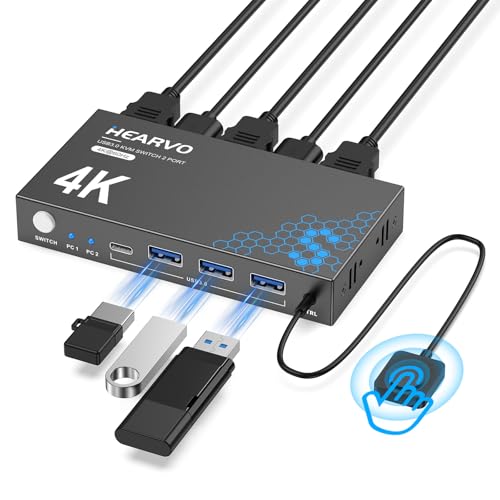
- Single-monitor HDMI KVM for two computers
- 4 USB 3.0 ports with USB-C included
- Adaptive EDID and wired remote switching
Best For: Single-monitor Mac setups that need easy peripheral sharing
Mixed-Port Dual Display Station

- Dual-monitor KVM with HDMI and DisplayPort
- 3 USB 3.0 ports plus mic/headset jacks
- Includes 5V/2A adapter and desktop controller
Best For: Desktop Mac users who want mixed HDMI and DP flexibility
Dual-Display MacBook KVM Dock – MacBook + PC Dual 4K KVM Dock
If you want a KVM switch for two Macs? this dock is actually aimed at a MacBook plus one Windows PC workflow, with dual HDMI monitors and built-in docking features. It’s a strong fit if your setup centers on a MacBook and you want one-cable switching, charging, and peripheral sharing without extra software.
Best For: MacBook users who also switch with one Windows PC and need dual monitors plus docking in one unit.
Pros:
- Supports dual 4K displays for MacBook + PC switching.
- No drivers or DisplayLink software required.
- Includes 100W USB-C power delivery and 1G Ethernet.
- EDID emulation helps keep monitor layout stable when switching.
Cons:
- Not designed for Mac mini or Mac Studio.
- MacBook M1/M2 only support one external monitor.
- MacBook M3 dual-monitor support requires the lid closed.
For the right MacBook-based desk, this is one of the more integrated options because it combines KVM switching, docking, and display management. Just check your Mac chip first, since the external display limits matter a lot here.
Compact HDMI-USB-C KVM – 1-Monitor HDMI + USB-C KVM Switch
For a KVM switch for two Macs with a simpler one-monitor setup, this model is built around sharing one display, keyboard, mouse, and USB devices between two computers. Its mixed HDMI and full-function USB-C input makes it a practical choice for a Mac mini setup or a laptop-and-desktop desk where you want quick switching without software.
Best For: Two-computer desks that share one monitor and include a Mac mini in the mix.
Pros:
- Supports one monitor with two computers using HDMI + USB-C input.
- 4 USB ports let you share several peripherals at once.
- 4K@60Hz output with HDCP 2.2 support.
- Button and wired remote switching options keep control easy.
Cons:
- Designed for one monitor only, not dual displays.
- Best suited to PC + laptop or PC + Mac mini-style setups.
- USB-C source must be full-function for video and data.
This is the more compact, desk-friendly option if your priority is straightforward one-screen sharing. It keeps setup simple while still offering 4K output and enough USB ports for daily peripherals.
Dual-Laptop KVM Dock – 2-Laptop, 2-Monitor USB-C KVM Dock
If you’re shopping for a KVM switch for two Macs and want a dual-monitor desk, this dock is built for two USB-C laptops sharing two HDMI displays and peripherals. It combines switching, charging, and networking into one unit, but it’s important to note that macOS does not support MST here, so the dual-screen behavior is duplicated rather than extended on Macs.
Best For: Dual-laptop workstations where both systems can use USB-C and the user wants docking plus two monitors.
Pros:
- Connects two USB-C laptops to two HDMI monitors.
- Provides up to 60W charging for each laptop.
- Includes Ethernet, SD card, headset, and multiple USB ports.
- EDID emulation and auto wake help switching happen in 2-3 seconds.
Cons:
- MacOS does not support MST, so Macs mirror instead of extend on two screens.
- Extended dual-monitor mode depends on DP alt mode and DP MST support.
- Not compatible with 5K monitors or some ultrawide resolutions.
This is a capable dock if your two-computer setup is mostly laptop-based and you want to minimize cable clutter. Mac users should verify display mode expectations first, since the MST limitation is the deciding factor.
Basic 4K HDMI KVM – Simple 2-Computer 4K HDMI KVM
For a simple KVM switch for two Macs, this is the most straightforward option in the group: one monitor, two computers, and shared keyboard and mouse control. It keeps things plug-and-play and is a good fit when you just need a basic HDMI switch rather than a docking station.
Best For: Budget-friendly one-monitor setups with two computers and minimal complexity.
Pros:
- Supports 4K@60Hz output for a sharp single-monitor setup.
- Works with Mac OS, Windows, Linux, and Chrome OS.
- No external power required.
- Includes HDMI and USB cables in the box.
Cons:
- Only shares one monitor, not dual displays.
- Does not add docking features like Ethernet or card readers.
- More limited than USB-C KVM docks for modern laptop desks.
This is the best fit if you want a basic switch and don’t need the extra features of a dock. It’s simple, widely compatible, and easy to set up for a clean two-computer workstation.
Premium Dock Pick – AV Access 8K KVM Dock
If you want a KVM switch for two Macs that also acts like a full docking station, this AV Access model is built for high-end desk setups. It supports dual monitors, fast USB-C charging, and shared networking, but macOS is limited to mirror mode on dual displays, so it fits Mac users best when that limitation is acceptable.
Best For: Mac users who want a dock-style KVM with dual-monitor sharing and strong peripheral expansion, especially when mirror mode is fine.
Pros:
- Shares two monitors plus keyboard, mouse, audio, USB, SD, and Gigabit Ethernet between two computers.
- Offers 100W USB-C charging and a built-in hub with HDMI, DisplayPort, USB-A, USB-C, SDXC, and audio.
- Supports very high refresh rates and up to dual 8K@60Hz or 4K@165Hz on desktops.
- Includes a wired remote and top-button switching with no driver install required.
Cons:
- macOS does not support extended dual displays here; Macs are limited to mirror mode.
- Windows and Linux are the systems that support extended mode.
- More complex and desktop-oriented than a basic KVM switch.
For mixed-platform users or Mac owners who mainly need a premium dock and fast switching, this is a powerful option. Just make sure the macOS display limitation matches your workflow before buying.
Simple HDMI Pick – UGREEN 4K Dual Monitor KVM
This UGREEN KVM switch for two Macs is a straightforward dual-monitor HDMI option for shared desk setups. It supports Windows, macOS, and Linux, and it keeps things simple with plug-and-play operation, but you should only choose it if your Macs can already output dual-screen HDMI correctly.
Best For: Mac users with dual-HDMI outputs who want an easy plug-and-play KVM for two monitors and shared USB peripherals.
Pros:
- Supports two computers sharing two HDMI monitors with extend and mirror modes.
- Includes four USB 3.0 ports for keyboard, mouse, flash drives, printer, and other peripherals.
- Works with macOS, Windows, and Linux, and requires no drivers or software.
- Comes with cables, a power adapter, and a desktop controller for easier setup.
Cons:
- This is an HDMI-only KVM, not DisplayPort.
- Each computer needs 2 HDMI cables plus 1 USB-A cable to work properly.
- EDID emulation and keyboard hotkeys are not supported.
For a simple two-Mac desk where both machines already support dual HDMI displays, this is an easy way to share monitors and USB devices. It is less flexible than a higher-end dock, but the included accessories make setup easier.
Single-Monitor Pick – 8K HDMI KVM for Two Macs
If you only need one display, this KVM switch for two Macs is a clean, compact way to share a monitor, keyboard, mouse, and USB 3.0 device between two computers. It focuses on high-resolution video and easy switching, making it a better fit for single-monitor Mac workstations than dual-screen setups.
Best For: Mac users who want a high-resolution single-monitor KVM with simple switching and USB peripheral sharing.
Pros:
- Supports up to 8K@60Hz or 4K@165Hz with full 4:4:4 color.
- Shares one monitor plus keyboard, mouse, flash drive, and other USB 3.0 peripherals.
- Switches by front button or included IR remote.
- Works with macOS, Windows, Linux, Chrome OS, and game consoles.
Cons:
- Only supports one monitor, so it is not a dual-display solution.
- No external power is needed, which may be a limitation for some bus-powered setups.
- It is a simpler switch than full docking-style KVMs.
This is the most practical choice here if your Mac setup is single-monitor and you care more about high refresh rates or clean desk control than about extra display outputs. The aluminum build and remote control make it feel polished for everyday use.
Dual-DisplayPort Desktop Hub – Unitek Dual Monitor DP KVM
If you need a KVM switch for two Macs and your setup is built around DisplayPort monitors, this Unitek dual-monitor model is aimed at a very specific use case: two desktop computers, two screens, and one shared set of peripherals. It supports one DisplayPort from each computer to drive two monitors, with fast front-button or wired-remote switching and 4K@60Hz output.
Best For: Desktop users who want a dual-monitor DisplayPort KVM for a Mac-compatible workflow, while accepting that macOS will only expand one display because it does not support MST.
Pros:
- Dual-monitor DisplayPort KVM with 4K@60Hz support.
- 4 USB 3.0 ports, including 1 USB-C and 3 USB-A.
- Instant switching via front button or wired remote.
- Plug-and-play design with no drivers required.
Cons:
- Not compatible with laptops.
- DisplayPort only; no HDMI input option.
- macOS can only expand one display because MST is not supported.
This is a strong fit if you want a compact, desktop-only KVM and your Macs are paired with DisplayPort monitors. Just be sure the single-display limitation on macOS matches how you plan to work.
Single-Screen HDMI Switcher – Hearvo 4K HDMI KVM
This Hearvo unit is a practical KVM switch for two Macs if your setup uses one monitor and HDMI. It combines keyboard, mouse, and USB sharing with 4K@60Hz video, plus an adaptive EDID feature and a wired desktop controller for quick switching.
Best For: Users who want a simple 2-computer, 1-monitor HDMI KVM for shared peripherals and stable 4K display output.
Pros:
- 4K@60Hz HDMI support with HDCP 2.2 compliance.
- 4 USB 3.0 ports, including 3 USB-A and 1 USB-C.
- Two switching methods: front button and wired remote.
- Adaptive EDID helps maintain stable display settings.
Cons:
- Only supports one monitor.
- Requires HDMI-capable computers and displays.
- No included power supply is listed in the core setup notes.
If your Mac-based desk is centered on a single HDMI monitor, this model keeps the setup straightforward while still offering fast USB sharing. It is less flexible than dual-monitor options, but that simplicity can be a benefit for many workstations.
Mixed-Port Dual Display Station – Unitek HDMI+DP Dual KVM
For a KVM switch for two Macs with a more flexible monitor mix, this Unitek dual-display model is designed for HDMI plus DisplayPort setups. It handles two computers, dual monitors, and shared USB peripherals, while adding mic and headset ports and a bundled 5V/2A adapter for more stable operation with heavier USB use.
Best For: Desktop users who want a dual-monitor KVM with mixed HDMI and DisplayPort connections and extra audio support.
Pros:
- Supports HDMI + DisplayPort dual-monitor workflows.
- 4K@60Hz support with HDMI 2.0, HDCP 2.2/1.4, and HDR.
- 3 USB 3.0 ports for sharing keyboards, drives, and printers.
- Includes mic and headset ports plus a 5V/2A power adapter.
Cons:
- Desktop-host only; not compatible with laptops.
- Requires the included USB A-to-B cables for use.
- If you want HDMI and DP video simultaneously, both hosts must be fully cabled.
This is the most versatile option in the group if your Macs are tied to a mixed HDMI/DP desk. The extra audio ports and included power adapter make it a better fit for fuller workstation setups than a basic two-port switch.
How We Picked the Best KVM Switch for Two Macs
We prioritized models that make a KVM Switch for Two Macs genuinely useful day to day: reliable video output, smooth USB peripheral sharing, sensible port layouts, and support for common Mac docking and display setups. We also favored switches with clearer compatibility for dual monitors, USB-C and HDMI inputs, and helpful extras like EDID emulation, power delivery, and Ethernet passthrough where available.
Quick Comparison
For most Mac users, the biggest decision is whether you need one monitor or two, and whether your displays connect by HDMI or DisplayPort. Single-monitor switches are simpler and usually cheaper, while dual-monitor models are better for productivity but require more careful compatibility checks. If you use MacBook Pros with USB-C docks, look for KVMs that support the right video standards and enough USB bandwidth for your keyboard, mouse, and storage devices.
Key Buying Factors for a KVM Switch for Two Macs
Display Support
Confirm the maximum resolution and refresh rate at your target setup. A dual-monitor Mac desk often works best with 4K@60Hz support, while higher-refresh options matter more if you also use the switch for creative work or fast-moving content.
Mac Compatibility
Not every KVM handles Macs the same way. Check whether the unit supports USB-C video paths, Thunderbolt docks, MST limitations, and macOS wake behavior. Features like EDID help reduce window reshuffling when switching between systems.
USB and Peripheral Sharing
Make sure the switch has enough USB ports for your keyboard, mouse, webcam, audio accessories, or external drives. If you rely on printers or storage, a more capable USB 3.0 hub-style KVM can be worth the extra cost.
Power and Docking Features
Some KVMs double as docking stations, offering USB-C charging, Ethernet, and extra expansion ports. These are especially appealing if you want fewer separate devices on the desk and a cleaner setup for two Macs.
Who Should Buy Which KVM Switch for Two Macs?
Choose a basic HDMI KVM if you only need one monitor and a simple keyboard-and-mouse share between two Macs. Pick a dual-monitor HDMI or DisplayPort model if you run a true productivity setup with multiple screens. If your Macs are MacBooks and you want the cleanest cable management, a KVM dock with USB-C, charging, and Ethernet is usually the smartest upgrade. Power users who share drives, webcams, and high-resolution displays should look for the most robust USB 3.0 or docking-style option available.
In short, the best KVM Switch for Two Macs is the one that matches your monitor inputs, USB needs, and charging expectations without forcing workarounds.