A KVM switch can simplify a home office by letting you control two or more computers with one keyboard, mouse, and display setup. The right model can reduce desk clutter while preserving the resolution, refresh rate, and connectivity your work requires.
This roundup compares 10 KVM switches for home offices, from compact single-monitor units to advanced multi-monitor and remote-access options. Use the guide below to match port capacity and video support to your workspace.
Best 10 Kvm Switches for Home Offices Picks for 2026
Best Dual-Monitor HDMI Setup
UGREEN 2-Computer Dual-Monitor KVM

- 4K@60Hz support for two HDMI monitors
- Four USB 3.0 peripheral-sharing ports
- Button and wired-controller switching
Best For: HDMI dual-monitor home office workstations
Best Remote-Access Option
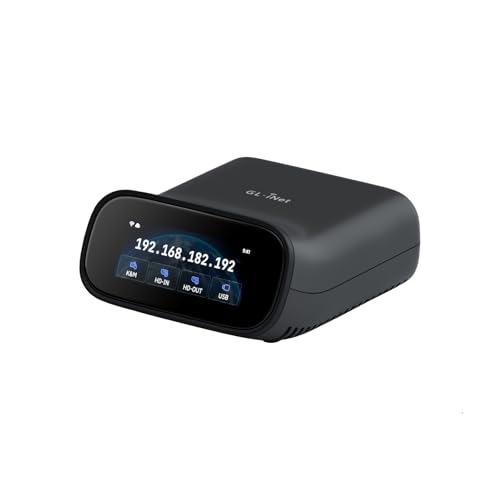
- Wi-Fi 6 remote KVM access
- 4K@30fps passthrough with two-way audio
- Supports BIOS access and remote recovery
Best For: Home labs and offices needing remote administration
Best Compact Single-Monitor Choice
Greathek HDMI/USB-C KVM Switch

- Shares one 4K@60Hz monitor between two computers
- Four USB ports for shared peripherals
- Adaptive EDID and wired remote switching
Best For: Compact PC-and-laptop workstations
Four-PC Home Office Hub

- Controls four PCs from one monitor, keyboard, and mouse.
- Supports 4K@60Hz with adaptive EDID.
- Shares USB 3.0 peripherals and includes a wired remote.
Best For: Home offices with four computers sharing one display and peripherals
Triple-Display Productivity Station
8K KVM Dock for Laptop and Desktop

- Shares up to three displays between a laptop and desktop.
- Provides USB-C video, data, and up to 100W charging.
- Adds fast USB, Ethernet, SDXC, and audio connectivity.
Best For: Windows laptop-and-desktop users building a triple-monitor home office
Dual-PC Desk Switcher

- Switches one monitor and USB peripherals between two PCs.
- Supports up to 8K@30Hz and 4K high-refresh output.
- Includes a wired remote and three USB 3.0 sharing ports.
Best For: Home offices switching between work and personal computers
Compact Choice

- Shares one HDMI monitor and USB peripherals between two computers.
- Supports 4K@60Hz with push-button or wired-controller switching.
- Compact, driver-free design with two USB 2.0 ports.
Best For: Two HDMI-equipped computers in a compact home office
Four-System Hub

- Shares one monitor and four USB devices among four computers.
- Offers 4K@60Hz support and four USB 3.0 ports.
- Switches by remote control or front-panel buttons.
Best For: Busy workspaces with four computers and shared USB accessories
Multi-Display Workstation
Triple-Monitor KVM for Two PCs

- Lets two computers share three HDMI/DisplayPort monitors.
- Supports 4K@60Hz, four USB 3.0 devices, and audio.
- Offers extended, mirrored, and splicing display modes.
Best For: Two-PC home offices built around three monitors
Best Dual-Monitor HDMI Setup – UGREEN 2-Computer Dual-Monitor KVM
For home offices that need two computers on two displays, this UGREEN HDMI KVM switch provides a straightforward way to share a keyboard, mouse, and USB accessories. It supports 4K at 60Hz, mirror or extended display modes, and plug-and-play operation without software.
Best For: Dual-monitor HDMI workstations using two computers.
Pros:
- Supports two monitors and two computers with 4K@60Hz output.
- Includes four USB 3.0 ports, including one USB-C port, for shared peripherals.
- Offers front-button and wired desktop-controller switching.
- Includes HDMI and USB cables, power adapters, and a controller.
Cons:
- Does not support DisplayPort, EDID emulation, or keyboard hotkey switching.
- Each computer needs two HDMI cables and one USB-A connection.
- Both monitors display video from the same selected computer rather than mixing sources.
This is a practical choice among KVM switches for home offices when your setup is HDMI-based and requires two screens. Check cable lengths, computer outputs, and dual-display support before buying.
Best Remote-Access Option – GL.iNet Comet Pro Remote KVM
The GL.iNet Comet Pro is designed for remote control rather than simple desk-side source switching. With Wi-Fi 6 connectivity, 4K@30fps video passthrough, two-way audio, and remote BIOS or recovery access, it suits home offices and home labs where systems may need attention from a distance.
Best For: Remote administration, recovery, and off-site access to computers.
Pros:
- Supports dual-band Wi-Fi 6 plus wired connectivity.
- Provides 4K@30fps video passthrough and two-way audio.
- Works through web-based cloud control or the GLKVM app across major desktop and mobile platforms.
- Includes built-in Tailscale support and a touchscreen interface.
Cons:
- It is more specialized than a conventional local KVM switch.
- ATX Board and Fingerbot extensions for remote power control are sold separately.
- Remote features require network configuration and may be more than a basic home-office setup needs.
Choose this model if remote access, troubleshooting, or disaster recovery matters more than one-button switching between nearby computers. Its secure networking and self-hosted options add flexibility for technically oriented users.
Best Laptop-and-Desktop Dock – AV Access Dual-Monitor KVM Dock
This AV Access model combines a KVM switch with a docking station for a USB-C laptop and a desktop PC. It shares two HDMI monitors and USB peripherals while adding Ethernet, SD, audio, and USB expansion, making it a strong fit for a home office that moves between a laptop and desktop.
Best For: Users switching one USB-C laptop and one desktop across two monitors.
Pros:
- Supports dual HDMI monitors with up to 4K@60Hz output.
- Includes USB 3.0, USB 2.0, USB-C, Gigabit Ethernet, SD, and 3.5mm audio connectivity.
- Supports up to 100W USB-C PD input for laptop charging, with a separate compatible charger.
- EDID emulation helps reduce display reconnection during switching.
Cons:
- Designed for one USB-C laptop plus one desktop, not two laptops or two desktops.
- macOS supports mirrored displays only, not dual extended displays.
- The laptop charging adapter is not included, and Ethernet serves the laptop side only.
Among KVM switches for home offices, this is especially useful when a laptop dock and monitor switch would otherwise require separate devices. Confirm your laptop supports video and data over USB-C and that your desktop has the required USB-B, HDMI, and DisplayPort connections.
Best Compact Single-Monitor Choice – Greathek HDMI/USB-C KVM Switch
The Greathek KVM switch lets two computers share one monitor, keyboard, mouse, and USB accessories, with one computer connecting through HDMI and USB-A and the other through full-featured USB-C. Its compact design, adaptive EDID, and wired remote make it convenient for hybrid home-office setups.
Best For: PC-and-laptop users sharing one 4K monitor and peripherals.
Pros:
- Supports 4K@60Hz HDMI output and backward-compatible resolutions.
- Provides three USB-A ports and one USB-C port for shared accessories.
- Offers front-button and wired-remote switching.
- Adaptive EDID helps maintain display settings and reduce flicker during switching.
Cons:
- Supports one shared monitor rather than a dual-monitor setup.
- Computer connection types are asymmetric: one uses HDMI plus USB-A, while the other requires full-featured USB-C.
- Its feature set is focused on switching and peripheral sharing rather than docking expansion.
This is a sensible pick for compact workstations where one monitor is enough and one computer uses USB-C. Verify that the USB-C computer supports both video and data, especially when pairing a laptop with a desktop or Mac mini.
Four-PC Home Office Hub – 4-Port 4K HDMI KVM Switch
For home offices that regularly use several computers, this 4-port HDMI KVM switch lets you control four PCs from one monitor, keyboard, and mouse. Its 4K@60Hz support, shared USB 3.0 connectivity, and wired remote make it a practical way to reduce cable swapping and desk clutter.
Best For: Multi-computer home offices, IT workstations, and users who need to share USB peripherals across four PCs.
Pros:
- Controls four computers through one monitor and shared keyboard and mouse.
- Supports up to 4K@60Hz with HDMI 2.0 and adaptive EDID.
- Provides three USB-A 3.0 ports, one USB-C data port, and a wired desktop remote.
- Includes mounting brackets and the required USB cables for the computer connections.
Cons:
- Switching is limited to front-panel buttons or the wired remote; hotkey switching is not supported.
- Only one monitor is supported.
This model is a strong fit when four computers need to share one display and a set of peripherals. Confirm that your monitor and computers support the desired HDMI resolution before setup.
Triple-Display Productivity Station – 8K KVM Dock for Laptop and Desktop
For demanding home offices built around a laptop and desktop, this KVM docking station combines computer switching with triple-monitor control, USB expansion, networking, audio, and card access. A single full-featured USB-C connection can provide the laptop with video, data, and up to 100W charging.
Best For: Windows laptop-and-desktop setups using up to three displays, shared peripherals, and high-speed storage.
Pros:
- Shares up to three monitors, keyboard, mouse, network, audio, and USB devices between two computers.
- Supports desktop output up to 8K@60Hz and high refresh rates including 4K@165Hz and 1080p@480Hz.
- Offers up to 100W USB-C Power Delivery for a compatible laptop.
- Includes 10Gbps USB ports, a 1Gb Ethernet connection, SDXC reader, and headset jack.
Cons:
- MacBooks support mirrored displays only, not independent extended content across multiple monitors.
- The laptop USB-C port must support video output, and Windows multi-monitor extension requires compatible MST support.
- Its broad docking-station feature set may be more than a basic two-computer home office needs.
This is the most capable option for a highly integrated, multi-display workspace, especially when a Windows laptop and desktop must share one desk. Check operating-system, USB-C, and display compatibility carefully before buying.
Dual-PC Desk Switcher – 2-Port 8K HDMI KVM
For home offices that alternate between a work computer and a personal PC, this 2-port HDMI KVM switch combines one monitor and shared USB peripherals in a compact setup. It supports high-resolution video and switches through a front button or wired remote, helping avoid repeated cable changes.
Best For: Dual-PC home offices, remote workers, and users who want one monitor, keyboard, and mouse for two computers.
Pros:
- Controls two computers from one HDMI monitor and shared keyboard and mouse.
- Supports up to 8K@30Hz and high refresh rates such as 4K@240Hz.
- Shares three USB 3.0 ports for devices including printers, scanners, and storage drives.
- Includes two USB cables and a wired remote, with adaptive EDID for steadier switching.
Cons:
- Three HDMI cables are required but are not included.
- Hotkey switching is not supported; use the push button or wired remote.
- High-resolution and high-refresh operation depends on suitable HDMI cables.
This is a straightforward choice for a two-computer desk where display and USB sharing matter more than multi-monitor expansion. Plan for the additional HDMI cables during installation.
Compact Choice – 2-Computer 4K HDMI KVM Switch
For home offices comparing kvm switches for home offices, this compact HDMI model is a practical way to share one monitor, keyboard, and mouse between two computers. Its push-button or wired-controller switching keeps cable swapping off your desk, while 4K@60Hz support suits compatible displays and computers.
Best For: Home-office users with two HDMI-equipped computers sharing one monitor.
Pros:
- Supports up to 4K@60Hz and is backward compatible with common lower resolutions.
- Includes a wired desktop controller for convenient switching away from the main unit.
- Provides two USB 2.0 ports for a keyboard, mouse, or other compatible devices.
- Plug-and-play design requires no external power supply or drivers.
Cons:
- Does not support hotkey switching.
- Requires HDMI ports on both computers and the monitor; adapters may cause instability.
- The maker does not recommend it for Mac devices.
This is a straightforward choice for a two-computer workspace, especially when compact size and a remote wired switch matter more than high-speed USB connectivity. Use short, high-quality HDMI 2.0 cables to pursue the advertised 4K performance.
Four-System Hub – 4-Computer 4K HDMI KVM Switch
If your home office involves several computers, this four-port model is one of the more flexible kvm switches for home offices. It lets four computers share one monitor and up to four USB 3.0 peripherals, with front-panel buttons or a remote control for changing active systems.
Best For: Multi-computer workspaces that need shared USB 3.0 accessories and one display.
Pros:
- Connects up to four computers to one monitor.
- Supports up to 4K@60Hz when the source devices and cables support it.
- Includes four USB 3.0 ports with transfer speeds up to 5Gbps.
- Works with Windows, Mac OS, Linux, Unix, and other listed systems without drivers.
Cons:
- Does not support hotkey switching.
- Achieving 4K@60Hz depends on compatible sources, cables, and display equipment.
- Its larger four-computer setup may be more than a small two-PC desk requires.
The additional ports make this a strong fit for a busy workstation with printers, scanners, storage, or other USB accessories. Choose it when four-system capacity and faster USB sharing are priorities, rather than the simplest possible setup.
Multi-Display Workstation – Triple-Monitor KVM for Two PCs
For a multi-screen setup, this triple-monitor unit stands out among kvm switches for home offices by allowing two computers to share three displays. It combines HDMI and DisplayPort connectivity with audio support, USB 3.0 peripheral sharing, and physical or wired-controller switching.
Best For: Home-office users running two computers across three HDMI/DisplayPort monitors.
Pros:
- Supports three monitors shared between two computers.
- Handles up to 4K@60Hz on compatible computers, monitors, and cables.
- Includes four USB 3.0 ports and an audio connection.
- Supports extended, mirrored, and splicing-wall display modes.
Cons:
- Each computer needs two DisplayPort connections and one HDMI connection.
- USB peripherals require the supplied USB cables to be connected to the computers.
- A triple-monitor configuration requires more space and cabling than a single-display KVM.
This is the most capable option here for a productivity-focused, three-screen desk, provided both computers have the required HDMI and DisplayPort outputs. Its audio and USB 3.0 support also help consolidate peripherals, but compatibility should be checked carefully before purchase.
How We Picked the Best Kvm Switches for Home Offices
We focused on the features that matter most in a home workspace: supported resolution and refresh rate, number of computers and monitors, USB peripheral sharing, switching methods, compatibility, and installation complexity. We also considered whether each design suits a focused two-computer desk, a multi-monitor workstation, a shared family office, or a remote-access setup.
Video specifications are especially important. A switch advertised as 4K may support 4K at 60Hz, while some models prioritize higher 8K output or broader multi-monitor support. USB 3.0 ports are useful for fast external storage and peripherals, but they do not automatically guarantee full video compatibility.
Quick Comparison
| Setup | Recommended capability | Best for |
|---|---|---|
| Two computers, one monitor | 2-port HDMI KVM with USB sharing | Everyday home-office switching |
| Two computers, two monitors | Dual-monitor 4K KVM | Productivity and multitasking |
| Two computers, three monitors | Triple-monitor HDMI/DisplayPort KVM | Large workstation layouts |
| Three or four computers | 4-port KVM with EDID support | Developers, technicians, and power users |
| Remote computer access | Network-enabled KVM with remote passthrough | Headless or remotely managed systems |
Key Buying Factors for Kvm Switches for Home Offices
Monitor Count and Video Standards
Start with the number of displays that must switch together. Single-monitor models are usually simpler and less expensive, while dual- and triple-monitor KVMs require matching outputs on both the computers and the switch. Check whether the unit uses HDMI, DisplayPort, USB-C, or a combination, and confirm that your computers can deliver the required signal.
Resolution, Refresh Rate, and EDID
Choose 4K at 60Hz for a strong general-purpose balance. Consider an 8K model only when your computer, cable, and monitor all support that standard. EDID management can help maintain monitor detection and reduce window rearrangement when switching between systems.
USB, Audio, and Switching Controls
Check the number and speed of USB ports for your keyboard, mouse, webcam, storage, and other accessories. Some KVMs include audio switching, wired remotes, front-panel buttons, hotkeys, or automatic switching. A wired controller can be more convenient than reaching behind a desk, while hotkeys are efficient once configured.
Cables and Compatibility
Many KVM switches require separate video and USB cables, and high-resolution modes may need certified high-bandwidth cables. Verify operating-system support, laptop docking requirements, power delivery limitations, and whether adapters could reduce available resolution or refresh rate.
Who Should Buy Which Kvm Switches for Home Offices?
Choose a compact 2-port single-monitor model if you alternate between a work laptop and personal desktop. Choose a dual-monitor 4K KVM when you regularly compare documents, code, or dashboards across two screens. Choose a triple-monitor model for a dedicated productivity or trading-style workstation, provided both computers support the necessary outputs.
Choose a 4-port KVM if you manage several desktops, test systems, or servers from one desk. Choose an 8K model for a future-facing high-resolution setup rather than simply because the number is larger. Finally, a remote KVM makes the most sense when you need to access or troubleshoot a computer without being physically beside it.