The best KVM switches for laptops let you share monitors, keyboards, mice, and other peripherals between computers without constantly reconnecting cables. The right choice depends on your laptop ports, display setup, resolution needs, and charging requirements.
We selected 10 versatile options for single-, dual-, and triple-monitor workstations, including USB-C docking-style models and simpler HDMI KVM boxes. Use the guide below to narrow the list based on compatibility, performance, and desk setup.
Best 10 Kvm Switches for Laptops Picks for 2026
Best Triple-Display USB-C Pick

- Switches two laptops across three monitors
- Supports dual 4K@60Hz plus 1080P@60Hz
- Adds four 10Gbps USB ports and 100W PD
Best For: Three-monitor USB-C laptop workstations
Best High-Resolution DisplayPort Option

- Switches two computers across three monitors
- Supports 8K@60Hz and 4K up to 240Hz
- Includes cables and a desktop controller
Best For: High-refresh-rate multi-monitor workstations
Best Dual-Laptop Docking Choice

- Shares two monitors between two laptops
- Adds Ethernet, USB, audio, and SD connectivity
- Supports up to 60W charging for each laptop
Best For: Dual-laptop home and hybrid offices
Best Simple Budget Option

- Shares one monitor between two computers
- Supports 4K@60Hz video
- Includes HDMI and USB cables
Best For: Basic single-monitor laptop switching
Best Dual-Monitor Docking Hub

- Dual 4K@60Hz HDMI output
- Four-port USB 3.0 hub
- Button and wired-remote switching
Best For: Laptop-and-desktop workstations with two monitors
Best Simple Single-Monitor Switch
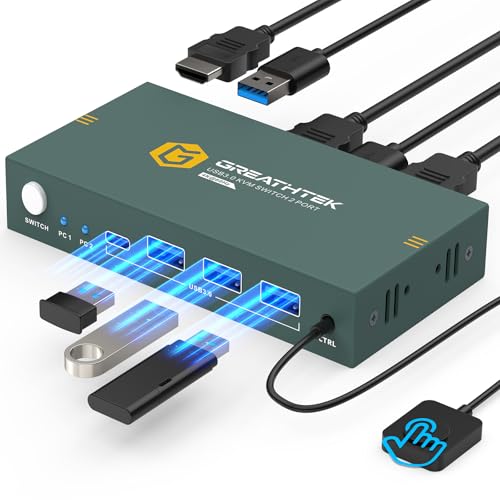
- 4K@60Hz HDMI support
- Three USB 3.0 peripheral ports
- Button and wired-remote control
Best For: Sharing one monitor between two computers
Best for Two Laptops

- Dual 4K@60Hz monitor output
- Four 5Gbps USB ports
- Charging inputs for two laptops
Best For: Two-laptop desks with compatible USB-C video ports
Best Triple-Display USB-C Pick – USB-C KVM Dock for 3 Monitors
For shoppers comparing KVM switches for laptops, this USB-C model combines laptop docking with switching for two computers and three monitors. It supports up to dual 4K@60Hz plus one 1080P@60Hz output, four 10Gbps USB ports, and up to 100W PD input, though the actual laptop charging power is approximately 73–80W.
Best For: Laptop users who need a three-monitor workstation and fast USB-C peripheral sharing.
Pros:
- Shares three displays and four USB 3.1 Gen2 peripherals between two laptops.
- Supports dual 4K@60Hz plus one 1080P@60Hz output under suitable hardware conditions.
- Includes button and wired-remote switching, with compatibility across Windows, macOS, Linux, and Chrome OS.
- Offers a 100W PD port for charging through the dock.
Cons:
- Mac systems do not support three independent extended displays because of MST limitations.
- Laptops must support USB-C DP Alt Mode, data, PD, and multiple-display output; the notes recommend 11th-generation or newer CPUs.
- Short, suitable USB-C, HDMI, and DisplayPort cables are recommended to reduce flicker or black screens.
This is a feature-rich choice when a laptop setup genuinely needs three displays and high-speed USB connectivity. Verify laptop video support and cable requirements before buying.
Best High-Resolution DisplayPort Option – UGREEN 8K Triple-Monitor KVM
This UGREEN model is aimed at desktop-style laptop or computer setups using DisplayPort and HDMI. It switches two computers across three monitors, supports up to 8K@60Hz on each output, and includes four USB 3.0 ports, but each computer needs two DisplayPort connections, one HDMI connection, and support for three displays.
Best For: Users with compatible computers and monitors who prioritize high refresh rates, HDR, or 8K-capable video.
Pros:
- Provides two DisplayPort 1.4 outputs and one HDMI 2.1 output.
- Supports up to 8K@60Hz, with listed compatibility for 4K up to 240Hz.
- Offers mirror and extend display modes plus button or desktop-controller switching.
- Includes the required DP, HDMI, USB, and power cables in the package.
Cons:
- Both computers must support triple-monitor output and the specified two-DP-plus-one-HDMI connection layout.
- It does not support keyboard hotkey switching or EDID emulation.
- Power and cable-length requirements must be followed for normal operation and 8K output.
Choose this KVM when your laptops or computers already provide the necessary physical video outputs. Its high-resolution support is impressive, but compatibility is more demanding than with a basic HDMI switch.
Best Dual-Laptop Docking Choice – AV Access 2-Monitor KVM Dock
Among kvm switches for laptops, this AV Access model stands out as a combined KVM and docking station for two laptops and two monitors. It provides dual HDMI outputs, Ethernet, USB ports, audio, an SD card slot, and charging support, while EDID emulation and automatic wake-up are designed to make switching take about two to three seconds.
Best For: Hybrid-work desks that need two laptops, two monitors, shared peripherals, and expanded connectivity from one dock.
Pros:
- Controls two laptops through one dual-monitor setup with one-button switching.
- Provides 12-in-1 connectivity, including dual HDMI, Ethernet, USB, audio, and SD card access.
- Can charge two laptops simultaneously at up to 60W each.
- Includes EDID emulation and automatic PC wake-up for faster switching.
Cons:
- Laptops need USB-C DP Alt Mode and DP MST for extended dual displays.
- Mac models support mirrored displays only according to the supplied notes.
- It is not compatible with 5K monitors, FreeSync/G-Sync, or Dell Display Manager.
This is a practical all-in-one solution for a dual-laptop office rather than a simple video switch. Confirm USB-C display support and the monitor limitations before purchasing.
Best Simple Budget Option – Jancane 4K HDMI KVM Switch
This compact HDMI KVM is a straightforward option for switching two laptops or computers through one monitor, keyboard, mouse, and printer. It supports 4K@60Hz, requires no external power according to the notes, and includes two HDMI cables and two USB cables for a simple setup.
Best For: Users who need basic two-computer control on a single HDMI monitor without docking or multi-monitor features.
Pros:
- Switches two computers with one button and indicates the active system with LED lights.
- Supports UHD 4K@60Hz, 4K@30Hz, 3D, and lower resolutions.
- Works with Windows, macOS, Linux, and Chrome OS without drivers.
- Includes two HDMI cables and two USB cables.
Cons:
- Supports one shared HDMI monitor rather than a multi-monitor setup.
- Uses USB 2.0 connections, so it is less suited to high-speed storage or demanding peripherals.
- Switching is through the physical button; advanced hotkey or remote features are not listed.
For a simple one-monitor desk, this model keeps the setup inexpensive and uncomplicated. It is a better fit for basic keyboard-and-mouse sharing than for a full laptop docking workstation.
Best Dual-Monitor Docking Hub – Dual HDMI USB-C KVM Dock
If you need kvm switches for laptops that also reduce desk clutter, this USB-C docking station combines switching with dual-monitor expansion. It connects a laptop and desktop to two HDMI displays while sharing USB peripherals through its built-in hub.
Best For: Home offices and professional workstations using one laptop, one desktop, and two monitors.
Pros:
- Supports dual 4K resolution at 60Hz with 4:4:4 color.
- Includes four USB 3.0 ports with 5Gbps transfer speeds.
- Offers 100W PD input and switching by button or wired remote.
- Works with Windows, macOS, Linux, and Chrome OS.
Cons:
- Actual laptop charging output is approximately 73–80W.
- High-power USB devices may require the included 12V/2A power adapter.
- Some laptops, including certain Dell models, may have proprietary PD compatibility limitations.
This is a feature-rich choice when you want a laptop KVM and USB-C dock in one device. Its dual-display support and broad OS compatibility suit demanding workspaces, but check your laptop’s USB-C video, data, and charging capabilities before buying.
Best Simple Single-Monitor Switch – 4K HDMI KVM for Two Computers
For shoppers comparing kvm switches for laptops, this 2-port HDMI model is a straightforward way to share one monitor, keyboard, mouse, and other USB devices between two computers. It emphasizes simple plug-and-play operation rather than multi-monitor expansion.
Best For: Users who need one 4K monitor shared between a laptop and another computer.
Pros:
- Supports up to 4K resolution at 60Hz.
- Provides three USB 3.0 ports for shared peripherals.
- Offers button and wired-remote switching.
- Supports Windows, macOS, Linux, and several other systems.
Cons:
- Does not support hotkey switching.
- Only supports one monitor and two computers.
- Three HDMI cables must be supplied separately.
This is a practical, compact option for a basic one-monitor setup. Its 4K support and USB 3.0 connectivity cover everyday productivity needs, while the lack of hotkey switching may matter if you frequently change sources.
Best for Two Laptops – Dual-Monitor USB-C KVM Dock
This USB-C model is designed for people who move between two laptops and want kvm switches for laptops with dual-monitor support. It shares two HDMI displays, USB peripherals, and charging connections through a single docking-style setup.
Best For: Dual-laptop users who need two external monitors and shared desk accessories.
Pros:
- Supports dual 4K displays at 60Hz.
- Includes four USB 3.0 ports, including USB-A and USB-C.
- Provides separate 100W PD inputs for charging both laptops.
- Switches through a physical button or wired remote.
Cons:
- Laptops must support USB-C DP Alt Mode for video and peripheral operation.
- 100W input provides approximately 73–80W of actual laptop power.
- Extended mode is not supported on Mac OS because of MST limitations on Mac M1/M2 systems.
This is the most targeted option for a two-laptop desk, especially when both computers support the required USB-C features. Confirm your laptop generation, DP Alt Mode support, and macOS display requirements before purchasing.
Best Dual-Monitor Docking KVM – AV Access 4K Dual-Monitor KVM Dock
If you need kvm switches for laptops that can also simplify a desktop workspace, this AV Access model combines switching and docking in one unit. It connects one USB-C laptop and one desktop PC to two HDMI monitors, shared USB peripherals, and wired Ethernet, with one-button switching between systems.
Best For: A home office using one USB-C laptop, one desktop, and two HDMI monitors.
Pros:
- Supports up to 4K at 60Hz, with higher refresh-rate options at lower resolutions.
- Includes USB 3.0, USB 2.0, USB-C, Gigabit Ethernet, SD card, and audio connectivity.
- Supports up to 100W laptop charging with a compatible, separately purchased USB-C PD adapter.
- EDID emulation helps maintain display information during switching.
Cons:
- Designed for one USB-C laptop and one desktop, not two laptops or two desktops.
- The desktop requires USB-B, HDMI, and DisplayPort connections.
- macOS supports mirrored displays only, not dual extended displays.
This is a feature-rich choice when docking ports, wired networking, and dual-monitor switching matter as much as KVM functionality. Check the connection requirements and macOS limitations before buying.
Best Triple-Monitor Laptop KVM – USB-C KVM for Two Laptops
Among kvm switches for laptops, this model stands out for supporting two laptops and up to three connected monitors. It uses USB-C connections, offers button or wired-remote switching, and includes USB ports with data transfer up to 10Gbps.
Best For: Windows users who want to share up to three displays and USB peripherals between two laptops.
Pros:
- Supports two laptops and three monitors through two HDMI outputs and one DisplayPort output.
- Offers Windows SST and MST modes for mirrored or extended display setups.
- Includes three USB-A ports and one USB-C port with transfer rates up to 10Gbps.
- Provides both a physical button and a 1.5-meter wired remote for switching.
Cons:
- Each laptop’s USB-C port must support DP Alt Mode for video and data functionality.
- macOS is limited to SST, so three monitors display the same picture.
- PD charging requires the user’s own compatible power adapter and cable.
This is the most display-focused option in the group, particularly for compatible Windows laptops. Its limitations around Mac display behavior, charging accessories, and extended-mode resolutions should be part of your setup check.
Best Simple Laptop-and-Desktop KVM – 4K Dual-Monitor KVM Dock
This compact option is one of the more straightforward kvm switches for laptops, pairing a USB-C laptop with a desktop and two HDMI monitors. It also functions as a small docking station, adds shared USB ports, and includes a wired remote for convenient switching.
Best For: Users who want a plug-and-play two-monitor setup for one laptop and one desktop.
Pros:
- Supports two HDMI monitors at resolutions up to 4K at 60Hz.
- Provides three USB 3.0 ports, one USB-C port, and an 80W PD charging port.
- Includes a USB-C cable, USB 3.0 cable, power adapter, and wired remote.
- Switches by the device button or wired remote without requiring drivers.
Cons:
- Keyboard shortcuts are not supported.
- macOS supports duplicate output only, rather than extended displays.
- Designed for a one-laptop, one-desktop configuration.
With included cables, a power adapter, and a remote, this model aims for a simple desk transition between laptop and desktop. It is a practical fit if duplicate display output on macOS is acceptable and you do not need hotkey switching.
How We Picked the Best Kvm Switches for Laptops
We focused on the features that most affect everyday laptop workflows: supported display count, HDMI and DisplayPort compatibility, USB-C connectivity, refresh-rate support, USB peripheral sharing, power delivery, and switching convenience. The list includes compact two-computer KVMs as well as docking-style units designed for dual- or triple-monitor workstations.
We also considered whether a model is best suited to a laptop-and-desktop setup, two laptops, or multiple high-resolution displays. A KVM that supports 4K video is not automatically suitable for every setup; the laptop, cable, dock, and monitor must all support the desired resolution and refresh rate.
Quick Comparison
- For one monitor: Choose a basic HDMI KVM if you only need to share one display, keyboard, and mouse.
- For two monitors: Look for dual-HDMI, USB-C, or HDMI-and-DisplayPort support, depending on your laptops.
- For three monitors: Choose a triple-display model and verify that your laptop supports multiple external displays through MST, Thunderbolt, or its graphics hardware.
- For charging: Select a docking-style KVM with USB-C Power Delivery, then confirm its maximum wattage meets your laptop’s needs.
- For high refresh rates: Prioritize models clearly rated for 4K at 60Hz or higher and use appropriately rated cables.
Key Buying Factors for Kvm Switches for Laptops
Display Inputs and Outputs
Match the KVM’s ports to both computers and monitors. HDMI is common, while DisplayPort may be important for high-refresh monitors. USB-C models can reduce cable clutter, but USB-C ports vary: some carry video, charging, and USB data, while others support only charging or data.
Monitor Count and Laptop Compatibility
Confirm how many independent displays the KVM can drive and whether your operating system and laptop hardware support that arrangement. Some Windows laptops support multiple displays through MST, while many Mac configurations have stricter external-monitor limits.
Resolution, Refresh Rate, and Bandwidth
For office work, 4K at 60Hz is a useful baseline. Gamers and creative professionals should check bandwidth, HDR support, adaptive sync, and the exact resolution at the desired refresh rate. A switch may support 4K at 60Hz but lower refresh rates at higher resolutions.
USB Sharing and Switching
Check the number and type of USB ports for keyboards, mice, storage, webcams, and printers. Switching may use a physical button, wired remote, keyboard hotkey, or automatic detection. Hotkeys are convenient, but compatibility can vary by keyboard and operating system.
Power Delivery and Accessories
USB-C KVM docks can charge a laptop while connecting displays and peripherals, but the included power adapter and stated PD wattage matter. Also verify whether HDMI, DisplayPort, USB, and USB-C cables are included or must be purchased separately.
Who Should Buy Which Kvm Switches for Laptops?
Home-office users with one display should choose a straightforward two-port HDMI KVM for simple, affordable switching. Professionals using two monitors will benefit from a dual-monitor docking KVM with USB-C or mixed HDMI and DisplayPort connectivity. Users with two laptops should prioritize USB-C models that support both video and charging over a single connection, provided their laptops are compatible.
Creators, analysts, and multitaskers who need three screens should choose a triple-monitor KVM and carefully confirm MST or Thunderbolt support. Gamers and high-refresh users should prioritize bandwidth and refresh-rate specifications over port count. Finally, anyone with a mixed laptop-and-desktop setup should map every required connection before buying; a KVM is only convenient when both computers can deliver the needed displays and peripherals without adapters that introduce limitations.