Managing two or more computers from one desk is easier with the right KVM switch. The models in this roundup cover single- and dual-monitor setups, high-refresh-rate gaming, USB sharing, and remote BIOS-level access.
Use the guide below to match your computers, displays, resolutions, refresh rates, and control needs with the most suitable switch.
Best 10 Kvm Switches Picks for 2026
Best Triple-Monitor KVM

- Shares three monitors and four USB 3.0 peripherals
- Supports up to 8K at 60Hz and high-refresh 4K
- Button and desktop-controller switching
Best For: Two-computer, three-monitor workstations
Best Remote KVM

- Provides remote BIOS-level computer control
- Streams up to 4K at 30Hz with remote audio
- Supports file transfer without host software
Best For: Remote PC and server administration
Best USB Peripheral Switch

- Shares four USB devices between two computers
- Includes USB-C and USB-A ports with 5Gbps data
- Does not support video or monitors
Best For: Switching peripherals without display control
Best PoE Remote KVM

- Supports PoE and USB-C dual power
- Offers 4K remote streaming at 30fps
- Includes BIOS reinstall access and 32GB eMMC
Best For: PoE-enabled remote server management
Best 4-Computer HDMI KVM
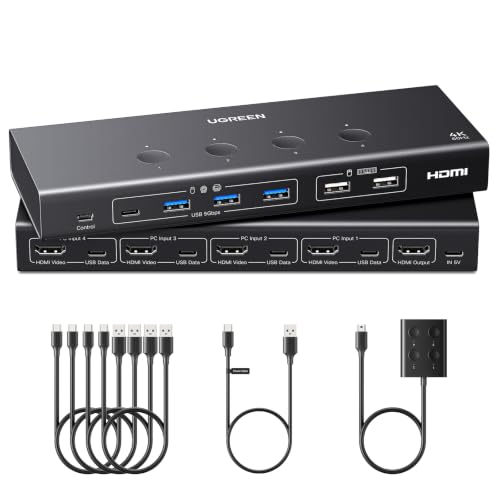
- Controls four computers from one monitor
- Supports 4K@60Hz with HDMI 2.0
- Offers six shared USB ports
Best For: Four-computer offices and multi-PC workstations
Best Value 4-Port HDMI KVM

- Switches one monitor between four computers
- Supports 4K@60Hz with EDID adaptive detection
- Includes USB 3.0 and USB-C sharing
Best For: Straightforward four-PC home and office setups
Best Dual-Monitor Pick

- Controls two computers across two monitors
- 4K@60Hz with extend or mirror modes
- Four USB 3.0 peripheral ports
Best For: Two-monitor home-office and professional workstations
Best for Four Computers

- Switches four computers on one monitor
- 4K@60Hz video support
- Four USB 3.0 peripheral ports
Best For: Four-PC offices, classrooms, and shared workstations
Best Compact Option

- Shares one monitor between two computers
- Supports 4K@60Hz video
- Compact, powered through connected setup
Best For: Simple two-PC, one-monitor desks with HDMI ports
Best Triple-Monitor KVM – UGREEN 8K Triple-Monitor KVM
For demanding desks, this KVM switch lets two computers share three monitors and four USB 3.0 peripherals without repeatedly swapping cables. It supports DisplayPort 1.4 and HDMI 2.1 connections, but both computers must support triple-monitor output for all displays to work.
Best For: Home offices, content creators, and IT professionals using two computers with three-monitor setups.
Pros:
- Supports up to 8K at 60Hz, with compatibility for high-refresh 4K modes.
- Shares three displays and four USB 3.0 devices between two computers.
- Offers button and wired desktop-controller switching, plus mirror and extend modes.
Cons:
- Requires each computer to support three displays and use two DisplayPort, one HDMI, and one USB connection.
- Does not support keyboard hotkey switching or EDID emulation.
- Requires the included power adapter and suitable short cables for 8K operation.
This is a feature-rich choice among kvm switches for a high-resolution, multi-monitor workstation, provided your computers and displays meet its connection requirements.
Best Remote KVM – GL.iNet Comet Remote KVM
This remote KVM is designed for controlling a computer or server over a network rather than switching nearby desktops. It provides BIOS-level access, remote rebooting, operating-system installation, file transfer, and 4K video at 30Hz without requiring software on the controlled computer.
Best For: IT professionals, server maintenance, remote work, and smart-home users who need access to a computer from elsewhere.
Pros:
- Supports remote BIOS control, rebooting, and operating-system installation.
- Provides 3840×2160 video at 30Hz with low latency and remote audio.
- Enables file transfers and remote access through a compact hardware solution.
Cons:
- It is a remote-access KVM, not a conventional local multi-computer display switch.
- PD adapters cannot be used.
- Video output is limited to 4K at 30Hz.
Choose this model when remote infrastructure access matters more than local monitor sharing. Its hardware encoding and host-software-free setup make it particularly practical for maintenance and support tasks.
Best USB Peripheral Switch – UGREEN 4-Port USB Switch
If you only need to share accessories, this USB switch is a simpler alternative to full kvm switches. It lets two computers share four USB devices, including keyboards, mice, printers, scanners, headphones, and cameras, but it does not carry video or connect monitors.
Best For: Users switching keyboards, mice, printers, and other USB peripherals between two computers.
Pros:
- Shares four USB devices between two computers.
- Includes one USB-C port and three USB-A ports with data speeds up to 5Gbps.
- Offers button and wired-controller switching with plug-and-play compatibility.
Cons:
- Does not support monitors, video transmission, or USB-C video output.
- Optional power may be needed for multiple or higher-power devices.
- USB-C input devices may require a USB-C-to-USB adapter.
This is a cost-effective peripheral-sharing solution, but shoppers specifically looking for monitor switching should choose a true KVM instead.
Best PoE Remote KVM – GL.iNet Comet PoE Remote KVM
This PoE remote KVM provides network-based access to one computer or server, including 4K streaming at 30 frames per second and remote BIOS reinstall capability. Its PoE and USB-C dual-power design can simplify deployment where Ethernet power is available.
Best For: Server rooms, remote computer administration, and installations that benefit from PoE power over Ethernet.
Pros:
- Supports PoE and USB-C power options.
- Provides 4K at 30fps remote streaming and BIOS-level reinstall access.
- Includes 32GB built-in eMMC and USB support for ATX and Fingerbot accessories.
Cons:
- Supports one computer or server rather than switching between multiple local computers.
- Video streaming is limited to 4K at 30fps.
- Its specialized remote-management features may be unnecessary for a basic desktop KVM setup.
Among remote kvm switches, this model stands out for PoE deployment and built-in storage. It is best suited to infrastructure management rather than everyday desk-based monitor switching.
Best 4-Computer HDMI KVM – UGREEN 4K HDMI KVM Switch
If you need to manage four computers from one workstation, this HDMI KVM switch combines shared display access with six USB ports for peripherals. It supports up to 4K at 60Hz and offers both front-button and wired-controller switching, but each computer requires HDMI and USB A-to-C connections.
Best For: Offices, test benches, and users sharing one monitor and USB setup across four computers.
Pros:
- Supports 4K@60Hz, HDR, 3D, and HDMI 2.0.
- Provides four USB 3.0 and two USB 2.0 ports for shared devices.
- EDID emulation can help preserve display settings during switching.
- Includes front-button and wired-controller switching options.
Cons:
- HDMI cables and power adapter are not included.
- Each computer needs both an HDMI cable and USB A-to-C data cable.
- Not compatible with docking stations.
This UGREEN model is a capable choice when four computers must share one display and several USB accessories. Confirm your cables and power setup before buying, especially if you plan to connect laptops.
Best Dual-Monitor DisplayPort KVM – 4K@144Hz Dual Display KVM
For a two-computer setup with two monitors, this DisplayPort KVM switch supports extended or mirrored display modes and up to 4K at 144Hz. It also shares four USB 3.0 devices, though every computer needs two DisplayPort cables plus a USB cable for proper dual-screen operation.
Best For: Dual-monitor users who want high-refresh-rate video and shared USB peripherals between two computers.
Pros:
- Supports dual displays with extended and copy modes.
- Handles up to 4K@144Hz with up to 48Gbps video bandwidth.
- Includes four USB 3.0 ports and a wired desktop controller.
- External 12V power supports stable operation for connected USB devices.
Cons:
- Each computer requires two DisplayPort cables and one USB cable.
- DisplayPort cables are not included.
- Keyboard shortcut switching is not supported.
This is the most display-focused option in the group, particularly for users who need dual-screen productivity or high refresh rates. Check that each computer supports multiple monitors and has the required DisplayPort outputs.
Best Value 4-Port HDMI KVM – 4K@60Hz HDMI Switch
This four-port HDMI KVM switch lets one monitor, keyboard, mouse, and other USB devices serve four computers. It supports 4K at 60Hz, includes USB 3.0 connectivity, and provides direct numbered buttons plus a wired remote for convenient source selection.
Best For: Home offices, IT workstations, and multi-PC desks seeking straightforward four-computer switching.
Pros:
- Controls four computers from one monitor setup.
- Supports 4K@60Hz through HDMI 2.0 with EDID adaptive detection.
- Includes three USB-A 3.0 ports and one USB-C data port.
- Package includes cables, power cable, remote, and mounting brackets.
Cons:
- Hotkey switching is not supported.
- Each computer still needs an HDMI connection and USB connection.
- The supplied details list the compatible-device field as two computers, despite the product being described as a four-computer switch.
With included connection accessories and a simple button-based interface, this model is convenient for a four-PC setup. Before purchase, verify the compatibility details and ensure your computers have the necessary HDMI and USB ports.
Best Dual-Monitor Pick – Dual-Monitor 4K HDMI KVM
For users comparing kvm switches for a two-computer, two-monitor workstation, this UGREEN model combines dual-display support with shared USB peripherals. It supports extend and mirror modes, 4K at 60Hz, and plug-and-play operation without software installation.
Best For: Professional or home-office users who need to control two computers across two HDMI monitors with one keyboard and mouse.
Pros:
- Supports two monitors with extend or mirror modes and up to 4K@60Hz.
- Offers four USB 3.0 ports, including three USB-A and one USB-C, for peripherals and storage.
- Includes four HDMI cables, two USB-A cables, power adapters, and a desktop controller.
- Works with Windows, macOS, and Linux systems.
Cons:
- Does not support EDID emulation or keyboard hotkey switching.
- Each computer needs two HDMI cables and one USB-A connection.
- Both monitors display video from the same computer rather than mixing sources.
This is a strong choice when dual-monitor control matters more than hotkey convenience. Buyers should confirm their computers support simultaneous dual-screen output and use suitably short HDMI output cables.
Best for Four Computers – 4-Port 4K HDMI KVM
Among kvm switches for multi-computer desks, this four-port model lets four computers share one HDMI monitor and four USB 3.0 devices. It provides 4K@60Hz support and can be controlled from the front panel or with the included remote setup.
Best For: Offices, classrooms, and workstations that need to switch one display and shared peripherals among four computers.
Pros:
- Connects four computers to one monitor with push-button or remote switching.
- Supports resolutions up to 4K@60Hz and is backward compatible with 4K@30Hz and 1080p.
- Includes four USB 3.0 ports for keyboards, mice, printers, scanners, and other devices.
- Uses a durable aluminum housing and requires no software drivers.
Cons:
- Supports one shared monitor rather than multiple displays.
- Hotkey switching is not supported.
- Achieving 4K@60Hz requires compatible source equipment and cables.
This model is a practical fit when the main challenge is managing four computers from one screen. Its remote and wired control options can also help keep the switch outside the immediate workspace.
Best Compact Option – 2-Port 4K HDMI KVM
This compact option is one of the simpler kvm switches for sharing a single HDMI monitor, keyboard, and mouse between two computers. It supports 4K@60Hz, uses a wired desktop controller, and operates without an external power supply.
Best For: Users with two HDMI-equipped computers and one monitor who want a straightforward, compact switching setup.
Pros:
- Switches two computers through one HDMI monitor and shared keyboard and mouse.
- Supports up to 4K@60Hz with compatible HDMI 2.0 cables and equipment.
- Provides front-button and wired desktop-controller switching.
- Compact, plug-and-play design needs no external power supply or driver installation.
Cons:
- Includes USB 2.0 ports rather than USB 3.0.
- Does not support hotkey switching.
- HDMI cables are not included, and the product is not recommended for Mac devices.
This is a sensible budget-conscious choice for a basic two-PC, one-monitor arrangement. Confirm that both computers and the monitor have HDMI ports, since adapters may cause unstable or interrupted transmission.
How We Picked These Kvm Switches
We selected models based on the connection types they support, the number of computers and displays they can share, advertised resolution and refresh-rate limits, USB connectivity, switching methods, and practical use cases. The selection includes conventional desktop KVMs as well as remote KVM devices for accessing a computer away from the desk.
Because compatibility depends on the complete signal path, treat specifications as a starting point. Your computers, cables, monitors, docking stations, and operating systems must all support the intended resolution and refresh rate.
Quick Comparison
| Best For | Recommended Type | What to Prioritize |
|---|---|---|
| Two computers, one monitor | 2-port HDMI KVM | 4K at 60Hz, reliable USB switching, wired or button control |
| Two monitors and two computers | Dual-monitor HDMI or DisplayPort KVM | Matching outputs, EDID support, and sufficient bandwidth |
| High-refresh gaming or creative work | DisplayPort KVM | 4K at 144Hz support, DisplayPort version, and suitable cables |
| Three or four computers | 4-port HDMI KVM | Input count, hotkey or controller switching, and USB 3.0 |
| Remote administration | Remote KVM | BIOS access, secure networking, latency, and remote-storage features |
| Keyboard, mouse, and peripherals only | USB switch | USB-C/A compatibility, port count, and device power requirements |
Key Buying Factors for Kvm Switches
Video Standard and Bandwidth
Choose HDMI or DisplayPort based on the outputs on your computers and the inputs on your monitors. A switch rated for 4K at 60Hz is appropriate for office work and most productivity tasks, while 4K at 144Hz requires a higher-bandwidth DisplayPort setup and compatible cables. Do not assume that a 4K rating also guarantees HDR, adaptive sync, or high refresh rates.
Number of Computers and Displays
Count both the source computers and the monitors you need to share. A single-monitor KVM cannot replace a dual-monitor model, and a two-computer switch will not accommodate four systems. Multi-monitor products may also require one video connection per display from every computer.
USB and Peripheral Support
Check whether the switch provides USB 2.0 or USB 3.0, plus the correct USB-A or USB-C connections. USB 2.0 is generally sufficient for a keyboard and mouse; USB 3.0 is preferable for storage, scanners, printers, and other faster peripherals. Confirm that connected devices receive enough power.
Switching and EDID Behavior
Buttons, wired controllers, keyboard hotkeys, and software offer different levels of convenience. EDID support can help computers maintain display settings when you switch inputs, reducing window rearrangement and connection delays.
Remote Access and Security
Remote KVM products are designed for administration rather than ordinary desk switching. Look for BIOS-level control, reliable network access, encryption, authentication, and features such as Tailscale support. Keep remote access protected with strong credentials and a properly secured network.
Who Should Buy Which Kvm Switches?
Choose a basic 2-port HDMI model for a simple home-office setup with one monitor. Pick a dual-monitor KVM when two systems must remain productive across both displays. For gaming or demanding visual work, prioritize a DisplayPort model explicitly rated for your target refresh rate. A 4-port HDMI KVM suits workstations with several computers, while a USB switch is the better choice when only keyboard, mouse, printer, scanner, or storage sharing is needed. Finally, choose a remote KVM when you need to troubleshoot or control a machine from another location, including during boot or BIOS configuration.