A great Mac desk setup should do more than connect accessories. It should power your laptop, drive displays, and keep every port within easy reach.
This roundup focuses on docks and hubs that can turn a Mac workstation desktop power station into a cleaner, faster, more productive command center.
Best 10 Mac Workstation Desktop Power Station Picks for 2026
Mac Workstation Thunderbolt 5 Hub
Anker Prime TB5 Docking Station

- 14-in-1 port mix with TB5, HDMI, DP, Ethernet, and card readers
- 140W upstream charging for powerful desk setups
- Active cooling and high transfer speeds for heavy files
Best For: Newer Mac users who want a fast, high-power Thunderbolt 5 desk dock
Classic Thunderbolt Workstation Dock
OWC 14-Port Thunderbolt 3 Dock

- Dual Thunderbolt 3 ports with Mac and Windows support
- Works with 4K and 5K displays
- 85W notebook charging for desk use
Best For: Users who want a reliable Thunderbolt 3 dock for a simple workstation
Detachable Desktop-to-Travel Dock
Anker Nano 13-in-1 Docking Station

- Detachable 6-in-1 hub for travel use
- 13-in-1 desktop dock with HDMI, DP, Ethernet, and SD/TF
- 100W charging with a 140W adapter
Best For: Hybrid workers who want a dock for both desk and travel
Triple-Display Workstation Dock
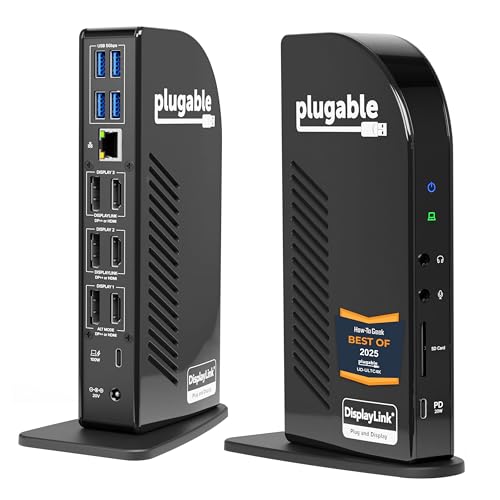
- Up to three 4K 60Hz monitors with HDMI and DisplayPort
- 100W laptop charging plus USB, audio, SD, and Ethernet
- DisplayLink support for macOS, Windows, and ChromeOS
Best For: Multi-monitor users who want a productivity-focused dock for desk work
Mac Workstation Docking Hub

- 13-in-1 expansion with HDMI, DP, Ethernet, and card slots
- 85W laptop charging plus 18W USB-C device charging
- macOS mirrors external displays instead of extending them
Best For: Mac users needing a feature-rich desk dock with charging and mirrored monitors
Enterprise Mac Workstation Dock

- Triple HDMI support for multi-monitor work setups
- 100W charging plus Ethernet and six USB ports
- macOS support requires DisplayLink driver installation
Best For: Hybrid workers and office users building a multi-monitor desk setup
Compact Mac Workstation Dock

- Compact 8-in-1 hub with HDMI, Ethernet, and card reader
- Dual HDMI and up to 85W pass-through charging
- macOS mirrors both external monitors
Best For: Mac users who want a smaller desk hub with the basics
Thunderbolt Dock Core
Belkin 7-Port Thunderbolt 3 Dock for Macs

- 7-in-1 dock with DisplayPort, HDMI, Ethernet, USB-A, USB-C, and audio
- 60W upstream charging supports laptop and peripherals
- Includes Thunderbolt cable and 4K dual monitor support
Best For: Users who want a compact Thunderbolt dock with charging and dual displays
Dual 4K USB-C Dock

- Dual HDMI with 4K@60Hz support
- 100W PD input with up to 90W laptop charging
- Includes USB-A, USB-C, SD, and MicroSD ports
Best For: Mac users who need compact connectivity and fast charging
Mercury Travel Dock

- 11 ports including USB-A, USB-C, HDMI, Ethernet, SD/MicroSD, and audio
- 4K 60Hz display output with 85W laptop power delivery
- All-metal body designed for durability and thermal management
Best For: MacBook users who want a portable, high-port-count docking solution
Mac Workstation Thunderbolt 5 Hub – Anker Prime TB5 Docking Station
If you want a Mac workstation desktop power station built around speed and modern ports, this Anker Prime Thunderbolt 5 dock is the most capable option here. It combines 14 connections, 140W upstream charging, and active cooling, making it a strong fit for a desk setup that needs serious bandwidth for storage, displays, and accessories.
Best For: Mac users with newer Thunderbolt 5 or Thunderbolt 4 systems who want a high-power desk dock for fast transfers and a cleaner workspace.
Pros:
- 14-in-1 layout with Thunderbolt 5, USB-C, USB-A, SD/TF, Ethernet, audio, HDMI 2.1, and DisplayPort 2.1 options
- Up to 120Gbps max transfer and a stated 150GB file move in about 25 seconds on the Thunderbolt 5 port
- 140W max upstream charging with PD 3.1 support
- Active cooling system helps maintain performance under load
Cons:
- MacBooks with standard M1, M2, or M3 chips support only one external display
- Does not support external USB-A hubs
- Best benefits depend on a Thunderbolt 5-capable laptop
This is the most future-facing dock in the group, but it makes the most sense when paired with a compatible Mac or Thunderbolt laptop that can take advantage of its speed and charging headroom.
Classic Thunderbolt Workstation Dock – OWC 14-Port Thunderbolt 3 Dock
For a straightforward Mac workstation desktop power station, the OWC 14-Port Thunderbolt 3 Dock focuses on the essentials rather than the newest standards. It offers dual Thunderbolt 3 ports, support for 4K and 5K displays, and 85W notebook charging, which makes it a practical pick for a wired desk setup.
Best For: Mac and Windows users who want a proven Thunderbolt 3 dock for display expansion and everyday notebook charging.
Pros:
- Dual Thunderbolt 3 ports for flexible expansion
- Supports 4K and 5K displays
- 85W charging is enough for many notebook setups
- Compatible with both Windows PC and Mac
Cons:
- Uses Thunderbolt 3 rather than newer Thunderbolt 5 hardware
- Port count is lower than the most feature-packed desk docks
- Only three USB ports are listed in the supplied details
This dock is best viewed as a dependable legacy Thunderbolt option: solid for a clean multi-display desk, but not as aggressive on charging or connectivity as newer premium models.
Detachable Desktop-to-Travel Dock – Anker Nano 13-in-1 Docking Station
If your Mac workstation desktop power station needs to do double duty at home and on the road, this Anker Nano dock stands out for its detachable design. The desktop unit gives you a full 13-in-1 setup, while the snap-off 6-in-1 hub lets you scale down when you leave the desk.
Best For: Hybrid workers who want one dock for a desk setup and a smaller travel-friendly hub.
Pros:
- Detachable 2-in-1 design separates the desktop dock from the portable hub
- 13-in-1 layout with HDMI, DisplayPort, USB-A, USB-C, Ethernet, audio, and SD/TF slots
- Supports up to three external displays on compatible systems
- 100W max laptop charging with a 140W power adapter included
Cons:
- macOS supports mirrored mode only on multiple external displays
- Best display flexibility is aimed more at Windows laptops than Macs
- Requires a laptop connection to function
This is a smart choice if you want one tidy desktop dock that can also become a travel hub, but Mac buyers should note the mirrored-display limitation before counting on a true multi-monitor setup.
Triple-Display Workstation Dock – Plugable UD-ULTC4K Dock
For a Mac workstation desktop power station built around monitor expansion, the Plugable UD-ULTC4K is the most display-heavy choice in this roundup. It uses DisplayLink over USB-C, supports up to three 4K 60Hz monitors, and adds Ethernet, SD card, audio, and laptop charging through one connection.
Best For: Users who need a full multi-monitor workstation for office productivity, analysis, or development.
Pros:
- Up to three 4K 60Hz displays with 3× HDMI and 3× DisplayPort outputs
- 100W laptop charging via the rear USB-C host connection
- DisplayLink-based support for macOS 11+ and compatible USB-C, USB4, and Thunderbolt systems
- Includes wired networking, audio, SD, and USB expansion for a complete desk setup
Cons:
- DisplayLink drivers are required on macOS
- Screen recording permission is required to enable external displays
- HDCP is not supported
This is the strongest pick when the priority is monitor count and desk productivity, but it is less plug-and-play than a native Thunderbolt dock and is not intended for protected streaming playback.
Mac Workstation Docking Hub – 13-in-1 Triple Display Dock
If you want a Mac workstation desktop power station that adds serious desk-side connectivity, this Anker dock is built for broad expansion rather than minimalism. It combines laptop charging, multiple display outputs, wired networking, card readers, and extra USB ports in one compact unit, with the important caveat that macOS mirrors external displays instead of extending them.
Best For: Mac users who want a high-port-count desk dock with charging, Ethernet, and simple mirrored dual-monitor support.
Pros:
- 13-in-1 design includes HDMI, DisplayPort, Ethernet, SD/microSD, audio, and multiple USB ports.
- 85W laptop charging plus an additional 18W USB-C charging port for a second device.
- Supports up to three monitors at 1080p@60Hz on compatible systems.
- Includes a 135W power adapter and USB-C cable in the box.
Cons:
- On macOS, external monitors show identical content rather than separate extended desktops.
- Not compatible with Linux.
- Best multi-display experience is limited by the host OS and connection mode.
For buyers who value breadth of connectivity over minimalist simplicity, this is a practical desk dock. It is especially appealing if you need a tidy hub for charging, peripherals, and wired internet alongside your Mac setup.
Enterprise Mac Workstation Dock – Triple HDMI Productivity Dock
This Plugable model fits the Mac workstation desktop power station category when your priority is turning a laptop into a more complete office command center. With three HDMI outputs, 100W charging, wired Ethernet, and six USB ports, it is designed for productivity-focused desks and managed workspaces where connectivity matters.
Best For: Hybrid workers and office users who want triple-monitor support and lots of USB connectivity on Mac, Windows, or ChromeOS.
Pros:
- Three HDMI outputs support multi-monitor productivity setups.
- 100W USB-C Power Delivery helps keep the host laptop charged.
- Six USB 5Gbps ports add room for peripherals and accessories.
- Compatible with macOS, Windows, and ChromeOS with DisplayLink support.
Cons:
- macOS requires driver installation for full support.
- Not compatible with Linux.
- HDCP is not supported.
If you need a dock for a serious work setup rather than basic port expansion, this one is easy to justify. Its combination of DisplayLink-based triple display support and broad compatibility makes it a strong desk anchor for mixed-device environments.
Compact Mac Workstation Dock – 8-in-1 Dual HDMI Hub
For a lighter Mac workstation desktop power station, this Anker hub focuses on the essentials: dual HDMI, Ethernet, card reading, and pass-through charging in a small footprint. It is a practical pick when you want to keep the desk uncluttered while still adding the core connections most work laptops need.
Best For: Users who want a compact Mac-friendly hub for dual displays, charging, and everyday desk connectivity.
Pros:
- 8-in-1 layout covers HDMI, Ethernet, SD/microSD, and USB-A ports.
- Supports dual HDMI output for a two-monitor setup on compatible systems.
- Pass-through charging supports up to 85W with the right USB-C charger.
- Small aluminum build is easy to place on a crowded desk.
Cons:
- For macOS, both external monitors mirror the same content.
- 100W PD wall charger and USB-C to C cable are required for charging.
- Not compatible with Linux.
This hub makes sense if you want essential workstation features without a larger dock. It is especially useful for Mac owners who can live with mirrored external displays and want a simple, compact connection point.
Thunderbolt Dock Core – Belkin 7-Port Thunderbolt 3 Dock for Macs
If you want a compact Mac workstation desktop power station for a simpler desk setup, the Belkin Thunderbolt 3 Dock Core delivers the essentials through one cable. It adds display output, Ethernet, USB-A, USB-C, audio, and Thunderbolt connectivity while also providing 60W upstream charging for a cleaner workspace.
Best For: Mac and Windows users who want a streamlined dock with charging, wired networking, and dual-display support.
Pros:
- 7-in-1 layout with DisplayPort, HDMI, Gigabit Ethernet, USB-A, USB-C, and audio
- 60W upstream charging keeps the laptop and peripherals powered while in use
- Supports ultra-high-definition 4K dual monitor setups
- Thunderbolt cable is included for easier setup
Cons:
- Only 60W charging, which is lower than some higher-power docks
- Compact port selection may feel limited for heavy peripheral users
The Belkin dock is a strong choice if you want Thunderbolt speed and core workstation features without a bulky docking station. It focuses on practical desk expansion rather than maximum port count.
Dual 4K USB-C Dock – Acer 9-in-1 Dual Monitor Hub
This Acer dock fits well in a Mac workstation desktop power station setup if you need lots of everyday connectivity in a compact form. It combines dual HDMI outputs, multiple USB ports, SD/MicroSD slots, and up to 100W PD input with up to 90W delivered to the laptop.
Best For: Mac users who want a small dock with dual HDMI, fast file access, and strong charging support.
Pros:
- Dual HDMI ports support 4K@60Hz output
- 100W PD input with up to 90W laptop charging
- Includes 3 USB-A ports, 1 USB-C port, and SD/MicroSD slots
- Built-in 0.65 ft cable and aluminum alloy body
Cons:
- Mac users are limited to mirroring the same content across external monitors
- Dual-display configuration requirements vary by operating mode and device support
For mixed-use desks, this Acer dock offers a lot of utility for the size. Just keep the Mac display limitation in mind if you need independent extended screens.
Mercury Travel Dock – Razer 11-Port USB-C Dock
The Razer USB C Dock is a versatile Mac workstation desktop power station option for users who want maximum port variety in a travel-friendly design. It adds HDMI display output, Ethernet, audio, card readers, and multiple USB ports, all in an all-metal body built for everyday desk use or carrying between locations.
Best For: MacBook users who want a feature-rich dock with strong display, networking, and travel-ready build quality.
Pros:
- 11-port layout includes USB-A, USB-C, HDMI, Ethernet, SD/MicroSD, and audio
- 4K 60Hz display output for sharper external screen support
- 85W laptop power delivery plus smartphone fast charge support
- All-metal casing adds durability and thermal management
Cons:
- USB charging cable and adapter are not included for smartphone charging
- Some port features, like 240 Hz output, depend on using Full HD mode
If you want a dock that covers nearly every common peripheral without taking up much space, the Razer model stands out. It is especially appealing for Mac users who value both portability and a polished metal build.
How We Picked the Best Mac Workstation Desktop Power Station
For a strong Mac Workstation Desktop Power Station, we prioritized charging output, display support, port variety, and Mac compatibility. We also looked at whether each dock supports the kind of workstation use most Mac buyers need: external monitors, fast storage, wired networking, audio, and stable day-to-day operation.
Because not every Mac handles displays the same way, we favored products with clear monitor limits and practical connection options rather than exaggerated specs alone.
Quick Comparison
Start by matching the dock to your workflow. If you need the most bandwidth and the newest platform support, Thunderbolt 5 is the premium path. If you mainly want reliable single- or dual-monitor output with strong power delivery, USB-C and Thunderbolt 3 docks are often the better value. For lighter desk use, compact hubs can handle charging, Ethernet, and a couple of displays without taking up much space.
Key Buying Factors for a Mac Workstation Desktop Power Station
Charging Power
Look at upstream charging first. A MacBook Pro setup can benefit from 85W to 140W depending on the model and how much you expect the dock to do while connected.
Display Support
Confirm the exact monitor setup you need. Some docks support triple displays only under specific operating systems or with reduced resolutions, while others are better suited to dual-monitor productivity.
Data Speed and Expansion
If you use external SSDs, audio interfaces, or high-speed peripherals, favor docks with 10Gbps USB ports or Thunderbolt connectivity. That extra speed makes a noticeable difference in a workstation environment.
Port Layout and Daily Usability
Consider front-access ports, SD or microSD slots, Ethernet, and audio. These small details matter when the dock becomes the center of your desk.
Mac Compatibility
Not all multi-monitor docking behavior is equal across Mac models and chip generations. Check compatibility carefully, especially if you want more than one external display.
Who Should Buy Which Mac Workstation Desktop Power Station?
Power users who want the cleanest, fastest setup should lean toward a Thunderbolt dock. Creative professionals and multitaskers who rely on dual monitors, Ethernet, and fast peripherals will usually get the best balance from a full-featured USB-C dock. If you travel or work in a smaller space, a compact hub may be enough for charging, display output, and essential ports.
In short, the best Mac Workstation Desktop Power Station is the one that matches your monitor count, charging needs, and device mix without forcing you to compromise on speed or stability.