The best USB-C KVM over IP switches make it easier to control multiple computers, share displays and peripherals, and access systems remotely without rebuilding your entire workspace.
This roundup includes dedicated network KVMs, USB-C desktop switches, and docking-station designs for home labs, offices, IT support, and multi-laptop setups.
Best 10 USB C Kvm Over Ip Switches Picks for 2026
Best Wireless Pick
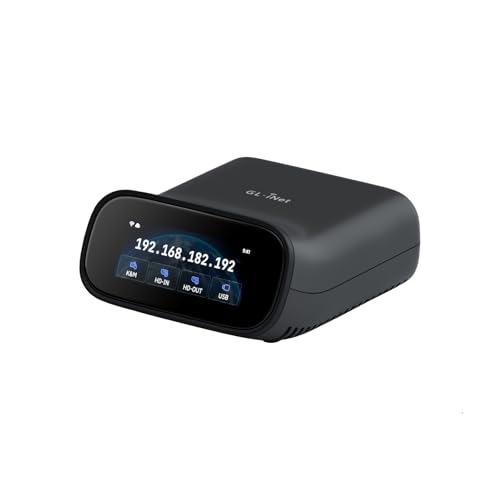
- Dual-band Wi-Fi 6 and wired connectivity
- 4K@30FPS passthrough with two-way audio
- Browser, app, Tailscale, and self-hosted access
Best For: Wireless-friendly home labs and remote IT support
Best Open-Source Option

- USB-C and HDMI setup with Ethernet networking
- 1080p@60FPS streaming and 30–60 ms latency
- Open-source Linux platform with optional cloud access
Best For: Single-computer remote administration and recovery
Best Multi-Host Rack Pick

- Four HDMI inputs and four USB-C host ports
- PoE with 5V Type-C backup power
- 4K@30FPS loop-out and rack-mount hardware
Best For: Four-system home labs, server rooms, and IT racks
Best Compact Budget-Style Pick

- Compact HDMI, USB-C, and Ethernet design
- 1080p@60FPS streaming with 30–60 ms latency
- Open-source firmware and browser-based access
Best For: Compact single-PC home-lab and troubleshooting setups
Remote BIOS Access

- BIOS-level remote PC and server control
- 4K 30Hz video with hardware encoding
- No software required on the host computer
Best For: Remote IT support and server maintenance
Three-Computer USB-C Sharing
Cable Matters 20Gbps USB-C KVM

- Connects three computers to one monitor or dock
- Supports 20Gbps data and up to 140W PD
- RF remote enables software-free switching
Best For: USB-C multi-computer desktop workstations
ZeroTier Remote Access
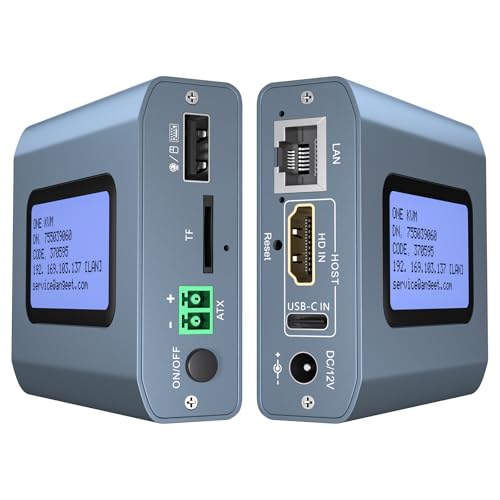
- Remote HDMI and USB control over Ethernet
- 4K 60Hz output with low stated latency
- ZeroTier and desktop remote power control
Best For: Cross-network PC and server administration
Dual-Laptop Docking Choice

- Dual 4K display support for compatible Windows laptops
- 65W charging for both connected laptops
- Built-in Ethernet, USB, SD, and headset connections
Best For: Two-laptop hybrid workstations with dual monitors
High-Resolution Three-System Pick

- Connects two USB-C laptops and one DisplayPort system
- Single-monitor output up to 8K@60Hz
- Up to 60W charging on both USB-C inputs
Best For: Three-computer setups using one high-resolution monitor
Triple-Monitor Productivity Hub

- Shares up to three 4K@60Hz displays
- 100W laptop PD with a 65W USB-C charging port
- 15-in-1 connectivity with Ethernet, card readers, and display outputs
Best For: Multi-monitor productivity and creative workstations
Best Wireless Pick – GL-RM10 Comet Pro
If you want USB C KVM over IP access without adding extensive cabling, the GL.iNet GL-RM10 Comet Pro combines dual-band Wi-Fi 6 with wired networking. It supports 4K video passthrough, two-way audio, browser-based access, and BIOS-level recovery tasks.
Best For: Home labs, remote IT support, and users who prioritize flexible wireless access.
Pros:
- Dual-band Wi-Fi 6 plus wired connectivity supports flexible installations.
- 4K@30FPS passthrough and two-way audio support clear remote interaction.
- Built-in Tailscale, browser access, and optional self-hosted cloud deployment expand access options.
Cons:
- ATX power and Fingerbot functions require separately sold extensions.
- Wireless performance depends on the available network environment.
The Comet Pro is a versatile choice when wireless convenience, audio, and higher-resolution passthrough matter more than multi-host switching.
Best Open-Source Option – JetKVM USB-C IP KVM
The JetKVM is a compact USB C KVM over IP device for controlling a computer remotely through HDMI, USB-C, and Ethernet. Its browser-based setup, 1080p streaming, Wake-on-LAN support, and optional cloud access make it practical for remote troubleshooting.
Best For: Users who want an open-source, low-latency KVM for one computer.
Pros:
- Connects through USB-C and HDMI, then uses an Ethernet connection for network access.
- 1080p@60FPS video with stated 30–60 ms latency supports responsive control.
- Open-source Linux-based software supports SSH customization and optional WebRTC cloud access.
Cons:
- The listed video output is limited to 1080p.
- Remote power control requires an ATX or DC extension.
With multiple access methods and flexible power options, this JetKVM is a strong fit for single-system remote administration and recovery work.
Best Multi-Host Rack Pick – GL-RM4PE Comet X
For a rack or home-lab setup with several systems, the GL.iNet Comet X provides four HDMI inputs and four dedicated USB Type-C device ports. This USB C KVM over IP supports PoE, 5V Type-C backup power, local control, and browser-based HTTPS access.
Best For: IT professionals and home-lab users managing up to four host systems.
Pros:
- Four-host KVM switching is available through the front panel, touchscreen, or web interface.
- PoE reduces cabling, while 5V Type-C provides a backup power option.
- 4K@30FPS HDMI loop-out supports simultaneous local display and remote access.
- Included rack brackets support 10-inch and 19-inch installations.
Cons:
- Its larger multi-port design is more than needed for a single computer.
- Remote video passthrough is specified at 4K@30FPS rather than a higher refresh rate.
The Comet X is the most capable choice here for organized multi-system deployments, especially where PoE and rack mounting simplify installation.
Best Compact Budget-Style Pick – JetKVM Mini IP KVM
This compact JetKVM offers a straightforward USB C KVM over IP setup: connect HDMI for video, USB-C for keyboard and mouse signals and power, then access the device through Ethernet in a browser. It also supports local access, optional WebRTC cloud access, and Wake-on-LAN.
Best For: Home-lab users needing compact 1080p remote access for one powered-on computer.
Pros:
- Small enclosure and onboard LCD help simplify installation and network setup.
- 1080p@60FPS H.264 streaming with stated 30–60 ms latency supports responsive control.
- Open-source firmware, SSH customization, and cross-platform compatibility offer flexibility.
Cons:
- It does not transfer audio.
- The non-PoE model cannot control a fully powered-off target without separately sold power-control modules.
- Video resolution is limited to 1920×1080.
The compact JetKVM is a practical single-PC solution when you need BIOS access and remote recovery but do not require 4K video or multi-host switching.
Remote BIOS Access – GL.iNet Comet GL-RM1
The GL.iNet Comet GL-RM1 is a hardware-based option for anyone comparing usb c kvm over ip switches for remote PC or server administration. It provides BIOS-level control, remote power-on support, file transfer, and 4K video through an Ethernet-connected design, without requiring software on the host computer.
Best For: IT professionals, server maintenance, remote troubleshooting, and users managing computers away from the site.
Pros:
- Supports remote rebooting, operating-system installation through BIOS, and power-on control.
- Provides 3840×2160 at 30Hz with low-latency H.264 hardware encoding.
- Works with laptops, desktops, servers, and other compatible devices without host-side software.
- Includes remote audio and file-transfer capabilities.
Cons:
- Video output is limited to 4K at 30Hz.
- Its single USB port may be restrictive for more complex setups.
- PD adapters cannot be used.
The GL-RM1 is more focused on true remote administration than desk-side device switching. Its BIOS access and hardware encoding make it a practical choice for maintenance tasks, while the single-port layout and 30Hz ceiling are worth considering before purchase.
Three-Computer USB-C Sharing – Cable Matters 20Gbps USB-C KVM
The Cable Matters 20Gbps USB-C KVM is a strong desk-based choice among usb c kvm over ip switches alternatives when the goal is to share one USB-C monitor or dock between three computers. It supports high-speed data, high-resolution video, active-device charging, and convenient RF remote switching.
Best For: Multi-computer workstations using a detachable-cable USB-C or Thunderbolt 4 monitor or docking station.
Pros:
- Shares one compatible display or docking station across three computers.
- Supports up to 20Gbps data transfer and up to 140W Power Delivery for the active computer.
- Handles up to 8K at 30Hz, 5K at 60Hz, or 4K at 144Hz on supported Windows setups.
- Includes an RF remote for switching without software or drivers.
Cons:
- Requires the included USB4 20Gbps cables; Thunderbolt 3/4/5 cables are not recommended.
- macOS supports only one external display and may be limited to 4K at 60Hz.
- Charging applies only to the selected active computer.
This switch is designed for local USB-C workflow sharing rather than internet-based KVM access. Confirm that your monitor or dock has a detachable host cable and that your computers fit the stated bandwidth and macOS limitations.
ZeroTier Remote Access – 4K IP KVM with Power Control
This 4K IP KVM is built for buyers seeking usb c kvm over ip switches with internet-based access, remote power control, and cross-network management. It connects through HDMI, USB-C, and Ethernet, allowing control through a web interface or app across Windows, macOS, Linux, and Android systems.
Best For: Remote PC and server management across locations, including BIOS work, troubleshooting, and desktop power control.
Pros:
- Provides remote control without additional software or drivers on the managed computer.
- Supports 3840×2160 at 60Hz with stated latency below 60 milliseconds.
- Built-in ZeroTier enables peer-to-peer access without typical port forwarding or VPN setup.
- Supports remote desktop power on/off through the included motherboard ATX connection.
Cons:
- Remote power control is for desktop computers and does not support laptops.
- ZeroTier requires an online upgrade before use.
- Remote access depends on the web platform, app, or network configuration.
With 4K60 output, web and app access, and integrated ZeroTier, this model is suited to genuine remote KVM administration. Its motherboard wiring requirement for power control means installation is more involved than a simple display switch.
Dual-Laptop Docking Choice – iDock X20 USB-C KVM
The AV Access iDock X20 is a practical option for shoppers comparing usb c kvm over ip switches for a two-laptop workstation. It combines KVM switching with dual-monitor support, charging, Ethernet, and everyday docking connections, allowing compatible USB-C laptops to share one desk setup without cable swapping.
Best For: Hybrid workers using two compatible USB-C laptops with dual HDMI monitors and shared peripherals.
Pros:
- Supports dual 4K@60Hz displays from compatible Windows laptops through one USB-C cable per laptop.
- Charges both connected laptops simultaneously with up to 65W per laptop.
- Gigabit Ethernet remains available to both laptops, even after switching.
- Includes USB ports, SD card reading, headset connectivity, and push-button or wired-remote control.
Cons:
- Apple Silicon Macs support SST only and mirror content across dual monitors.
- USB-C laptops must support DisplayPort Alt Mode for display output.
The iDock X20 stands out when the priority is a complete two-laptop desk rather than a basic peripheral switch. Its dual-working mode also suits users who need both computers visible at once, although display compatibility should be checked before purchase.
High-Resolution Three-System Pick – Sabrent USB-C DisplayPort KVM
The Sabrent USB-C3KM is a focused choice for buyers evaluating usb c kvm over ip switches who need to control three computers from one monitor and one set of peripherals. It connects two USB-C laptops plus one DisplayPort system, with high-resolution single-display output and USB-C power delivery.
Best For: Users switching among two USB-C laptops and one DisplayPort desktop or workstation on a single monitor.
Pros:
- Controls three computers with one keyboard, mouse, monitor, and shared audio setup.
- Supports up to 8K@60Hz or 4K@144Hz through its DisplayPort 1.4 output.
- Provides up to 60W Power Delivery on both USB-C inputs.
- Includes remote switching, LED status indicators, aluminum housing, and a one-year warranty extendable to two years with registration.
Cons:
- Supports one external display only; dual- or multi-monitor setups are not supported.
- USB-C laptop ports must support DisplayPort Alt Mode; data-only or charging-only ports will not output video.
- Shared USB ports operate at USB 2.0 speeds and are not intended for fast storage.
This model is best viewed as a single-monitor, three-computer switch rather than a docking station for a multi-screen office. Its 8K and high-refresh capabilities make it attractive for detailed work or gaming when the connected computers and monitor support the required standards.
Triple-Monitor Productivity Hub – 15-in-1 USB-C KVM Dock
This 15-in-1 USB-C KVM docking station is aimed at shoppers comparing usb c kvm over ip switches for a high-output two-computer workspace. It shares up to three monitors and a broad selection of dock ports, while adding 100W laptop power pass-through and a 120W adapter for the overall setup.
Best For: Productivity, creative, trading, or hybrid-work desks that need two computers, three displays, and extensive docking connectivity.
Pros:
- Shares three 4K@60Hz displays or two DisplayPort displays at up to 4K@120Hz with compatible hardware.
- Offers 100W laptop PD pass-through plus a dedicated 65W USB-C charging port.
- Combines USB 3.0, USB-C data, DisplayPort, HDMI, Gigabit Ethernet, and SD or microSD slots.
- Includes a wired controller and requires no software for switching.
Cons:
- The host USB-C port must support DP Alt Mode and data transmission, or the computer must use Thunderbolt 3, 4, or 5.
- 4K@120Hz dual-display operation requires two DisplayPort monitors and a Thunderbolt 4 laptop.
- Compatibility varies by laptop model, so users should verify their system before buying.
Among these options, this unit offers the broadest display and docking expansion for a demanding desk. Its performance depends heavily on the host computer’s USB-C or Thunderbolt capabilities, making compatibility checks especially important.
How We Picked the Best USB C Kvm Over Ip Switches
We evaluated these 10 products by looking at their connection type, remote-access capabilities, display support, USB and peripheral switching, power delivery, and practical installation requirements. The list includes both true KVM-over-IP hardware and USB-C KVM or docking solutions, because buyers often compare these categories when choosing between remote administration and local desk convenience.
We also considered features that affect everyday usability: BIOS-level access, network compatibility, operating-system support, refresh rates, cable requirements, security options, and whether a product is better suited to one workstation or a larger multi-computer environment.
Quick Comparison
| Best For | Look For | Most Suitable Design |
|---|---|---|
| Remote IT support | Ethernet, browser access, BIOS control | Dedicated IP KVM |
| Home labs and servers | Reliable network access, Tailscale or ZeroTier support | Remote KVM appliance |
| Two-laptop desks | USB-C video, charging, peripheral sharing | USB-C KVM dock |
| High-resolution displays | Resolution, refresh rate, and bandwidth limits | Modern USB-C or DisplayPort KVM |
| Three-computer setups | Input count and independent switching | Multi-port KVM switch |
Key Buying Factors for USB-C KVM Over IP Switches
Remote Access and Network Control
For genuine remote administration, prioritize Ethernet connectivity, web-based control, virtual media, BIOS access, and dependable recovery features. Check whether remote access works only on a local network or can be secured for use over the internet. Tailscale, ZeroTier, VPN, or another private-network option can reduce exposure compared with directly forwarding ports.
USB-C, Display, and Charging Support
USB-C does not guarantee identical capabilities across devices. Confirm whether each port supports video output, USB data, power delivery, or all three. Compare the advertised resolution and refresh rate with your monitor configuration, and check whether the switch supports DisplayPort Alt Mode, HDMI conversion, or multiple displays.
Power Delivery and Peripheral Compatibility
Choose a unit with enough power delivery for the laptops you plan to charge, allowing for overhead. Verify support for keyboards, mice, webcams, storage devices, audio equipment, and other USB accessories. Some high-bandwidth peripherals may perform better when connected directly to the computer.
Security, Reliability, and Setup
Change default credentials, use strong authentication where available, keep firmware updated, and avoid exposing an IP KVM directly to the public internet without appropriate protection. For local KVMs, consider cable length, desk access, button placement, and whether switching interrupts USB or display connections.
Who Should Buy Which USB C Kvm Over Ip Switches?
Choose a Dedicated IP KVM If:
You need to restart, configure, or reinstall a computer from another location, including before the operating system loads. These models are the strongest fit for IT professionals, server closets, home labs, and unattended systems.
Choose a USB-C KVM Dock If:
You mainly switch between two or more laptops at the same desk and want shared monitors, accessories, and charging. These products are usually simpler than network KVMs and better for daily productivity.
Choose a Multi-Computer Display KVM If:
You need high-resolution local switching across several computers. Prioritize the exact number of display outputs, supported refresh rates, USB bandwidth, and power requirements rather than relying on the USB-C label alone.