Switching between two laptops or desktop computers should not require unplugging your monitor, keyboard, mouse, and storage devices. The best USB-C KVM switches simplify that process while adding useful features such as video output, USB expansion, and power delivery.
This roundup compares 10 options for home offices, gaming setups, creative workstations, and dual-computer desks. Pay close attention to display support, charging limits, port selection, and compatibility before choosing a model.
Best 10 USB C Kvm Switches Picks for 2026
Best Premium USB4 Pick

- Up to 8K/30Hz or 4K/144Hz on Windows
- 140W pass-through to the active computer
- RF remote and compatible dock sharing
Best For: Premium two-computer USB-C and Thunderbolt workstations
Best Dual-Monitor Docking Pick
2-Port USB-C KVM for Two Displays

- Dual 4K output at 60Hz
- Four 5Gbps USB 3.0 ports
- Two 100W PD inputs for laptop charging
Best For: Windows users sharing two HDMI monitors between two laptops
Best for Three Computers
USB-C/DisplayPort KVM with 8K Output

- Connects two USB-C laptops and one DP system
- Up to 8K/60Hz or 4K/144Hz
- 60W PD on both USB-C inputs
Best For: Mixed laptop-and-desktop setups using one monitor
Best High-Speed Peripheral Hub

- 4K/60Hz HDMI output
- Four 10Gbps USB ports plus two USB 2.0 ports
- Up to 100W for one or 85W per two laptops
Best For: Two-laptop desks with fast USB peripherals and HDMI displays
Best HDMI-USB-C Hybrid
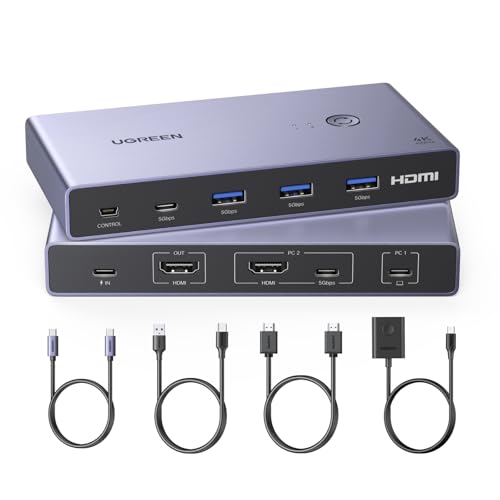
- 4K@60Hz support for one HDMI monitor
- Four shared USB 3.0 ports
- Desktop controller and cables included
Best For: Mixed USB-C laptop and HDMI computer setups
Best High-Bandwidth Pick
Cable Matters 40Gbps USB-C KVM

- 40Gbps USB-C, USB4, and Thunderbolt support
- Up to 8K@60Hz or 4K@240Hz
- 140W PD pass-through and RF remote
Best For: Advanced USB4 or Thunderbolt laptop workstations
Premium High-Speed Pick

- Shares a USB-C monitor or compatible dock between two computers
- Supports up to 140W power-delivery pass-through
- Up to 8K@30Hz Windows or 4K@60Hz macOS with compatible hardware
Best For: USB-C and Thunderbolt 4 monitor or dock sharing
Simple HDMI Desk Setup

- Shares one HDMI monitor between two laptops
- Supports 4K@60Hz output
- Includes wired remote and USB power cable
Best For: Basic Windows or Mac laptop setups with an HDMI monitor
Mixed-Input Workstation Pick
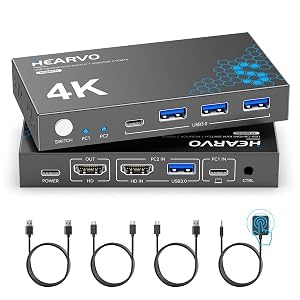
- Combines HDMI and full-function USB-C computer inputs
- Shares four USB peripheral ports
- Supports 4K@60Hz with adaptive EDID
Best For: Mixed PC, laptop, or Mac mini workstations
Best Premium USB4 Pick – 20Gbps USB-C KVM with 140W PD
This Cable Matters model is a strong choice among usb c kvm switches for sharing a USB-C or Thunderbolt 4 monitor—or a compatible docking station—between two computers. It combines USB4 20Gbps bandwidth, high-resolution display support, remote switching, and pass-through charging, but setup depends on using the included cables and compatible detachable-host docks.
Best For: Users who want a premium two-computer USB-C or Thunderbolt workstation with remote switching and high-power charging.
Pros:
- Supports up to 8K at 30Hz or 4K at 144Hz on Windows with one compatible display.
- Passes through up to 140W to the active computer.
- Works with compatible USB4 and Thunderbolt 4 docks and includes an RF remote.
Cons:
- Requires the included USB4 20Gbps cables; Thunderbolt cables are not recommended as substitutes.
- Its 20Gbps bandwidth may limit resolution, refresh rate, or monitor count versus a direct 40Gbps connection.
- It charges only the selected computer, not both simultaneously.
This is a feature-rich option for a carefully matched setup. Verify your monitor, dock, cables, and operating system before buying, especially if you need dual displays or maximum Thunderbolt bandwidth.
Best Dual-Monitor Docking Pick – 2-Port USB-C KVM for Two Displays
This dual-monitor docking model stands out among usb c kvm switches for laptop users who need two HDMI displays, shared peripherals, and one-click switching. It supports dual 4K output at 60Hz and includes four USB 3.0 ports, while compatibility depends on USB-C DisplayPort Alt Mode, suitable system support, and MST limitations on Macs.
Best For: Windows-oriented users connecting two laptops to two HDMI monitors and shared USB accessories.
Pros:
- Supports two external 4K monitors at 60Hz simultaneously.
- Provides four 5Gbps USB 3.0 ports for peripherals and storage.
- Offers two 100W PD inputs for charging both connected laptops with compatible adapters.
Cons:
- Requires laptop USB-C ports with DisplayPort Alt Mode, data, and power support.
- A 100W input delivers approximately 73–80W to a laptop after system and cable consumption.
- Extended dual-monitor mode is not supported on Mac M1/M2 systems because of MST limitations.
For a Windows dual-laptop desk, this is a practical all-in-one choice. Check the laptops’ USB-C capabilities and use the recommended short USB-C and HDMI cables for the advertised display performance.
Best for Three Computers – USB-C/DisplayPort KVM with 8K Output
This SABRENT switch is one of the more flexible usb c kvm switches for a mixed-computer desk: it connects two USB-C laptops and one DisplayPort system to a single monitor, keyboard, and mouse. It supports high-resolution DisplayPort output and 60W charging, but it is limited to one external display and uses USB 2.0 for shared peripherals.
Best For: Users switching among two USB-C laptops and one DisplayPort desktop or workstation.
Pros:
- Controls three computers through one monitor, keyboard, and mouse.
- Supports up to 8K at 60Hz or 4K at 144Hz through DisplayPort 1.4.
- Passes up to 60W of Power Delivery through each USB-C input.
- Includes remote switching, audio connections, and an aluminum housing.
Cons:
- Supports only one external display, not dual- or multi-monitor setups.
- USB peripheral ports operate at USB 2.0 speeds and are not intended for fast storage.
- USB-C laptops must support DisplayPort Alternate Mode to output video.
This is a good fit when three-system switching matters more than high-speed USB expansion. Confirm that each laptop supports video over USB-C and that your workflow can accept a single monitor and USB 2.0 accessories.
Best High-Speed Peripheral Hub – USB-C KVM with 4K HDMI
This Cable Matters unit is a well-equipped option among usb c kvm switches for two laptops sharing an HDMI display and a broad collection of peripherals. It combines 4K at 60Hz video, 10Gbps USB-C and USB-A ports, dual-laptop charging, RF remote control, and included USB4 cables in one workstation switch.
Best For: Two-laptop desks that need fast USB accessories, HDMI video, and charging for both connected computers.
Pros:
- Supports 4K at 60Hz with compatible USB-C or Thunderbolt laptops.
- Includes two USB-C and two USB-A 10Gbps ports, plus two USB-A 2.0 ports.
- Can deliver up to 100W to one laptop or up to 85W per laptop when two are connected.
- Offers button, RF remote, and optional hotkey switching.
Cons:
- Connected laptops must support DisplayPort Alt Mode or Thunderbolt video output.
- It is designed for HDMI displays and is not intended for HDMI-output PCs or USB-C portable monitors.
- Hotkey switching requires downloading the required software.
For a two-laptop workspace with demanding USB peripherals, this model offers a particularly useful port mix. Confirm video compatibility first, then use the included 180W adapter and cables to take advantage of its charging and data features.
Best HDMI-USB-C Hybrid – UGREEN 4K60 USB-C + HDMI KVM
This UGREEN option is a practical choice among usb c kvm switches when one USB-C laptop and one HDMI-equipped computer need to share a single monitor and USB peripherals. It supports up to 4K at 60Hz and includes both a physical switch and a desktop controller.
Best For: Workstations that pair a USB-C laptop with an HDMI desktop and need shared keyboard, mouse, storage, or printer access.
Pros:
- Supports up to 4K@60Hz, HDR10+, HDMI 2.0, and HDCP 2.2.
- Offers three USB-A 3.0 ports and one USB-C port with up to 5Gbps transfer speeds.
- Includes an HDMI cable, USB-C cable, USB-A-to-C data cable, and desktop controller.
- Works with Windows, macOS, and Linux without additional drivers.
Cons:
- Supports only one monitor with an HDMI input.
- It does not support automatic or hotkey switching.
- The PC2 connection requires HDMI for video plus USB-A-to-C for data; power adapter is not included.
Choose this model if you want broad operating-system compatibility and fast shared USB ports in a straightforward one-monitor setup. Be sure both computers and the monitor use compatible connections, and plan for a separate power supply when using high-power USB devices.
Best High-Bandwidth Pick – Cable Matters 40Gbps USB-C KVM
For demanding usb c kvm switches setups, this Cable Matters model is designed to share a compatible USB-C, USB4, or Thunderbolt monitor or dock between two laptops. Its 40Gbps bandwidth and high-resolution support make it especially suited to modern workstations.
Best For: MacBook or Windows laptop users with compatible USB-C or Thunderbolt monitors, docks, and high-speed peripherals.
Pros:
- Supports up to 40Gbps bandwidth, with video up to 8K@60Hz, 6K@60Hz, or 4K@240Hz when the full setup permits.
- Can share a compatible USB4 or Thunderbolt dock and its connected peripherals.
- Passes through up to 140W Power Delivery to the active laptop when supported by the source and laptop.
- Includes built-in input and output cables plus RF remote switching.
Cons:
- It requires a compatible dock with a detachable host cable; docks with built-in host cables are unsupported.
- An 80Gbps dock is limited to 40Gbps through the switch.
- The built-in cable path is already 1.8 meters, so USB-C extension cables should not be used.
This is the most capable choice here for users already invested in USB4 or Thunderbolt equipment. Compatibility is more specialized than with basic HDMI KVMs, so verify the monitor or dock, detachable cable, and laptop standards before buying.
Best Charging-Capable Option – USB-C 4K60 KVM with 100W PD
This two-laptop model is a useful usb c kvm switches choice when both computers have compatible Thunderbolt ports and you want one HDMI monitor, keyboard, mouse, and other USB devices. It also adds up to 100W charging for the active laptop.
Best For: Thunderbolt 3, 4, or 5 laptop users who want shared peripherals, 4K display output, and charging in one setup.
Pros:
- Supports 4K@60Hz and is backward compatible with 4K@30Hz and 1440p@120Hz.
- Provides up to 100W charging for the computer currently in use.
- Shares a monitor, keyboard, mouse, printer, scanner, hard drive, or USB disk between two laptops.
- Includes two USB-A 2.0 ports and one USB-C 2.0 data port.
Cons:
- Laptops must have compatible Thunderbolt 3 or newer ports with video support.
- It supports only an HDMI-connected monitor; USB-C data ports do not carry video.
- Power must remain connected for the device to operate, and it cannot charge both laptops simultaneously.
This model makes sense for a compatible Thunderbolt laptop pair where charging is a priority. Its port and display requirements are restrictive, so confirm your laptops support video and charging over Thunderbolt and that your monitor uses HDMI before choosing it.
Premium High-Speed Pick – 20Gbps USB-C KVM Switch
For shoppers comparing usb c kvm switches for two laptops, the Cable Matters model stands out for its high-bandwidth USB4 switching path, monitor or dock sharing, and power-delivery pass-through. It can support up to 8K at 30Hz on Windows or 4K at 60Hz on macOS with a single compatible display, but the result depends on the host, monitor, dock, cables, and available bandwidth.
Best For: Users who want to share a USB-C or Thunderbolt 4 monitor or compatible docking station between two computers.
Pros:
- Supports data transfer up to 20Gbps.
- Passes through up to 140W of power to the active computer.
- Supports up to 8K@30Hz on Windows and 4K@60Hz on macOS with compatible equipment.
- Works with select docks that have detachable host cables.
Cons:
- Requires the included USB4 20Gbps cables; Thunderbolt cables are not substitutes.
- Not recommended for docks with built-in or attached host cables.
- The 20Gbps path may limit display performance compared with a direct 40Gbps Thunderbolt 4 connection.
This is the most capable option here for USB-C monitor or docking-station sharing, especially when charging pass-through matters. Confirm your dock, cable, operating system, and display requirements before buying.
Simple HDMI Desk Setup – 4K USB-C KVM Switch
This MLEEDA model is a straightforward choice among usb c kvm switches for two laptops sharing one HDMI monitor and a USB-connected hub or peripherals. It supports 4K at 60Hz and offers both a front-panel button and a wired remote, though it requires separate HDMI and USB-C cables and does not support USB-C docking stations.
Best For: Windows or Mac laptop users with one HDMI monitor who want manual or wired-remote switching.
Pros:
- Supports up to 4K@60Hz and lower resolutions including 1440p@120Hz.
- Provides both on-device and 1.5-meter wired-remote switching.
- Can connect a USB hub for shared keyboard, mouse, printer, and other USB devices.
Cons:
- Only supports monitors with HDMI inputs.
- Does not support USB-C docking stations, EDID emulation, or hotkey switching.
- USB-C and HDMI cables are not included.
Choose this switch when your setup is centered on one HDMI display and basic USB peripheral sharing. Its limitations make it less suitable for dock-based workstations or users who want automatic display retention during switching.
Mixed-Input Workstation Pick – USB 3.0 HDMI and USB-C KVM
The Hearvo is a flexible option among usb c kvm switches for a mixed PC-and-laptop or PC-and-Mac mini workspace. One computer connects through HDMI and USB-A, while the other uses a full-function USB-C connection for video and data. Four shared USB ports, adaptive EDID, and 4K@60Hz HDMI output make it suited to a peripheral-heavy desk.
Best For: Users combining HDMI and USB-C computers while sharing a monitor, keyboard, mouse, storage, and other USB peripherals.
Pros:
- Supports mixed HDMI and full-function USB-C computer inputs.
- Offers three USB-A ports and one USB-C port for shared peripherals.
- Supports USB 3.0 data transfer up to 5Gbps.
- Includes adaptive EDID and both button and wired-remote switching.
Cons:
- HDMI output is limited to 4K@60Hz.
- The USB-C computer requires a full-function cable that supports video and data.
- Its USB 3.0 bandwidth is lower than the 20Gbps path offered by the Cable Matters model.
For a desk that mixes computer connection types, this is the most versatile layout in the group. Its four shared USB ports and adaptive EDID are practical advantages, while users seeking higher-speed USB4 performance should consider a faster dedicated switch.
How We Picked the Best USB C Kvm Switches
We focused on practical features that affect everyday switching performance: computer and monitor support, USB-C bandwidth, video resolution and refresh rate, power delivery, peripheral connectivity, operating-system compatibility, and physical usability. Models were also compared by the type of setup they suit, from a simple one-monitor desk to a dual-display workstation.
A USB-C connection does not automatically guarantee support for every feature. The computer must provide the required video output over USB-C, and the switch must match the monitor’s resolution, refresh rate, and connector type. Where products offer HDMI, DisplayPort, Thunderbolt compatibility, or a built-in hub, those capabilities should be confirmed against your equipment.
Quick Comparison
- Best for high-power charging: Choose a model advertising 100W or 140W power delivery.
- Best for high-resolution displays: Look for 4K at 60Hz or 8K support, while checking the required cable and host-device standards.
- Best for dual-monitor desks: Select a dedicated dual-monitor KVM rather than a single-display switch.
- Best for mixed setups: HDMI-and-USB-C models can be more flexible when computers use different video connections.
- Best for Thunderbolt systems: A Thunderbolt-compatible switch may be the safer choice, but it still must support your specific display arrangement.
Key Buying Factors for USB-C KVM Switches
Display Support
Start with the number of monitors you need and the maximum resolution and refresh rate. A switch rated for 4K at 60Hz is generally suitable for office work and many media tasks, while gaming or specialized creative work may require higher refresh rates. Confirm whether the advertised resolution applies to one display or multiple displays simultaneously.
Power Delivery
Power delivery can reduce desktop clutter by charging a connected laptop through the switch. Compare the switch’s maximum wattage with your laptop’s charger requirements, and remember that the switch itself may consume some power. A high-wattage rating is useful only when the host computer, charger, cable, and switch all support it.
Ports and Peripherals
Check whether you need USB-A ports for a keyboard, mouse, printer, hard drive, webcam, or other accessories. Also consider whether the switch offers USB 3.x speeds or only basic USB 2.0 connectivity. Fast storage and webcams benefit from higher data rates, while keyboards and mice generally do not.
Switching Method and Compatibility
Buttons, wired remotes, keyboard shortcuts, and automatic switching each suit different desks. Verify compatibility with Windows, macOS, ChromeOS, and your specific laptop models. Macs and USB-C laptops may require DisplayPort Alt Mode, a compatible dock configuration, or additional adapters.
Who Should Buy Which USB C Kvm Switches?
Choose a compact one-monitor model if you alternate between two laptops and mainly need to share a display, keyboard, and mouse. For a laptop-heavy home office, prioritize USB-C input, reliable charging, and enough USB ports for your daily accessories. Users with mixed HDMI and USB-C hardware should consider a hybrid switch such as an HDMI-plus-USB-C design.
Dual-monitor users should choose a purpose-built dual-display KVM and verify that both screens can operate at the desired resolution. Professionals with demanding displays or Thunderbolt peripherals should favor models with clearly stated high-bandwidth and compatibility specifications. If your setup includes several computers, look for a three-computer switch rather than relying on adapters or repeated cable changes.