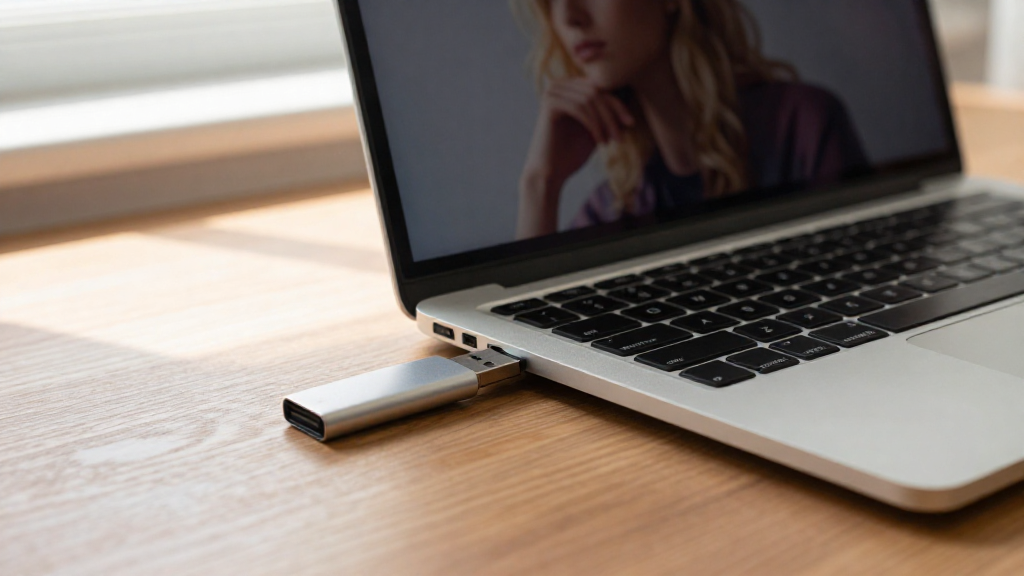
If you’re wondering how to boot from USB Mac, you’ve come to the right place. Whether you’re looking to install a fresh operating system, run diagnostics, or recover data, booting your Mac from a USB drive can be a valuable tool. In this guide, we’ll walk you through the process step-by-step.
Why Would You Need to Boot from a USB Drive?
Booting from a USB drive is useful for various reasons:
- Installing macOS: You can create a bootable USB drive to install or reinstall macOS.
- Running Diagnostics: Use a USB drive with diagnostic tools to troubleshoot issues.
- Data Recovery: Access data on your Mac if it fails to boot normally.
- Live Systems: Run a separate operating system directly from the USB drive.
Understanding these use cases can help you appreciate the versatility of booting from a USB drive.
What do You Need to Prepare?
Before you proceed with how to boot from USB Mac, you need to ensure you have the following:
- USB Drive: A USB drive with at least 16GB of storage is recommended.
- Mac Computer: The one you want to boot.
- macOS Installer: This can be downloaded from the Mac App Store.
- Backup Data: Always back up important files before performing system operations.
Step 1: Create a Bootable USB Drive
Creating the actual bootable USB drive is the first step in learning how to boot from USB Mac. To make a bootable USB drive for macOS, follow these steps:
-
Download macOS:
– Go to the App Store and search for “macOS.”
– Click on Get to download the installer. -
Format the USB Drive:
– Insert the USB drive into your Mac.
– Open Disk Utility (found in Applications > Utilities).
– Select your USB drive from the side panel.
– Click on Erase.
– Choose Mac OS Extended (Journaled) for the format and GUID Partition Map for the scheme.
– Name your drive (e.g., “Untitled”) and click Erase. -
Use Terminal to Create the Bootable Drive:
– Open Terminal (found in Applications > Utilities).
– Input the following command (replace “Untitled” with your USB drive name if different):
bash

   sudo /Applications/Install\ macOS\ [Version].app/Contents/Resources/createinstallmedia --volume /Volumes/Untitled
- Press Enter and follow prompts. Enter your password when prompted.
Step 2: How to Boot from USB Mac?
Now that you have a bootable USB drive, the next step is how to boot from USB Mac. Here’s how to do it:
-
Restart Your Mac:
– Click on the Apple menu and select Restart. -
Enter Startup Options:
– Immediately hold down the Option (⌥) key after your Mac begins to restart.
– Release the Option key when you see the Startup Manager. -
Select the USB Drive:
– In Startup Manager, you’ll see available drives.
– Select your bootable USB drive by using the arrow keys. -
Press Enter:
– Hit Enter to boot from the USB drive.
– Your Mac will start from the USB drive, allowing you to install macOS or use other tools you have set up.
How to Install macOS from Bootable USB?
After booting from the USB drive, you may want to install macOS. Here’s how:
-
Choose Disk Utility:
– When the macOS Utilities screen appears, select Disk Utility and click Continue.
– Select your main hard drive and format it: choose APFS or Mac OS Extended (Journaled). -
Install macOS:
– Once you’ve formatted your drive, return to macOS Utilities.
– Choose Install macOS and click Continue.
– Follow the on-screen instructions to complete the installation.
What to Do If USB Drive Fails to Boot?
Sometimes, you may encounter problems while trying to boot from a USB drive. Here are a few troubleshooting tips:
- Check USB Drive: Ensure the USB drive is working correctly. Try connecting it to another computer.
- Recreate Bootable Drive: If the USB was not created properly, recreate it following the steps above.
- Use a Different USB Port: If using a desktop Mac, try a different USB port.
- Firmware Update: Ensure your Mac is updated to the latest firmware version.
Conclusion
Understanding how to boot from USB Mac opens up a range of possibilities, from installing a fresh macOS to running diagnostics. By preparing your USB drive and following the outlined steps carefully, you can set up your Mac for a variety of needs.
Always remember that proper backups are crucial before making significant changes to your system.
Happy computing! Whether you’re a tech novice or an experienced user, knowing how to boot from USB can save you time and headaches. If you have any questions or need further assistance, feel free to reach out!