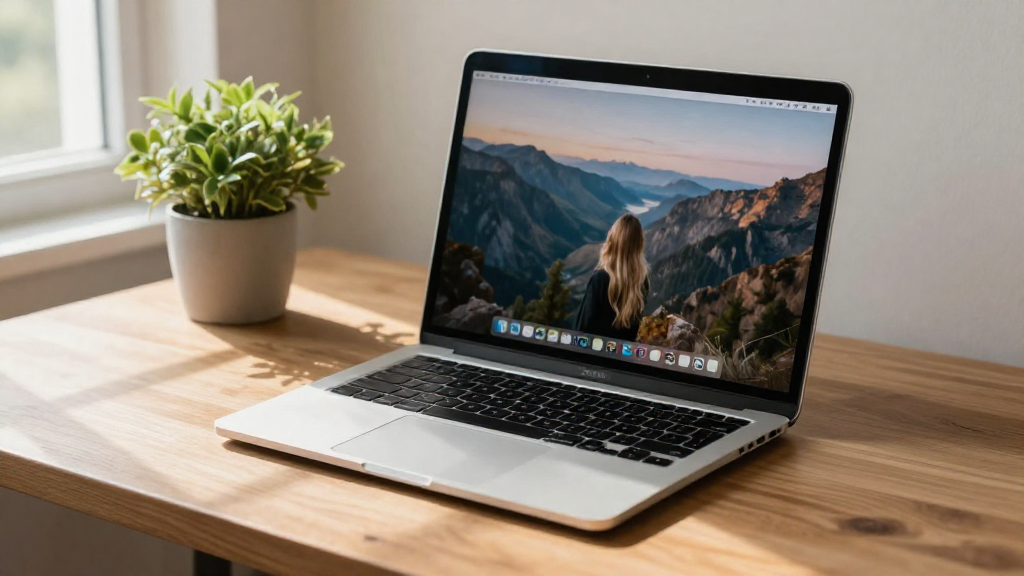
Are you looking for a simple way to customize your desktop?
In this guide, we will walk you through how to change wallpaper on Mac effortlessly.
What Are the Steps to Change Your Wallpaper on Mac?
Changing your wallpaper on a Mac is a straightforward process.
You can choose from the pre-installed images, use your own photos, or download new wallpapers from the internet.
Here’s how you can do it:
-
Open System Preferences
– Click on the Apple menu in the top-left corner of your screen.
– Select System Preferences from the dropdown. -
Go to Desktop & Screen Saver
– Click on Desktop & Screen Saver.
– This window will now allow you to see various options you can choose from. -
Choose a New Wallpaper
– You can select Desktop Pictures to view Apple’s built-in wallpapers.
– If you want to use a personal photo, click on the Photos section or Folders if your images are stored elsewhere.
– Navigate to the image you want and select it. -
Set Your Wallpaper
– Once you’ve made your selection, click on it.
– You should immediately see the change on your desktop! -
Customize Your Wallpaper
– You can also adjust how your wallpaper fits the screen:- Fill Screen
- Fit to Screen
- Stretch to Fill Screen
- Center
- Tile
- Choose the fitting option that aligns best with your desktop aesthetic.
Can I Change the Wallpaper Automatically?
Yes, you can set your wallpaper to change automatically on Mac!
Here’s how to do that:
-
Return to Desktop & Screen Saver (as mentioned earlier).
-
Select Dynamic Desktop
– Choose a Dynamic Desktop option from the Desktop Pictures section.
– Dynamic Desktops change shades based on the time of day, making your desktop feel vibrant and engaging. -
Set a Folder to Change Wallpapers
– Click on the Folder icon at the bottom left.
– Select Change Picture and set the interval (Every 5 minutes, 1 hour, etc.).
– This helps in having a fresh look without the hassle of changing it manually.
How Do I Find High-Quality Wallpapers Online?
If you are wondering how to change wallpaper on Mac to include stunning visuals, you can find high-quality images online.
Here are some popular resources:
-
Unsplash
– Offers a vast collection of free, high-resolution photos.
– Perfect for nature landscapes, cityscapes, and much more. -
Pexels
– Another great platform for downloading free images.
– Provides diverse categories to explore. -
Wallhaven
– Specializes in wallpapers with numerous sizes and categories.
– Perfect for wallpapers that fit your resolution and screen size. -
Pinterest
– A treasure trove for unique wallpaper ideas.
– Search for Mac wallpapers, and you will find an array of images. -
DeviantArt
– For art lovers, this platform is ideal to discover creative and digital wallpaper art.
Remember to check the image resolution to ensure that it matches your screen for the best appearance.
Can I Use Live Wallpapers on My Mac?
Absolutely!
You can add a bit of flair to your Mac desktop by using live wallpapers.
Here’s how:
-
Download a Live Wallpaper App
– Apps like Wallpaper Wizard, Live Desktop, or Setting up a Video Wallpaper can bring your desktop to life. -
Follow the App Instructions
– Each app will have its own method for installation, but generally, you will select a live wallpaper directly within the app’s interface. -
Select Your Favorite Live Wallpaper
– Explore various options offered by the app and choose your favorite.
Can I Change My Wallpaper from the Right-Click Menu?
Yes, you can easily change the wallpaper from the right-click menu for an even quicker method.
Here are the steps:
-
Right-Click on the Desktop
– Choose Change Desktop Background from the context menu. -
Follow the Same Steps
– You will be directed to the Desktop & Screen Saver preferences where you can follow the previously outlined steps to change your wallpaper.
This method is super handy if you want to switch things up without diving into System Preferences every time.
How Do I Remove a Wallpaper?
If you ever want to revert to a default wallpaper or remove a current wallpaper, follow these steps:
-
Return to Desktop & Screen Saver.
-
Choose a Different Wallpaper
– Select a new wallpaper from the default Desktop Pictures, or you may choose a solid color.
– Just select Solid Colors from the left sidebar and choose any color as your background. -
Delete Personal Images
– If you want to remove downloaded images, just navigate to the folder where they are stored and delete them like any other file.
Why Should I Change My Wallpaper Regularly?
Changing your wallpaper regularly can have multiple benefits.
-
Aesthetic Refresh
– Regular updates to your wallpaper create a sense of freshness for your workspace. -
Increased Motivation
– A beautiful or inspiring wallpaper can uplift your mood and motivate you to work better. -
Personalization
– Tailoring your desktop environment allows it to reflect your personality and interests. -
Enhanced Organization
– A well-chosen wallpaper can help keep the focus on your tasks, enhancing daily productivity.
Conclusion
Now you know how to change wallpaper on Mac easily and customize your desktop to fit your taste!
Whether you choose a static image, dynamic wallpaper, or even a live video wallpaper, the possibilities are endless.
By following the steps outlined, you can quickly transform your desktop into a unique space that inspires creativity and productivity.
Remember to keep experimenting with different images until you find the perfect look that resonates with you!
Feel free to explore various sources and make your desktop not just functional, but also a visual delight!