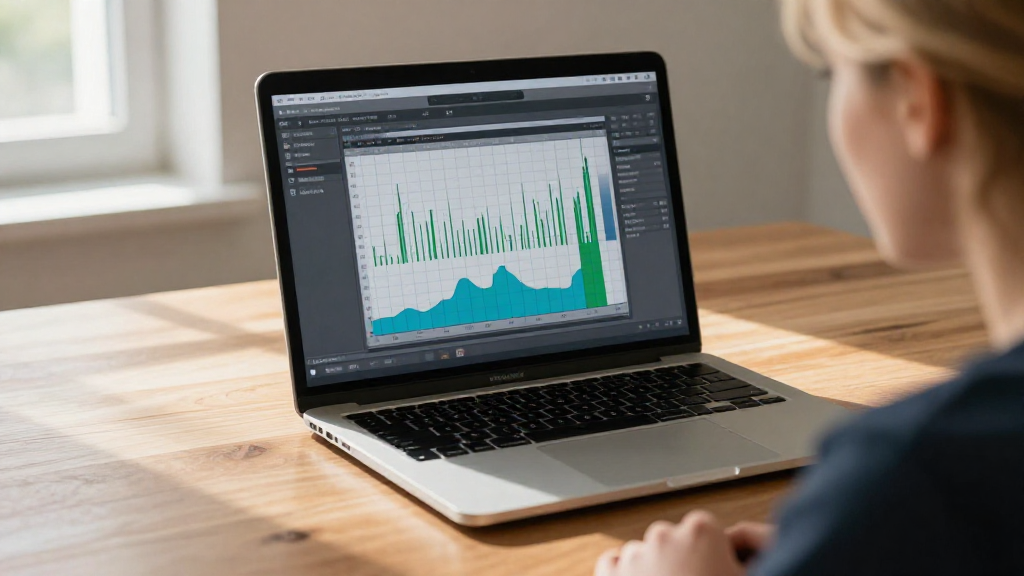
Are you looking to learn how to check CPU usage on Mac?
If so, you’re in the right place.
Monitoring CPU usage is essential for maximizing your Mac’s performance and troubleshooting any issues that arise.
This article will walk you through several methods to check CPU usage on your Mac, whether you prefer using built-in applications or third-party tools.
What Is CPU Usage?
Before diving into how to check CPU usage on Mac, let’s first define what CPU usage actually means.
CPU usage refers to the percentage of your Mac’s processor that is currently being used by various applications and processes.
Monitoring this can help you identify:
- Resource-intensive applications
- Performance bottlenecks
- Potential software-related issues
Now, let’s explore various methods to check CPU usage on your Mac.
How to Check CPU Usage on Mac Using Activity Monitor
What Is Activity Monitor?
Activity Monitor is a built-in application on macOS that provides real-time information about system resources, including CPU usage, memory usage, disk activity, and network usage.
How to Access Activity Monitor
To see how to check CPU usage on Mac using Activity Monitor, follow these simple steps:
- Open Finder.
- Go to Applications > Utilities.
- Double-click on Activity Monitor.
Understanding Activity Monitor
Once you have Activity Monitor open, you’ll see several tabs at the top of the window:
- CPU: Displays CPU usage in real time, including the percentage of CPU currently being used and which applications are consuming the most resources.
- Memory: Shows memory usage.
- Energy: Tracks how each application affects battery life.
- Disk: Monitors disk activity.
- Network: Displays network usage.
Checking CPU Usage in Activity Monitor
To specifically check CPU usage:
- Click on the CPU tab.
- Look at the CPU Usage graph, which shows a real-time animation of your CPU performance.
- Below the graph, you’ll see a list of processes along with their CPU usage percentages.
Tip: You can sort this list by % CPU to see which applications are using the most processing power.
How to Check CPU Usage on Mac Using Terminal
What Is Terminal?
Terminal is another built-in application on Mac that allows you to execute various system commands.
How to Use Terminal to Check CPU Usage
To learn how to check CPU usage on Mac through Terminal, follow these steps:
- Open Finder.
- Go to Applications > Utilities.
- Double-click on Terminal.
Running the CPU Command
In Terminal, you can use the following command to see your CPU usage:
top -l 0 | grep "CPU"
- Hit Enter to execute the command.
- This command will display a list of CPU usage statistics in real time.
Alternative Terminal Commands
You can also use the htop command if you have it installed. To do this, enter:
htop
- This will provide a more user-friendly view of your CPU utilization.
- Note: You may need to install it using Homebrew beforehand.
How to Check CPU Usage on Mac Using Third-Party Applications
Why Use Third-Party Applications?
While Activity Monitor and Terminal are great options for checking CPU usage, some users prefer third-party applications for a more detailed and user-friendly interface.
Recommended Applications
Here are a few popular options:
- iStat Menus: A powerful tool that offers extensive monitoring, including CPU, memory, disk usage, and network activity.
- MenuMeters: A free, lightweight option for monitoring CPU usage, memory, and network speed from your menu bar.
- Dr. Cleaner: This app not only monitors CPU usage but also helps optimize your Mac’s performance.
How to Use a Third-Party Application
For most third-party applications, the installation process is straightforward.
- Download the application from its official website or the Mac App Store.
- Follow the installation instructions.
- Open the application and navigate to the CPU monitoring section to view real-time usage.
How to Monitor CPU Usage Over Time
Why Is It Important?
While checking current CPU usage is helpful, keeping track of it over time can help you identify patterns and long-term performance issues.
Suggested Tools for Monitoring CPU Over Time
You may want to consider:
- Activity Monitor Logs: While not as detailed, noting CPU usage at different times can help you understand your Mac’s performance.
- Performance Monitoring Software: Tools like iStat Menus, mentioned above, often include logging features that allow you to view historical data.
How Can You Optimize CPU Usage on Mac?
What To Do If CPU Usage Is High?
If you notice that CPU usage is consistently high, there are several steps you can take to optimize performance:
- Close Unnecessary Applications: This is the easiest method to reduce CPU load.
- Check for Resource-Heavy Applications: Use Activity Monitor to identify apps that consume an abnormal amount of CPU.
- Disable Login Items: Go to System Preferences > Users & Groups > Login Items to manage applications that start when you log in.
- Update macOS and Applications: Keeping everything up to date ensures that you have the latest performance improvements and bug fixes.
- Restart Your Mac: Sometimes, a simple restart can resolve performance issues.
Conclusion
In conclusion, knowing how to check CPU usage on Mac empowers you to effectively manage your system performance and troubleshoot any problems.
Whether you prefer using Activity Monitor, Terminal, or third-party applications, keeping an eye on CPU usage ensures a smoother computing experience.
Don’t hesitate to explore all available methods and find the one that suits your preferences best!
By leveraging these tools and tips, you’ll be well-equipped to maintain optimal performance on your Mac.