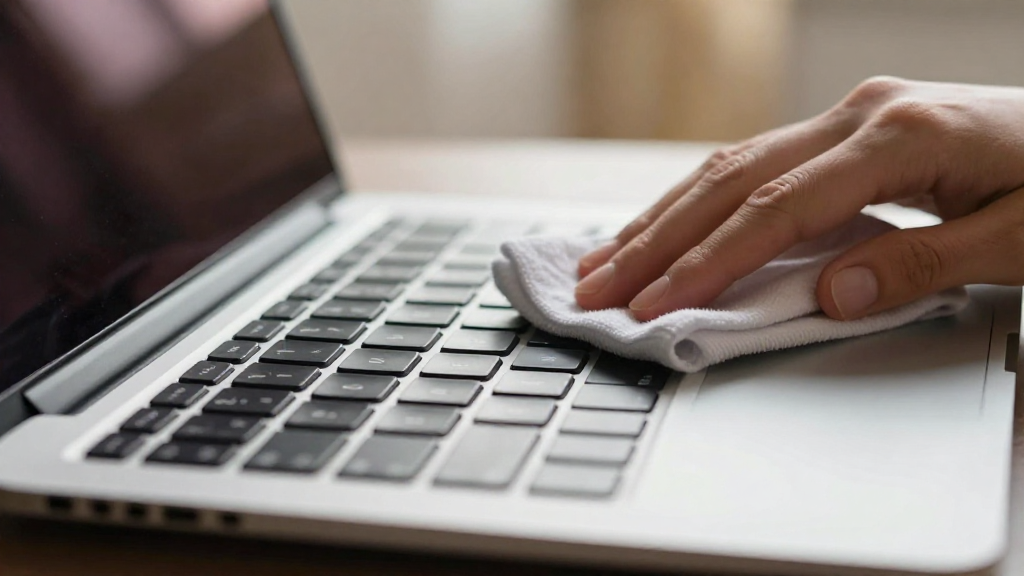
Cleaning your MacBook keyboard is essential for maintaining its performance and longevity.
While it may seem simple, knowing how to clean the keyboard on MacBook safely is vital to avoiding damage.
In this article, we’ll explore the best methods to clean your MacBook keyboard without risking harm to your device.
Why Is Cleaning Your MacBook Keyboard Important?
Cleaning the keyboard on your MacBook is crucial for several reasons:
-
Hygiene
– Keyboards can harbor dirt, dust, and bacteria. Regular cleaning helps keep your environment healthy. -
Performance
– Debris can affect the performance of the keys, making them sticky or unresponsive. -
Longevity
– The buildup of grime can lead to long-term damage. Keeping it clean prolongs the lifespan of your device.
Now that you understand the importance of maintenance, let’s dive into how to clean the keyboard on MacBook safely.
What Tools Do You Need to Clean Your MacBook Keyboard?
Before starting, gather the following tools:
- Microfiber cloth
-
Ideal for cleaning surfaces without scratching.
-
Compressed air canister
-
Useful for dislodging debris from hard-to-reach areas.
-
Isopropyl alcohol (preferably 70%)
-
A safe disinfectant for electronics.
-
Cotton swabs
-
Perfect for targeted cleaning and reaching crevices.
-
Soft brush
- For gentle removal of dust and particles.
How to Clean the Keyboard on MacBook?
Follow these steps for a thorough cleaning process:
1. Power Down and Unplug Your MacBook
Before starting, ensure that your MacBook is:
- Shut down
- Unplugged from any power source
This ensures safety and prevents any accidental keystrokes during the cleaning process.
2. Use Compressed Air
To remove loose debris, follow these steps:
- Hold your MacBook at a 75-degree angle (almost vertical).
- Use a canister of compressed air.
- Spray in short bursts in between the keys.
Make sure to:
- Keep the nozzle a few inches away.
- Avoid tilting the canister to prevent liquid propellant from spraying.
3. Wipe the Surface with a Microfiber Cloth
To clean the surface of the keys:
- Lightly dampen a microfiber cloth with isopropyl alcohol.
- Wipe the keys and the surrounding areas gently.
Remember to:
- Use minimal liquid. Excess moisture can damage the keyboard.
- Ensure the cloth is not overly wet to avoid drips.
4. Target Smaller Areas with Cotton Swabs
For tight spots, take these steps:
- Dip a cotton swab in isopropyl alcohol.
- Gently clean around the keys, especially in small crevices.
This method ensures that you can reach areas that may not be accessible with a cloth.
5. Finish with a Soft Brush
After using the cloth and swabs:
- Take a soft brush and lightly brush over the keys to remove any remaining dust particles.
This step is crucial for getting into the nooks and crannies of your MacBook keyboard.
What Should You Avoid When Cleaning Your MacBook Keyboard?
While cleaning, it’s essential to avoid certain actions to prevent damages:
- Do not use abrasive cleaners
-
These can scratch or damage the surface.
-
Avoid excess moisture
-
Using too much liquid can lead to keyboard malfunction.
-
Do not remove keys unless necessary
- If you’re unsure, consult a professional instead of risking damage.
How Frequently Should You Clean Your MacBook Keyboard?
The frequency of cleaning depends on your usage. However, here are some general guidelines:
- Daily Use: Clean weekly.
- Occasional Use: Clean every month.
- When Traveling: Clean after each trip.
By following these recommendations, you ensure your keyboard remains in top shape.
Conclusion
Knowing how to clean the keyboard on MacBook is essential for maintaining your device’s performance and ensuring a healthy workspace.
By following the methods outlined in this article, you can keep your MacBook keyboard clean, functional, and user-friendly.
Remember to use the right tools, avoid excessive moisture, and be gentle with your cleaning methods.
Regular maintenance can significantly enhance your laptop’s longevity — making it a worthwhile investment!