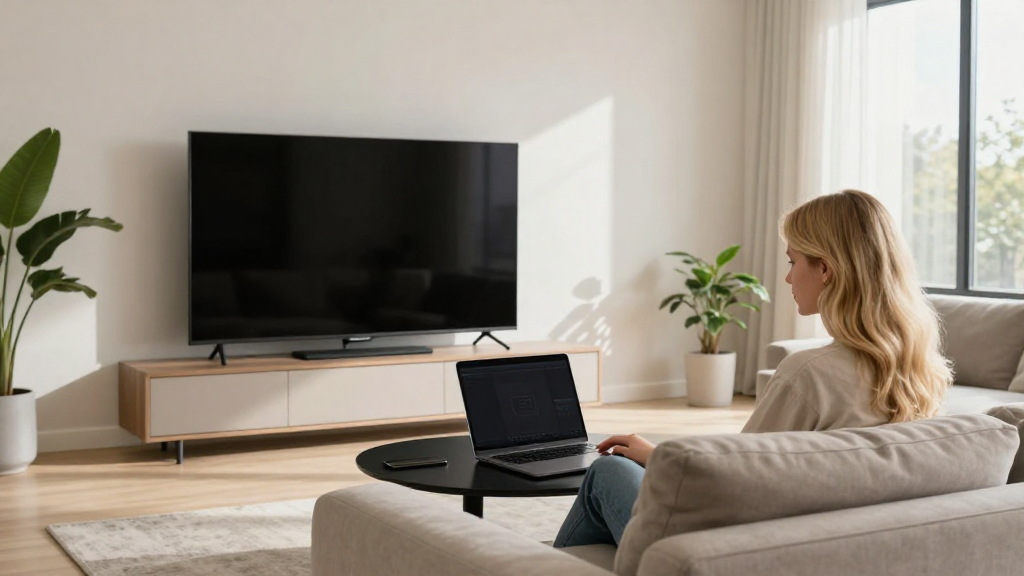
If you’re wondering how to connect Mac to TV, this comprehensive guide will walk you through the process with ease.
What Are the Best Methods to Connect Your Mac to a TV?
Connecting your Mac to a TV can enhance your viewing experience, whether you want to watch movies, share presentations, or play games.
Here are several common methods you can use:
- HDMI Cable Connection
- Wireless Connection (AirPlay)
- Using a VGA or DVI Adapter
- Third-Party Apps
Let’s delve into each method and see how each one works.
How Do You Connect Your Mac to a TV Using an HDMI Cable?
The most straightforward way to connect your Mac to a TV is through an HDMI cable.
What You’ll Need:
- An HDMI cable
- A compatible TV
- A Mac with an HDMI port or the appropriate adapter
Steps to Follow:
-
Connect the HDMI Cable:
Plug one end of the HDMI cable into your Mac’s HDMI port. If your Mac doesn’t have a direct HDMI port, use an adapter (Mini DisplayPort or USB-C adapters are common based on your Mac). -
Connect to the TV:
Plug the other end into an available HDMI port on your TV. -
Select the HDMI Input:
Turn on your TV and use the remote to select the corresponding HDMI input source. -
Adjust Display Settings:
On your Mac, go to System Preferences > Displays.
You can choose to mirror your display or use the TV as a separate display.
Why Use HDMI?
Using an HDMI cable ensures both audio and video are transferred seamlessly.
This method also yields high-quality video, making it ideal for gaming or movie nights.
How Can You Wirelessly Connect Your Mac to Your TV?
If you prefer a wireless connection, the best option is to use AirPlay if you have an Apple TV or a compatible smart TV.
What Do You Need?
- A Mac
- An Apple TV or AirPlay 2-compatible smart TV
- A Wi-Fi network
Steps to Connect:
-
Ensure Compatibility:
Make sure your TV is turned on and connected to the same Wi-Fi network as your Mac. -
Enable AirPlay on Your TV:
Navigate to the settings of your Apple TV or smart TV and turn on AirPlay if it isn’t already enabled. -
Open AirPlay on Your Mac:
Click on the AirPlay icon (usually appears in the menu bar) at the top-right corner of your Mac’s screen. -
Select Your TV:
From the dropdown menu, select your TV or Apple TV. -
Choose Mirroring or Using as a Separate Display:
After the connection, you can choose to mirror your Mac’s screen or use the TV as a separate display through the same AirPlay icon.
Benefits of Wireless Connection:
- Convenience: You eliminate cables, making it cleaner and easier.
- Flexibility: You can stream content from various applications without being tethered to the TV.
Can You Use a VGA or DVI Adapter to Connect Your Mac?
In cases where you have an older TV that lacks HDMI, you can still connect your Mac using a VGA or DVI adapter.
Requirements:
- A VGA or DVI adapter (based on what your Mac has)
- A VGA or DVI cable
- A TV with VGA or DVI input
Steps to Connect:
-
Connect the Adapter:
Attach the VGA or DVI adapter to your Mac. -
Link the Cable:
Plug one end of the VGA or DVI cable into the adapter and the other end into your TV. -
Select the Input Source:
Turn on your TV and select the correct input source (VGA or DVI). -
Adjust Display Settings:
Access System Preferences > Displays on your Mac to adjust your display settings.
Things to Keep in Mind:
- Audio Transfer: VGA or DVI doesn’t transmit audio, so you might need separate audio cables or use the TV’s speakers.
- Video Quality: This method may not provide as high quality as HDMI.
Which Third-Party Apps Can Help Connect Mac to TV?
Several apps can simplify the process when connecting your Mac to your TV, especially for streaming purposes.
Notable Apps Include:
- JustStream: Allows you to stream any file from your Mac to your TV without cables.
- AirBeamTV: Streams to smart TVs directly, bypassing Apple TV.
- Plex: Organizes your media and streams it to various devices, including smart TVs.
How to Use a Third-Party App:
-
Download the App:
Install your chosen app on your Mac. -
Connect Your Devices:
Ensure your Mac and TV are on the same Wi-Fi network. -
Select Your Content:
Go to the app and choose the video or image you want to display. -
Stream:
Follow the app instructions to begin streaming to your TV.
Advantages of Third-Party Apps:
- Extra Features: Many apps offer additional functionalities such as playback controls.
- Compatibility: Better compatibility with various file formats and devices.
How Can You Troubleshoot Connection Issues?
Sometimes, connecting your Mac to your TV may not go as smoothly as planned.
If you’re experiencing issues, consider these troubleshooting steps:
-
Check Cables and Connections:
Ensure all cables are securely connected and the correct HDMI or VGA input is selected. -
Restart Devices:
Restart both your Mac and TV to refresh their systems. -
Update Software:
Ensure your MacOS and TV firmware are up-to-date. -
Display Arrangement:
Visit System Preferences > Displays to make sure your displays are arranged correctly. -
Network Issues:
For wireless connections, ensure your Wi-Fi signal is strong and stable.
Conclusion: Why Connecting Your Mac to a TV Enhances Your Experience
Knowing how to connect Mac to TV allows you to elevate your entertainment, presentation, and gaming possibilities.
Whether you opt for a cable connection or a wireless solution, you have a variety of methods at your disposal to suit your needs.
Now that you have the information, you can easily enjoy your Mac’s content on a larger screen, making your viewing experience more immersive and enjoyable. Whether it’s watching a movie, giving a presentation, or sharing photos, your TV is a fantastic extension of your Mac!