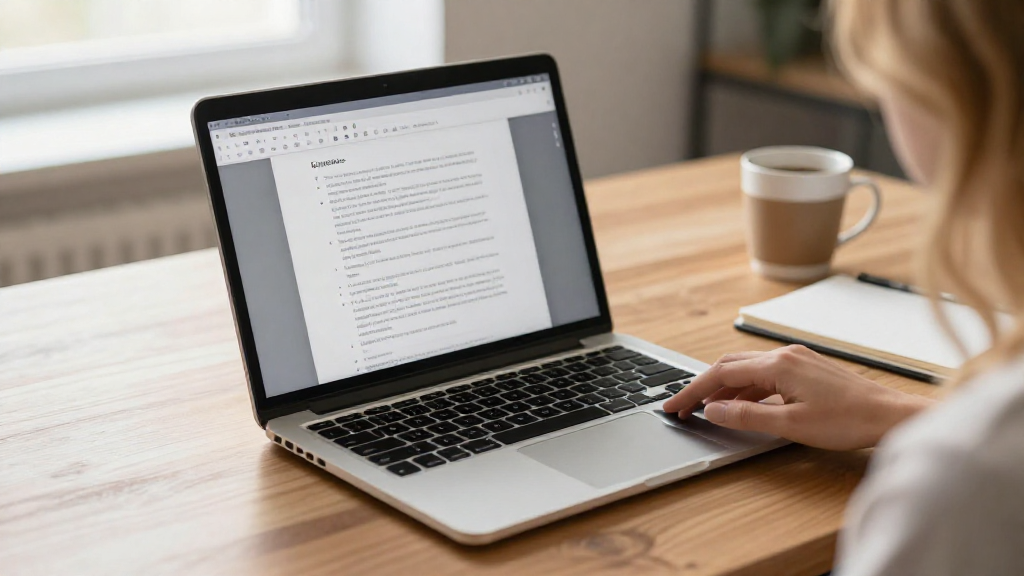
If you’re looking to convert PDF to Word on Mac, you’re in the right place! This guide will walk you through various methods and tools to efficiently achieve this.
Why Would You Need to Convert PDF to Word on Mac?
There are several reasons why someone might want to convert a PDF file to a Word document:
- Editing Convenience: Word files are easier to edit compared to PDFs.
- Extracting Information: You might need to extract text or images for use in another document.
- Merging Content: Combining various documents into a single Word file can be much simpler than managing multiple PDFs.
Understanding the importance of converting PDF to Word on Mac will enhance your workflow efficiency.
How Can You Convert PDF to Word on Mac?
There are various methods available that make it easy to convert PDF to Word on Mac. Here are some options for you to consider:
1. Using Preview (Built-in Tool)
Mac’s built-in Preview tool makes it incredibly convenient to convert PDFs to Word format. Here’s how you can do it:
- Open the PDF in Preview.
- Navigate to the File menu.
- Choose Export or Export as PDF.
- In the Format dropdown, select Word (DOCX).
- Click on Save.
However, keep in mind that this method may not be available on all versions of macOS.
2. Utilizing Online Conversion Tools
Many online tools are available that allow you to convert PDF to Word on Mac without downloading any software. Here are some popular options:
- Smallpdf: Known for its user-friendly interface, Smallpdf allows you to upload your PDF file and convert it to Word format effortlessly.
- PDF to Word Converter: This tool is straightforward. Simply upload your PDF, and it will convert and provide a downloadable Word document.
- ILovePDF: Another great online option that offers various PDF tools, including conversion to Word.
When using online tools, ensure that you’re uploading non-sensitive documents due to privacy concerns.
3. Using Adobe Acrobat DC
For those who require professional editing tools, Adobe Acrobat DC is a powerful choice.
Here’s how to convert your PDF to Word using it:
- Launch Adobe Acrobat DC.
- Open your PDF.
- Click on the Export PDF tool in the right pane.
- Select Microsoft Word as your export format.
- Click on Export.
- Save the new Word document.
Keep in mind that Adobe Acrobat DC is a subscription-based service, so it may not be suitable for everyone.
4. Using Dedicated Software Applications
If you frequently need to convert PDF to Word on Mac, investing in dedicated software might be beneficial. Here are a couple of excellent options:
- PDF Expert: This robust PDF editing tool provides straightforward PDF to Word conversion. It offers a user-friendly interface and additional editing features.
- Nitro PDF: Another powerful software, Nitro provides a comprehensive solution for PDF management and conversion, including the ability to convert to Word.
To use these applications, you will typically:
- Launch the app.
- Import your PDF file.
- Select the option to convert or export to Word.
- Save the converted document.
5. How to Ensure the Best Quality in Your Conversion?
When you look into how to convert PDF to Word on Mac, quality matters.
Here are tips to maintain the integrity of your document during conversion:
- Check Formatting: Always review the formatting after conversion. Some elements might shift or get misaligned.
- Test Different Tools: If one method doesn’t yield good results, try others. Each tool has unique strengths.
- Opt for OCR: If you’re working with scanned documents, choose a tool with Optical Character Recognition (OCR) capabilities to convert images of text into editable text.
6. What Should You Do if Editing is Still Needed After Conversion?
Sometimes, even after converting PDF to Word on Mac, you may need further edits.
Here’s how to approach this:
- Word’s Editing Tools: Utilize Microsoft Word’s editing features, including spell check, grammar check, and formatting tools, to refine your document.
- Use Comments and Track Changes: If collaborating, take advantage of Word’s comment and track changes functions for streamlined communications.
7. Are There Any Limitations in Converting PDF to Word on Mac?
Understanding the limitations while converting PDF to Word on Mac is crucial. Here are some common issues you may encounter:
- Complex Layouts: Documents with intricate formatting may not convert perfectly.
- Fonts and Graphics: Some specialized fonts or graphics may not transfer seamlessly.
- Limitations of Free Tools: Many free online tools limit file size or the number of conversions you can perform per day.
Being aware of these constraints can prepare you for any adjustments you may need to make post-conversion.
Conclusion: The Best Method for You
In summary, knowing how to convert PDF to Word on Mac enhances your document management and editing capabilities. Depending on your needs, whether using built-in tools like Preview, relying on online conversion services, or investing in dedicated software, there are multiple avenues available to ensure a smooth transition from PDF to Word.
Take the time to choose the method that best suits your work style, and don’t hesitate to experiment with different tools to find the one that delivers the best results for your specific documents. Happy converting!