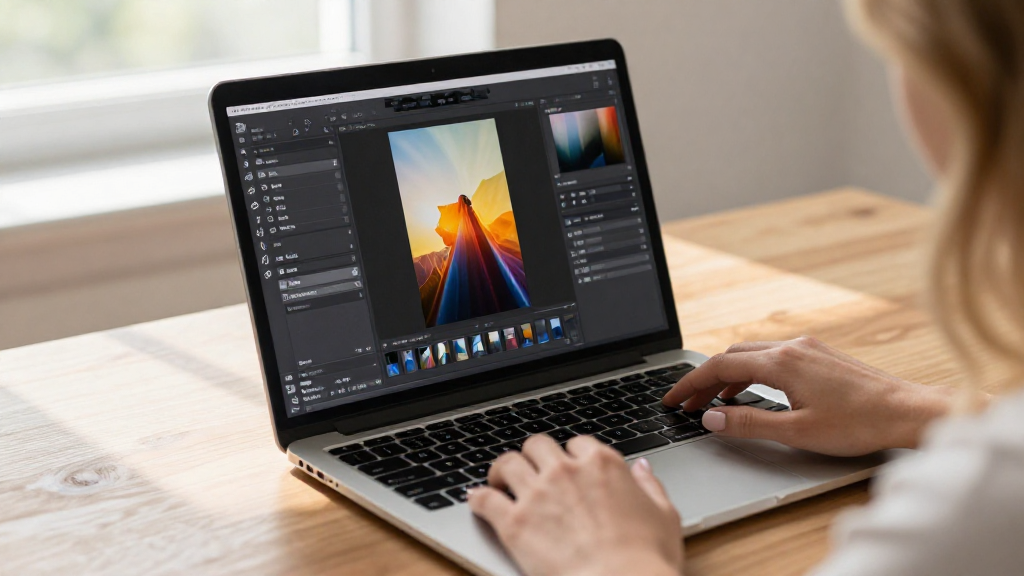
If you’re wondering how to crop an image on Mac, you’re in the right place! This handy guide will teach you everything you need to know about cropping images efficiently on your Mac using various applications.
What Tools Can Help You Learn How to Crop an Image on Mac?
When it comes to cropping images on your Mac, you have several options. Here are the most prominent tools you can use:
- Preview: This is the default image viewer on Mac and offers basic cropping functions.
- Photos App: This app is great for managing and editing your photo library.
- Third-party Applications: For more extensive editing, you might consider apps like Adobe Photoshop or GIMP.
- Online Tools: Websites like Pixlr or Canva can be useful if you prefer online solutions.
How Do You Crop an Image Using Preview on a Mac?
Cropping an image with Preview is straightforward and effective. Here’s a step-by-step tutorial to guide you through:
-
Open Your Image:
– Right-click on the image file.
– Choose Open With and then Preview. -
Select the Crop Area:
– Click and drag your mouse to create a rectangle over the area you want to keep.
– A dashed line will appear, indicating your selection. -
Crop the Image:
– Go to the Tools menu at the top of your screen.
– Select Crop from the dropdown options.
– Your image will be cropped to the selected area. -
Save Your Changes:
– Click on File in the menu, then choose Save to overwrite the original image.
– If you want to keep the original intact, choose Export and save it as a new file.
Why Choose Preview for Cropping?
Using Preview is an easy and efficient way to learn how to crop an image on Mac, especially if you just need to make simple adjustments. It’s already installed on your system, making it accessible to everyone.
How Can You Use the Photos App to Crop an Image on Mac?
The Photos app on Mac provides a robust environment for managing your photographs. Here’s how you can crop an image utilizing this application:
-
Open Photos:
– Launch the Photos app from your Applications folder. -
Select the Image:
– Navigate to your library and double-click on the image you wish to crop. -
Edit the Image:
– Click on the Edit button located at the top-right corner of the screen. -
Find the Crop Tool:
– Once in edit mode, select Crop from the options on the right sidebar. -
Adjust Your Cropping:
– Use the corners of the cropping box to adjust its size.
– You can also rotate the crop box if necessary. -
Apply Changes:
– Click the Done button to apply the changes to your image. -
Save Your Work:
– The changes will be saved automatically, but you can choose to revert back to the original if needed.
What Are the Advantages of Using the Photos App?
The Photos app integrates effortlessly with your library, allowing you to make adjustments quickly.
It also offers advanced editing options if you want to fine-tune your images beyond cropping.
Can You Crop Images Using Third-party Applications?
If you’re familiar with professional editing tools, cropping an image using applications like Adobe Photoshop or GIMP might be more suitable. Here are some tips on how to do this effectively:
-
Adobe Photoshop:
– Open the Photoshop app and load your image.
– Select the Crop Tool from the toolbar.
– Adjust the cropping box as needed and press Enter to finalize. -
GIMP:
– Open your image within GIMP.
– Select the Rectangle Select Tool to create a selection.
– Go to Image in the menu and select Crop to Selection to crop your image accurately.
Why Opt for Third-party Applications?
Using tools like Photoshop and GIMP provides more advanced features for precise cropping, coupled with a broader set of editing options.
These applications are ideal for users who want complete control over their image editing.
What If You Prefer an Online Editors for Cropping?
If you prefer to work online, there are numerous web-based applications available to help you crop images on your Mac:
-
Pixlr:
– Go to the Pixlr website.
– Upload your image and use the Crop Tool in the toolbar.
– Adjust and save your cropped image. -
Canva:
– Log into your Canva account.
– Upload your image and select it.
– Use the crop feature in the top toolbar to edit your image.
Why Use Online Editors?
Online editors let you crop images without the need for any software installation. They are especially great for quick edits on the go.
Completely browser-based, these tools are compatible with all Mac versions.
Best Practices When Cropping Images on Mac?
When you learn how to crop an image on Mac, keep in mind the following best practices for optimal results:
- Maintain Aspect Ratios: If your image needs to fit specific dimensions, hold the shift key while dragging to maintain the aspect ratio.
- Resolution Matters: Be mindful of image resolution, especially if you plan to print.
- Backup Original Images: Always keep a copy of the original image before making alterations.
Conclusion: Mastering the Art of Cropping on Mac
Now you are equipped with various methods on how to crop an image on Mac effectively!
Whether you’re a beginner or an advanced user, these tools and tips will enhance your photo editing experience.
Incorporate these techniques into your workflow and transform your images with ease and confidence. Happy editing!