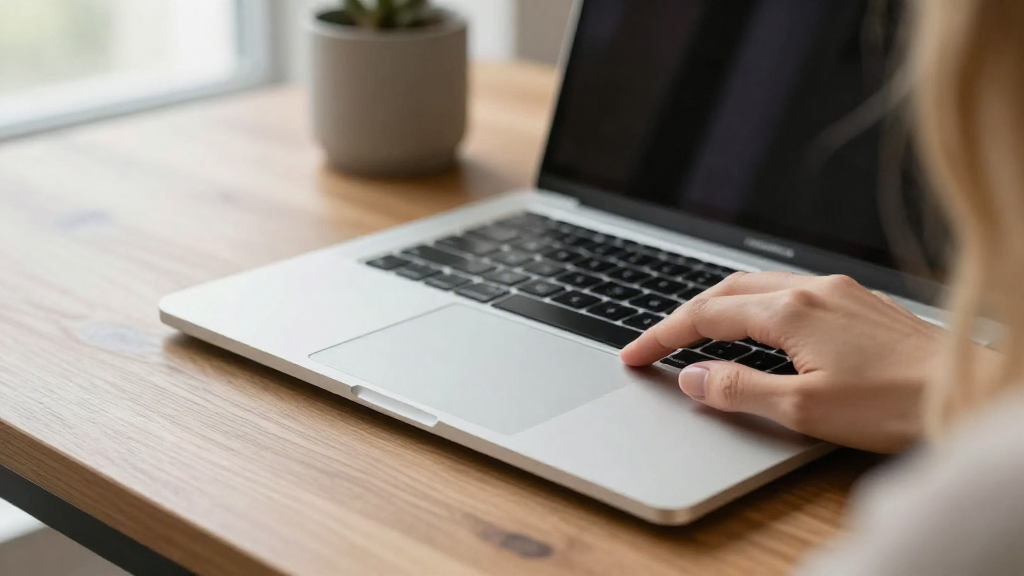
If you’re wondering how to fix trackpad not working MacBook, you’re not alone. Many users encounter problems with their MacBook trackpads, which can be frustrating when trying to navigate your device.
In this article, we will explore various methods to resolve these issues, ensure your device runs smoothly, and provide tips for maintaining your MacBook’s trackpad.
What Causes Trackpad Issues on MacBook?
Before diving into how to fix trackpad not working MacBook, it’s essential to understand the common causes of these issues:
- Software Glitches: An unstable operating system can lead to trackpad malfunctions.
- Hardware Problems: Damage or wear and tear may impact the functionality of your trackpad.
- Settings Configuration: Incorrect settings in your system preferences can disable trackpad functionality.
- External Device Interference: Sometimes, connected USB devices or external peripherals may interfere with the trackpad.
Knowing these causes can help narrow down the solutions to fix your trackpad.
How Can I Restart My MacBook?
Restarting your MacBook can often resolve many issues, including trackpad problems. Here’s how you can restart your device:
- Click on the Apple icon in the upper-left corner of the screen.
- Select Restart from the dropdown menu.
- Confirm the restart when prompted.
After restarting, check if your trackpad is functioning.
Are Trackpad Settings Correct?
Sometimes, the trackpad settings are not configured correctly, which can result in it not working properly. Here’s how to check and adjust these settings:
- Go to System Preferences.
- Click on Trackpad.
- Check the settings for:
– Point & Click: Ensure the “Tap to click” option is enabled if you prefer tapping.
– Scroll & Zoom: Verify that the settings match your preferences.
– More Gestures: Make sure gestures are enabled if you utilize them.
After making adjustments, see if restarting the MacBook resolves the issue.
How to Reset the NVRAM?
A non-working trackpad problem may stem from corrupted settings in your MacBook. Resetting the NVRAM (Non-Volatile Random-Access Memory) can often fix these issues. Here’s how to do it:
- Shut down your MacBook.
- Turn it on and immediately press and hold the following keys: Option, Command, P, and R.
- Keep holding these keys for 20 seconds, and then release them.
Once you’ve reset the NVRAM, check if your trackpad is now functioning properly.
Can I Reset the SMC?
If you are still experiencing issues, resetting the SMC (System Management Controller) can be a valuable step. Here’s how to do it:
For MacBook (Without T2 Chip):
- Shut down your MacBook.
- Plug in the MagSafe adapter if it’s not already connected.
- Press and hold Shift + Control + Option and the Power button at the same time for 10 seconds.
- Release all the keys and the power button.
- Turn on your MacBook.
For MacBook (With T2 Chip):
- Shut down your MacBook.
- Press and hold the Power button for 10 seconds.
- Release the power button.
- Wait a few seconds and turn your MacBook back on.
After resetting the SMC, check if the trackpad issue is resolved.
Should I Check for Software Updates?
Keeping your MacBook updated is crucial for optimal performance and fixing software-related problems. Here’s how to check for updates:
- Go to the Apple menu in the top left.
- Click on System Preferences.
- Select Software Update.
If an update is available, download and install it, then check if your trackpad issue is resolved.
Does Safe Mode Help?
Booting your MacBook in Safe Mode can help identify whether the issue is related to third-party extensions or extra software. Here’s how to start in Safe Mode:
- Shut down your MacBook.
- Turn it on and immediately press and hold the Shift key.
- Release the Shift key when you see the login window.
In Safe Mode, check if your trackpad is working correctly. If it is, the issue might be linked to a third-party application or extension.
Are There Hardware Problems?
If all the above methods fail to solve your trackpad issues, there may be a hardware problem. Here are some signs to look for:
- The trackpad physically feels damaged or unresponsive.
- There is visible dust or debris on the trackpad.
- The MacBook has experienced a fall or impact.
For hardware-related issues, consider visiting an Apple Store or authorized service provider for a professional diagnosis.
How to Maintain Your Trackpad?
Once your trackpad is working correctly, here are some maintenance tips to prevent future issues:
- Keep it clean: Wipe the trackpad gently with a microfiber cloth to remove fingerprints and dirt.
- Avoid spills: Keep liquids away from your MacBook and use a keyboard cover for extra protection.
- Regular updates: Ensure your macOS is updated regularly to prevent any software-related issues.
Final Thoughts on How to Fix Trackpad Not Working MacBook
In conclusion, knowing how to fix trackpad not working MacBook can save you time and frustration. By following these troubleshooting steps, such as restarting your device, checking trackpad settings, resetting the NVRAM and SMC, and ensuring your software is up-to-date, you can hopefully resolve any trackpad issues.
If none of these options work, consult with a professional to explore hardware problems. Keep your MacBook maintained, and remember these tips to keep your trackpad functioning optimally.
If you found this article helpful, consider sharing it with others facing trackpad issues on their MacBooks!