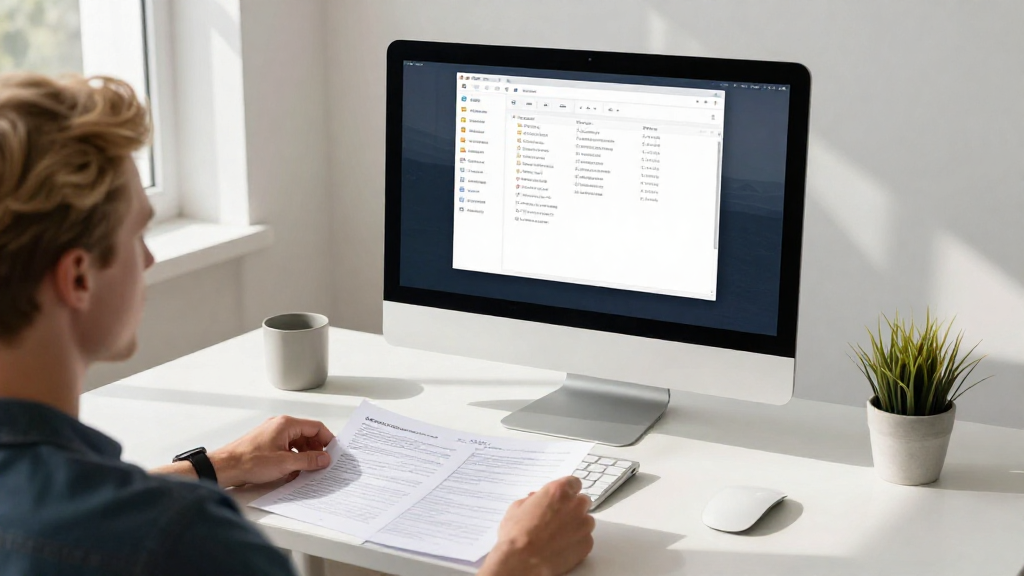
If you’re looking for efficient ways how to organize desktop on Mac, you’ve come to the right place. Keeping your desktop tidy not only helps with productivity but also creates a visually appealing workspace. In this guide, we’ll explore various methods to transform your desktop into a well-organized space.
Why Should You Organize Your Desktop on Mac?
A cluttered desktop can lead to:
- Decreased Productivity
- Increased Stress
- Difficulty Finding Important Files
What Are the Best Practices for Organizing Your Desktop on Mac?
- Use Folders Effectively
Create logically named folders to categorize your files. For instance, you can have folders titled “Work,” “Personal,” or “Projects.”
Steps to Create a Folder:
– Right-click on the desktop.
– Select New Folder.
– Name it according to its purpose.
- Utilize Stacks Feature
If you’re running macOS Mojave or later, the Stacks feature can automatically group similar files together.
To Enable Stacks:
– Right-click on your desktop.
– Select Use Stacks.
This feature can organize your desktop items into neat stacks based on file type, such as images, documents, or PDFs.
- Regularly Clean Up Your Desktop
Set a schedule to declutter your desktop. Make it a habit to remove files you no longer need.
Tips for Cleaning Up:
– Delete unnecessary items.
– Move files to their respective folders.
– Empty your Trash regularly.
- Sort Files by Date or Name
Sorting can help you locate files quickly. You can choose to sort by date modified, name, or kind.
To Sort Files:
– Click the View menu on the Finder toolbar.
– Choose your preferred sorting method under Sort By.
How Can You Automate Your Desktop Organization on Mac?
Automating file organization can save you valuable time. Here’s how to do it:
- Use AppleScript
You can write simple scripts to manage files automatically.
Example Script:
applescript

   tell application "Finder"

       set desktopItems to every file of folder "Desktop"

       repeat with anItem in desktopItems

           if name of anItem ends with ".pdf" then

               move anItem to folder "PDFs"

           end if

       end repeat

   end tell
- Third-Party Applications
Consider using desktop organization apps like Hazel or Declutter.
- Hazel automates file organization rules based on conditions you set.
- Declutter helps you quickly sort files into designated folders.
- Automator Alias
Use Automator to create one-click applications that can replace the need for manual organization.
What Are Some Desktop Customization Tips?
Customization can enhance your desktop experience. Here are a few tips:
- Change Desktop Background
A personalized background can make your workspace more enjoyable. To change your desktop background:
- Go to System Preferences > Desktop & Screen Saver.
- Choose from Apple’s wallpaper or use your own images.
- Customize Icons
Change the appearance of icons for better visibility.
To Change Icons:
– Right-click the file or folder and select Get Info.
– Drag a new image onto the current icon in the Info window.
- Use Desktop Widgets
If you offer a lot of information at a glance, consider using widgets available through the Notification Center.
What Are the Benefits of Keeping a Clean Desktop?
Understanding the benefits is crucial for motivation. Here are some advantages of organizing your desktop effectively:
- Enhanced Focus: A clean environment helps improve concentration.
- Efficient Workflow: Quickly finding files saves time.
- Reduced Anxiety: Clutter can lead to mental fatigue. A tidy workspace promotes a sense of calm.
How to Maintain Your Organized Desktop on Mac?
Maintaining an organized desktop is crucial once you achieve a clean workspace.
-
Daily Check-In
Dedicate a few minutes at the end of each day to check your desktop and clean it up. -
Limit Desktop Icons
Limit the number of files on your desktop to keep it from becoming cluttered. Aim for no more than 10-15 icons. -
Quick Access Files
Instead of saving everything to your desktop, place frequently used files in the Dock or Finder’s sidebar.
What Are Common Mistakes to Avoid When Organizing the Desktop on Mac?
Awareness of common pitfalls can save you time and effort in the long run.
-
Over-Complicating Organization
While it’s good to have a system, making it too complex may lead to confusion. -
Neglecting to Update Your System
Don’t forget to periodically review and update your folder structure as your needs evolve. -
Storing Everything on the Desktop
Avoid using the desktop as a dumping ground for files. Utilize appropriate folders and locations on your Mac.
Conclusion: What Is the Key to Organizing Your Desktop on Mac?
In summary, learning how to organize desktop on Mac involves employing efficient organizational strategies, regular cleaning practices, and embracing automation.
By implementing the tips and practices discussed above:
- You can create a visually appealing workspace.
- Enhance your productivity and focus.
Make it a habit to maintain your organized desktop, and you’ll transform your Mac experience.
Ultimately, an organized desktop is not just about aesthetics; it’s about creating an environment where you can thrive in your work and creativity.