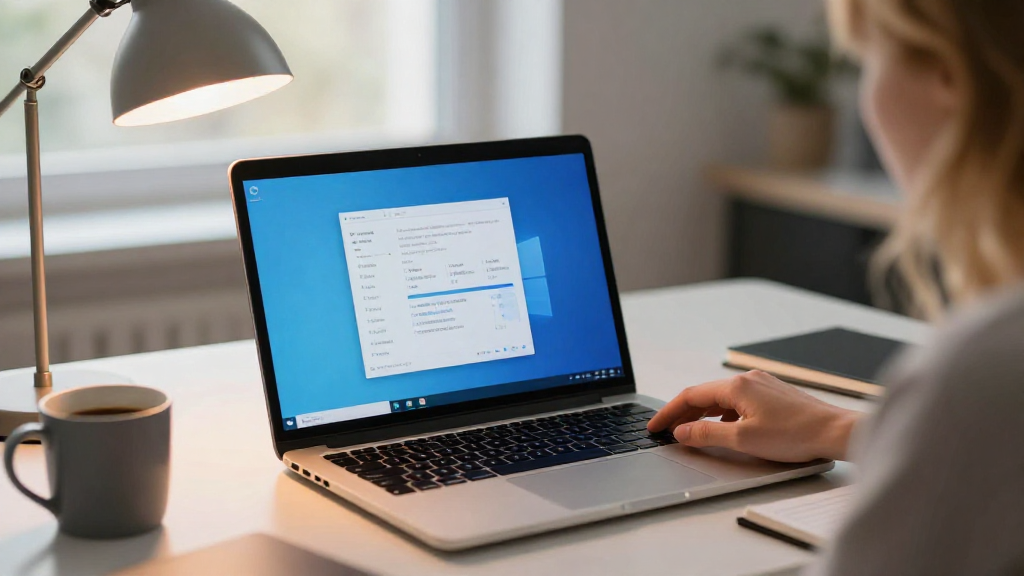
Are you wondering how to run Windows on Mac?
Many Mac users face compatibility issues with certain applications that are only available on Windows.
Fortunately, there are various methods to run Windows on Mac seamlessly.
In this guide, we will explore different solutions to help you run Windows applications side-by-side with your macOS.
What Are Your Options to Run Windows on Mac?
When it comes to how to run Windows on Mac, you have several powerful options:
- Boot Camp Assistant
- Virtual Machines
- Wine
- Remote Desktop Solutions
Let’s take a look at each one and find the best fit for your needs!
How Does Boot Camp Work?
Boot Camp Assistant is a built-in utility on macOS that creates a partition to install Windows.
Pros:
– Native performance.
– Access to all Windows functionalities.
Cons:
– You have to reboot to switch between macOS and Windows.
– Limited to one operating system at a time.
Steps to Use Boot Camp Assistant
- Back Up Your Data: Always make sure you have a backup.
- Get a Windows ISO File: Download an official Windows ISO from Microsoft’s website.
- Open Boot Camp Assistant: Search for it in Spotlight.
- Create a Partition: Allocate space for Windows.
- Install Windows: Follow the prompts to install the system.
After installation, you can choose to boot into either macOS or Windows by holding down the Option key during startup.
How Do Virtual Machines Help?
If you prefer not to reboot, using a Virtual Machine (VM) is a great choice for how to run Windows on Mac.
Pros:
– Run Windows and macOS simultaneously.
– Easy file sharing between the systems.
Cons:
– Virtual machines can be heavier on resources.
– May experience slower performance for high-end applications.
Popular Virtual Machine Software
- Parallels Desktop: User-friendly and seamless integration.
- VMware Fusion: Robust and feature-rich.
- VirtualBox: Free and open-source solution.
How to Set Up a Virtual Machine
- Download VM Software: Choose any from the above options.
- Install Windows ISO: Use the ISO you downloaded earlier.
- Create a New Virtual Machine: Follow the on-screen instructions.
- Run Windows: Start the virtual machine, and Windows will boot within macOS.
What About Using Wine?
If you need a lightweight solution, Wine allows you to run Windows applications on macOS without needing a full Windows installation.
Pros:
– No need for a Windows license.
– Lightweight and often free.
Cons:
– Compatibility can be hit-or-miss.
– Not all Windows applications work perfectly.
How Do You Install Wine?
- Download Wine: Go to the official Wine website.
- Install Wine: Follow the installation instructions specific to macOS.
- Run Windows Applications: Simply right-click on the .exe file and choose to open it with Wine.
Is Remote Desktop an Option?
If you have another PC running Windows, Remote Desktop allows you to access it from your Mac.
Pros:
– Access to full Windows features.
– No heavy resources used on your Mac.
Cons:
– Requires another Windows machine.
– Dependent on network speed.
How to Set Up Remote Desktop
- Set Up Remote Desktop on Windows Machine: Enable remote access in the system settings.
- Download a Remote Desktop Client: Use Microsoft’s official client for macOS.
- Connect to Your Windows PC: Enter the required details to establish a connection.
Which Method is Right for You?
Deciding how to run Windows on Mac largely depends on your needs.
- If you need performance for gaming or heavy applications, Boot Camp is recommended.
- For everyday tasks and simplicity, try Virtual Machines.
- If you want to save space and have minimal requirements, consider Wine.
- For users with access to another PC, Remote Desktop can be effective.
Are There Any Additional Considerations?
Here are a few important considerations to keep in mind:
- License: Ensure you have a valid Windows license regardless of the method you choose.
- System Performance: Different methods affect Mac performance differently. Allocate enough resources for virtual machines to function smoothly.
- Backup Files: Always back up your important files before making major changes to your system.
What Are Some Common Issues When Running Windows on Mac?
Many users encounter challenges when figuring out how to run Windows on Mac. Here are some common issues and how to solve them:
-
Slow Performance in Virtual Machines:
– Solution: Allocate more RAM and CPU cores in the VM settings. -
Driver Issues with Boot Camp:
– Solution: Regularly update drivers through Boot Camp Assistant. -
Compatibility Issues with Wine:
– Solution: Check the WineHQ database for compatibility with specific applications. -
Remote Desktop Connection Errors:
– Solution: Ensure both endpoints are on the same network and Remote Desktop is enabled.
Final Thoughts on Running Windows on Mac
In conclusion, learning how to run Windows on Mac opens up a world of possibilities.
Whether you choose Boot Camp for performance, a Virtual Machine for convenience, Wine for simplicity, or Remote Desktop for accessibility, each method has its own strengths.
Be sure to assess your specific needs, and don’t hesitate to explore multiple solutions to find what works best for you.
With the right setup, you’ll enjoy the best of both worlds: the sleek design of macOS and the robust utility of Windows.