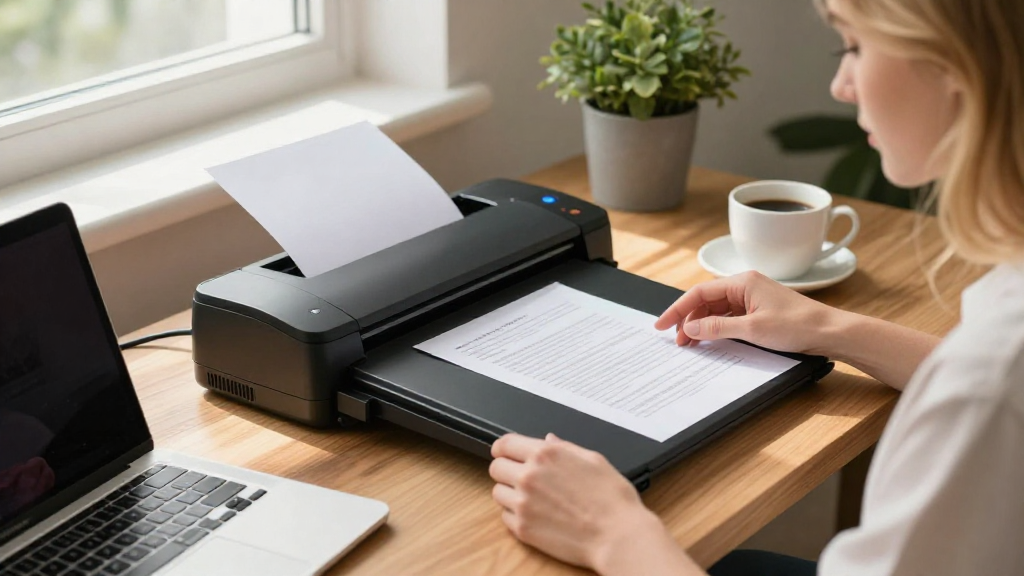
If you’re looking for a simple guide on how to scan documents on Mac, you’re in the right place.
In this article, we’ll walk you through all the necessary steps, tips, and tools you’ll need to easily digitize your important documents with your Mac.
What Tools Do You Need to Scan Documents on Mac?
Before we dive into the specifics of how to scan documents on Mac, let’s talk about the tools you’ll need to get started.
-
Scanner:
– An all-in-one printer with scanning capabilities.
– A standalone scanner that connects via USB or wirelessly. -
Mac Computer:
– Make sure your Mac is up-to-date with the latest operating system to avoid any compatibility issues. -
Scanning Software:
– Most scanners come with their own software.
– macOS has built-in apps like Image Capture and Preview. -
Internet Connection:
– This is not always necessary but can be helpful for downloading any required driver updates.
How to Set Up Your Scanner on Mac?
Setting up your scanner is a crucial step before you can start scanning documents.
Step-by-Step Setup Process:
-
Connect Your Scanner:
– If you’re using a USB scanner, plug it into an available port on your Mac.
– For wireless scanners, ensure they are connected to the same Wi-Fi network as your Mac. -
Install Drivers:
– Check if you need to install any additional drivers or software for your scanner.
– Visit the manufacturer’s website to download the latest version if needed. -
Check Scanner Recognition:
– Open System Preferences from the Apple menu.
– Go to Printers & Scanners to see if your scanner appears on the list.
How to Scan Documents on Mac Using Image Capture?
One of the easiest ways to scan documents on Mac is by using the built-in Image Capture application.
Steps to Follow:
-
Open Image Capture:
– You can find Image Capture by searching for it using Spotlight (press Command + Space and type “Image Capture”). -
Select Your Scanner:
– From the left sidebar, choose your scanner from the list. -
Choose Your Scan Settings:
– File Format: Select the desired format (PDF, JPEG, etc.) in the “Format” dropdown menu.
– Resolution: Choose the resolution according to your needs; 300 DPI is often sufficient for documents.
– Scan Area: Adjust the scan area if right or left sections need to be omitted. -
Preview the Document:
– Click on the “Overview” button to preview what will be scanned, allowing you to adjust the scan area. -
Scan the Document:
– Click the “Scan” button.
– The scanned document will be saved to your chosen location.
How to Scan Documents on Mac Using Preview?
Another effective way to scan documents on Mac is using the Preview app.
Here’s How:
-
Open Preview:
– Open Preview by searching in Spotlight or locating it in your Applications folder. -
Select Import from Scanner:
– Click File, then choose “Import from Scanner” (if your scanner is connected). -
Scan Using Preview:
– Similar to Image Capture, select your scanner from the list.
– Adjust the settings based on your preferences before scanning. -
Finish Scanning:
– Click “Scan” to complete the process, and select where you want to save the document.
How to Scan Multiple Pages on Mac?
If you need to scan multiple pages, it’s important to know how to do so efficiently.
Steps Involved:
-
Automatic Document Feeder (ADF):
– If your scanner has an ADF, simply load the documents in the feeder.
– Both Image Capture and Preview will automatically detect and scan each page in sequence. -
Manual Scanning:
– If your scanner doesn’t have an ADF:- Scan the first page and save it.
- Place the next page on the scanner bed and repeat until all pages are scanned.
- Combine the scanned files into a single PDF using Preview, if needed.
What Should You Do After Scanning Documents on Mac?
Once you’ve finished scanning, you might want to take some additional steps to ensure your documents are organized and accessible.
Post-Scanning Tips:
- Rename Your Files:
-
Use clear and descriptive file names for easy retrieval.
-
Organize in Folders:
-
Create a dedicated folder for scanned documents categorized by type or date.
-
Backup Your Scanned Documents:
-
Consider using cloud storage options like iCloud, Google Drive, or Dropbox for added security.
-
Check for Quality:
- Open the scanned files to inspect the quality and clarity.
- Rescan if necessary.
FAQs on How to Scan Documents on Mac
Can I scan documents using my iPhone and then transfer them to my Mac?
Yes, Apple offers the Notes app that allows you to scan documents directly from your iPhone.
You can then easily transfer these scans to your Mac via iCloud or AirDrop.
What file formats can I save scanned documents in on Mac?
The most common formats are PDF, JPEG, and TIFF.
Choose the format based on your needs; PDF is ideal for documents.
How do I troubleshoot if my scanner isn’t recognized?
- Ensure the scanner is properly connected.
- Restart your Mac and scanner.
- Update or reinstall the scanner drivers if necessary.
Conclusion: Mastering How to Scan Documents on Mac
Learning how to scan documents on Mac is a straightforward process when you have the right tools and knowledge.
By using built-in applications like Image Capture and Preview, you can easily digitize your important papers.
Don’t forget to back up your scanned documents for safekeeping!
By following these steps, you’ll streamline your document management processes and enjoy a hassle-free experience when scanning your materials.
So go ahead, grab those documents, and start scanning like a pro!