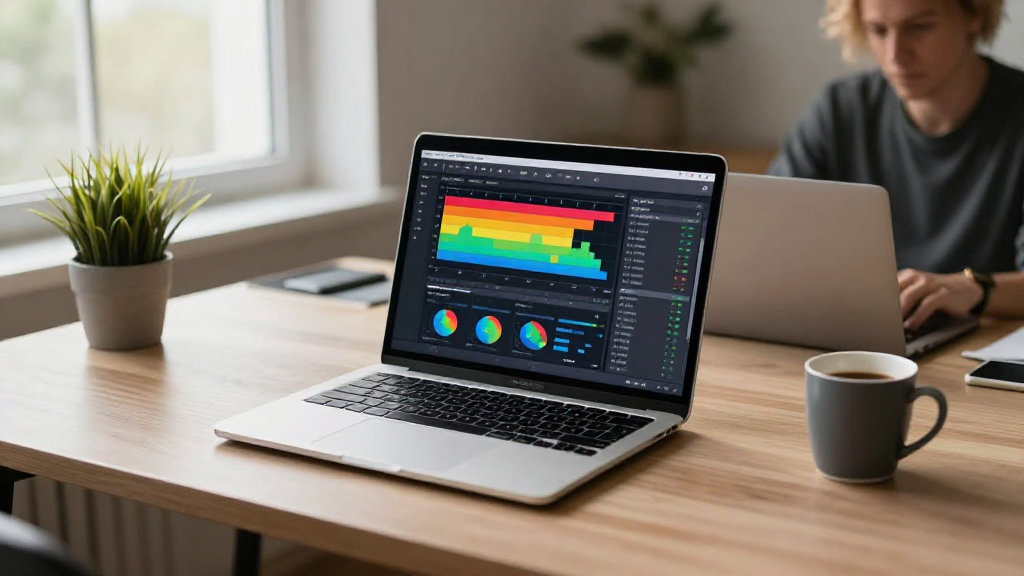
If you’ve ever found your Mac running sluggishly, you might be wondering how to use Activity Monitor on Mac. This powerful built-in tool helps you track and manage your system’s performance.
What Is Activity Monitor on Mac?
Activity Monitor is part of the macOS Utilities and serves as the equivalent of the Task Manager found in Windows.
It provides vital information about your Mac’s performance, including:
- CPU usage
- Memory usage
- Disk activity
- Energy consumption
- Network activity
Understanding how to use Activity Monitor on Mac can help you identify resource-hungry applications and improve your system’s efficiency.
How Do You Open Activity Monitor on Mac?
Opening Activity Monitor is straightforward.
You can access it in several ways:
-
Using Spotlight Search:
– Press Command (⌘) + Spacebar.
– Type “Activity Monitor” into the search bar and hit Return. -
Via Finder:
– Click on the Finder icon.
– Navigate to Applications > Utilities.
– Locate and double-click on Activity Monitor.
Regardless of how you choose to open it, being familiar with the interface will enhance your understanding of how to use Activity Monitor on Mac effectively.
What Information Can You Find in Activity Monitor?
Once you’ve opened Activity Monitor, you will see several tabs at the top of the window. Each tab provides different information.
Here’s a quick overview:
-
CPU: Displays the percentage of CPU used by applications. You can identify any processes that are consuming an abnormal amount of CPU resources.
-
Memory: Shows how much RAM is being used and by which applications. This tab helps to spot memory leaks, which can slow down your Mac.
-
Energy: Useful for MacBook users, this tab helps monitor apps that are using significant energy resources, impacting battery life.
-
Disk: Provides information on how much data each app is reading and writing from your disk. This info is beneficial for optimizing storage space.
-
Network: Displays data usage for each application, particularly valuable if you are concerned about bandwidth.
How Do You Interpret the Data in Activity Monitor?
Understanding the data you see in Activity Monitor is critical.
Here’s what you need to look for:
-
CPU Usage: Look for applications using more than 80% of the CPU in a brief span. Closely monitor these applications, as they could be causing slowdowns.
-
Memory Pressure: This is a graphical representation indicating whether your RAM is being overtaxed. If it’s in the red, consider closing some applications to free up memory.
-
Energy Impact: The apps at the top of this section are draining the most energy. If you’re on a MacBook, managing energy consumption can prolong battery life significantly.
-
Disk Activity: Review the “Bytes Written” and “Bytes Read” columns. High disk activity could indicate a problematic application or process.
-
Network Usage: Identify apps consuming large amounts of data to manage your internet connection better.
How to Force Quit Applications Using Activity Monitor?
Sometimes, an application becomes unresponsive. Learning how to use Activity Monitor on Mac to force quit these applications can save you from restarting your computer.
Here’s how you do it:
-
Select the Unresponsive Application: Click on the app that isn’t responding.
-
Click the X Button: Located at the top left of the Activity Monitor window.
-
Choose “Force Quit”: A confirmation dialog will appear. Click “Force Quit” to terminate the application.
This is a quick and efficient way to regain control of your Mac without restarting it.
How Can You Manage Resource-Hungry Applications?
Once you’ve identified applications that demand excessive resources, it’s essential to manage them properly. Here’s how:
-
Close Unneeded Applications: If you see applications taking up too much CPU or Memory, simply select them and use the X button to close them.
-
Update Applications: Developers often release updates that fix bugs and improve performance. Always ensure your applications are up-to-date to reduce resource consumption.
-
Uninstall Unused Applications: If an application is seldom used and continuously drains resources, consider uninstalling it. Navigate to Finder > Applications, and drag the unused app to the Trash.
-
Limit Background Processes: Some applications continue running in the background even when closed. Use Activity Monitor to identify and close these processes.
By properly managing resource-hungry applications, you can significantly improve the performance of your Mac.
Can You Use Activity Monitor to Monitor Network Activity?
Yes! How to use Activity Monitor on Mac also includes monitoring your network activity.
Follow these steps:
-
Select the Network Tab: Click on the “Network” tab within Activity Monitor.
-
Analyze Data Usage: Here, you can view apps utilizing your internet connection.
-
Evaluate Bandwidth: The “Sent Bytes” and “Received Bytes” columns show real-time data transfers.
This information is imperative if you are on limited data plans or want to optimize your bandwidth.
What Should You Do If Activity Monitor Shows High Memory Usage?
If you’re witnessing high memory usage, consider the following steps:
-
Identify and Close Memory-Sapping Applications: Use the Memory tab to pinpoint apps consuming excessive RAM.
-
Restart Your Mac: Sometimes, a simple restart can clear memory leaks and free up RAM.
-
Upgrade Your RAM: For prolonged issues, consider upgrading your Mac’s RAM, especially if you frequently run memory-intensive applications.
-
Reduce Startup Items: Limit the number of applications that run on startup. Navigate to System Preferences > Users & Groups > Login Items and remove unnecessary apps.
These tips can help mitigate high memory usage and enhance your Mac’s speed.
Conclusion: Mastering Activity Monitor on Mac
Understanding how to use Activity Monitor on Mac can significantly enhance your experience with your Apple device.
By learning to monitor CPU, memory, and energy usage, you can identify slowdowns and manage resources effectively.
Whether you’re troubleshooting a sluggish system or simply aiming to streamline your workflow, Activity Monitor provides invaluable insights.
Now that you’re equipped with this knowledge, dive into Activity Monitor and take control of your Mac’s performance like never before!