Using two computers at one desk does not have to mean duplicate keyboards, mice, monitors, and cables. The best KVM switches for Mac let you share peripherals—and, with the right model, one or two displays—between a MacBook, Mac mini, desktop PC, or another laptop.
This roundup includes straightforward USB sharing switches, dual-monitor KVMs, Thunderbolt 4 options, and USB-C docks with power delivery. Before buying, check your Mac’s ports, monitor inputs, resolution and refresh-rate requirements, and whether you need extended displays rather than mirrored output.
Best 10 Kvm Switches for Mac Picks for 2026
Best Dual-Monitor Desktop Pick
Unitek 2-Monitor HDMI/DisplayPort KVM

- Dual HDMI and DisplayPort monitor support
- 4K@60Hz output with HDR and HDCP
- 5Gbps USB 3.0 device sharing
Best For: Desktop Mac and PC dual-monitor workstations
Best Thunderbolt Performance
Sabrent Thunderbolt 4 KVM Switch
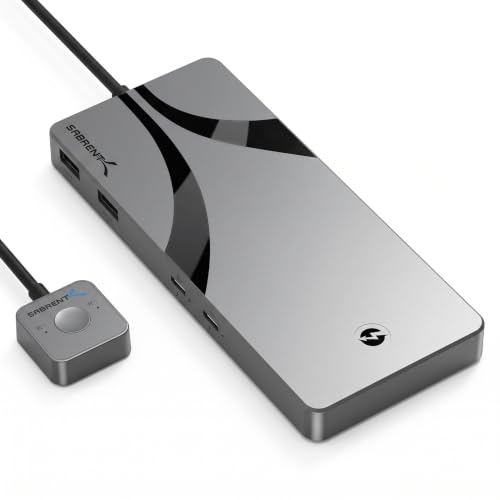
- 40Gbps Thunderbolt 4 device sharing
- Up to 8K@60Hz display output
- 60W USB Power Delivery
Best For: High-bandwidth Mac and Windows Thunderbolt workstations
Best MacBook Dual-Display Dock
AV Access KVM Dock for MacBook and PC

- Dual 4K HDMI monitor support
- Up to 100W USB-C Power Delivery
- Ethernet, SDXC, audio, and USB expansion
Best For: One MacBook and one desktop PC sharing a dual-monitor desk
Best Laptop-and-Desktop Value

- 4K@60Hz HDMI output
- 5Gbps USB data connectivity
- 100W PD input for laptop charging
Best For: A MacBook and desktop sharing one monitor and peripherals
Best Dual-Laptop Dock
AV Access Dual-Monitor KVM Dock

- Combines KVM switching with a 12-in-1 dock
- Supports two USB-C laptops and two HDMI monitors
- macOS systems support mirrored displays only
Best For: Organized Mac and laptop workstations needing charging, ports, and shared peripherals
Best USB Peripheral Switch

- Shares four USB devices between two computers
- USB 3.0 supports speeds up to 5Gbps
- Compatible with Mac OS, Windows, Linux, and Chrome OS
Best For: Sharing keyboards, mice, storage, printers, and other USB accessories
Best High-Resolution Dual-Monitor KVM

- Supports 8K at 60Hz and 4K at 120Hz
- Shares two monitors and four USB 3.0 devices
- Requires two HDMI outputs for extended display
Best For: High-resolution HDMI workstations with two computers and dual monitors
Best Dual-Monitor HDMI Pick
UGREEN 2-Computer 2-Monitor KVM

- Supports two monitors with extend or mirror modes
- 4K@60Hz output and four USB 3.0 ports
- Includes HDMI, USB, power, and controller accessories
Best For: Mac dual-monitor workstations using HDMI
Best USB-C Single-Monitor Pick

- Switches two USB-C computers to one monitor
- Supports 4K@120Hz HDR with suitable cables
- Offers up to 100W PD and USB accessory ports
Best For: MacBook users sharing one HDMI monitor
Best High-Resolution Dual-Monitor Pick
8K HDMI Dual-Monitor KVM Switch

- Supports 8K@60Hz and 4K@120Hz output
- Switches two Macs or other computers across two monitors
- Includes four USB 3.0 ports and wired remote
Best For: High-resolution Mac dual-monitor work and gaming
Best Dual-Monitor Desktop Pick – Unitek 2-Monitor HDMI/DisplayPort KVM
If you need KVM switches for Mac with two desktop computers and two monitors, the Unitek combines HDMI and DisplayPort connectivity with shared USB peripherals. It supports up to 4K at 60Hz and offers both onboard and wired-remote switching.
Best For: Mac and PC desktop users sharing a dual-monitor setup with keyboards, mice, storage, or printers.
Pros:
- Supports dual monitors through HDMI and DisplayPort connections.
- Up to 4K@60Hz with HDR, 3D, HDMI 2.0, and HDCP support.
- USB 3.0 ports provide transfers up to 5Gbps.
- Includes a wired controller and 5V/2A power adapter.
Cons:
- Designed for desktop hosts and not compatible with laptops.
- Both USB and video cables must be connected for the intended setup.
This is a capable choice for a fixed dual-monitor workstation, particularly when fast USB sharing matters. Verify that both computers have the required HDMI, DisplayPort, and USB connections before buying.
Best Thunderbolt Performance – Sabrent Thunderbolt 4 KVM Switch
For Mac users who rely on Thunderbolt peripherals, the Sabrent is one of the more performance-focused KVM switches for Mac. It switches two host computers while supporting high-speed Thunderbolt 4, USB-A accessories, external displays, and laptop charging.
Best For: Thunderbolt-equipped Mac and Windows users who need high-speed storage, peripherals, and high-resolution display output.
Pros:
- Thunderbolt 4 connectivity supports transfers up to 40Gbps.
- Supports DisplayPort output up to 8K@60Hz or 5K@60Hz, depending on setup.
- Four USB-A ports support up to 10Gbps transfers.
- 60W USB Power Delivery and included 24V/5A adapter support connected devices.
Cons:
- Requires Thunderbolt 4 or compatible USB-C/DP Alt Mode host hardware.
- Two-screen operation is limited to up to 4K@60Hz.
- It is a premium, specialized option rather than a basic HDMI KVM.
The Sabrent makes the most sense when your setup already uses Thunderbolt 4 devices and demands high bandwidth. Check host and display compatibility carefully, since its capabilities depend on the connected systems.
Best MacBook Dual-Display Dock – AV Access KVM Dock for MacBook and PC
The AV Access combines KVM switching and docking features for a MacBook-plus-desktop setup. Among KVM switches for Mac, it stands out for dual HDMI displays, Ethernet, card reading, audio, USB expansion, and up to 100W USB-C Power Delivery.
Best For: One MacBook and one desktop PC sharing two HDMI monitors and a full set of desk peripherals.
Pros:
- Supports a dual 4K HDMI monitor workspace.
- Includes USB, SDXC, audio, Gigabit Ethernet, and USB-C host connectivity.
- Up to 100W USB-C Power Delivery can keep the MacBook powered.
- EDID emulation helps maintain display resolution and arrangement when switching.
Cons:
- Designed for one MacBook and one desktop PC, not two laptops.
- Dual-display support depends on the MacBook chip and model.
- Desktop dual-monitor use requires HDMI, DisplayPort, and USB host connections.
This is a strong all-in-one option for a carefully matched MacBook and desktop setup. Confirm your Mac chip, monitor resolutions, and host combination before purchasing to avoid display limitations.
Best Laptop-and-Desktop Value – Anker USB-C HDMI KVM Switch
The Anker USB-C HDMI model is a practical choice among KVM switches for Mac when you want to alternate between one MacBook and one desktop without unplugging cables. It combines 4K HDMI, USB 3.0 ports, and laptop charging in a compact setup.
Best For: MacBook and desktop users who need one shared monitor, peripherals, and charging from a simple two-computer switch.
Pros:
- Supports HDMI output up to 4K@60Hz.
- USB ports offer data transfers up to 5Gbps.
- 100W PD input supports charging for the connected laptop setup.
- Includes USB-C, USB-A, HDMI, and magnetic remote-button accessories.
Cons:
- Intended for one laptop and one desktop, not two USB-C laptops.
- The laptop must support USB-C DisplayPort Alt Mode and Power Delivery.
- Charging applies to the PC1 laptop connection.
The Anker is a straightforward fit for a mixed MacBook-and-desktop workspace that does not require dual-monitor output. Confirm the MacBook’s USB-C capabilities and your preferred host assignment before ordering.
Best Dual-Laptop Dock – AV Access Dual-Monitor KVM Dock
For shoppers comparing kvm switches for mac, this AV Access model is a full docking solution for two USB-C laptops and two monitors. It combines KVM switching with 12-in-1 connectivity, including dual HDMI, USB ports, Ethernet, audio, and an SD card slot. However, macOS systems support mirrored displays only, so check your setup before buying.
Best For: Mac and laptop users who want one organized desk setup for two computers, shared peripherals, and dual-monitor connectivity.
Pros:
- Controls two laptops through the same keyboard, mouse, peripherals, and dual-monitor setup.
- Combines KVM switching and docking with 12-in-1 connectivity.
- Supports up to 60W charging for each of two laptops and includes Ethernet connectivity.
- Offers plug-and-play setup with front-button switching in about 2–3 seconds.
Cons:
- Mac models support mirrored displays only because of macOS limitations.
- Requires USB-C laptops with DP Alt Mode and DP MST support.
- Not compatible with 5K monitors, FreeSync/G-Sync, or Dell Display Manager.
This is the most complete option for a Mac-centered desk that also includes another laptop, especially when charging and extra ports matter. Its macOS display limitation makes compatibility verification essential before purchase.
Best USB Peripheral Switch – BENFEI 2-Computer USB KVM
If you need simple kvm switches for mac rather than video switching, the BENFEI USB switch lets two computers share up to four USB devices. It works with Mac OS, Windows, Linux, and Chrome OS, making it useful for sharing a keyboard, mouse, printer, scanner, storage device, or camera.
Best For: Mac users who want to share USB peripherals between a Mac and another computer without changing monitor inputs.
Pros:
- Shares four USB devices between two computers.
- USB 3.0 ports support data transfer speeds up to 5Gbps and are backward compatible with USB 2.0.
- Uses a physical button and LED indicator for straightforward switching.
- Compatible with Mac OS, Windows, Linux, and Chrome OS.
Cons:
- It switches USB peripherals only; the supplied notes do not indicate video switching.
- Requires BENFEI USB-A-to-USB-A cables for operation.
- High-power devices may require the USB-C power connection, while the power adapter is not included.
This is a compact, budget-friendly choice when the main goal is sharing accessories between two computers. Choose a full video KVM instead if you need the switch to control monitors as well.
Best High-Resolution Dual-Monitor KVM – 8K HDMI KVM Switch
This 8K HDMI model stands out among kvm switches for mac when high-resolution video and dual-monitor control are priorities. It switches two computers across two monitors while sharing four USB 3.0 devices, with support for up to 8K at 60Hz and 4K at 120Hz. Mac OS is listed as compatible, but the connected computer must provide two HDMI outputs for extended dual-display operation.
Best For: Mac or PC users with two HDMI outputs who want high-resolution dual-monitor switching and shared USB accessories.
Pros:
- Supports resolutions up to 8K at 60Hz and 4K at 120Hz.
- Provides copy and extended display modes across two monitors.
- Shares four USB 3.0 peripherals with up to 5Gbps transfer speeds.
- Includes panel-button and external wired-controller switching plus a 12V power adapter.
Cons:
- Extended dual-monitor operation requires two HDMI outputs and compatible copy/extend support.
- Keyboard-shortcut switching is not supported.
- High-power USB devices require external power; PC host ports alone have limited current.
This is the strongest fit for a high-resolution, HDMI-based workstation with two computers and two displays. Confirm that the Mac or PC has the required dual HDMI outputs before choosing it for an extended-monitor setup.
Best Dual-Monitor HDMI Pick – UGREEN 2-Computer 2-Monitor KVM
If you need kvm switches for mac with two monitors, the UGREEN AK500 is a practical option for sharing one keyboard, mouse, and USB accessories between two computers. It supports extend or mirror modes, 4K at 60Hz, and works with macOS without requiring software or drivers.
Best For: Mac users building a dual-monitor home office or professional workstation with HDMI-equipped computers.
Pros:
- Controls two computers and two monitors with one keyboard and mouse.
- Supports 4K@60Hz, HDR, HDR10+, HDCP, and 3D.
- Includes four USB 3.0 ports, cables, power adapters, and a desktop controller.
- Supports Windows, macOS, and Linux.
Cons:
- Requires two HDMI cables and one USB-A cable per computer.
- Does not support EDID emulation or keyboard hotkey switching.
- Both monitors must display video from the same selected computer.
The UGREEN is a strong fit when dual-monitor support and included accessories matter most. Confirm that your Mac can output two displays and that your laptop has suitable USB-A connectivity or an adapter.
Best USB-C Single-Monitor Pick – MINIX K1 Mac KVM Switch
Among kvm switches for mac, the MINIX K1 is designed for two USB-C computers sharing one monitor, keyboard, and mouse. Its 100W USB-C PD support and compact aluminum design make it useful for laptop-centered desks, while its USB-C inputs reduce cable clutter.
Best For: MacBook users who want to switch between two USB-C laptops while charging the active computer.
Pros:
- Uses dual full-featured USB-C inputs for two computers.
- Supports up to 4K@120Hz HDR with compatible equipment and an HDMI 2.1 cable.
- Provides up to 100W USB-C PD to the currently connected device.
- Includes one USB-C and two USB-A accessory ports.
Cons:
- Requires a separate HDMI cable for the monitor.
- Not compatible with Apple monitors that lack an HDMI input.
- The display may take three to five seconds to sync after switching.
The MINIX K1 is a convenient choice for USB-C Mac laptops and a single HDMI monitor. Check your monitor connection and charger requirements before buying, especially if you use an Apple display.
Best High-Resolution Dual-Monitor Pick – 8K HDMI Dual-Monitor KVM Switch
This HDMI model is one of the more capable kvm switches for mac when high refresh rates and dual displays are priorities. It switches two Windows, Mac, or Linux computers across two monitors and includes a USB 3.0 hub, wired remote, power adapter, and an additional braided 8K HDMI cable.
Best For: Mac work, design, or gaming setups that need dual-monitor switching with high-resolution HDMI output.
Pros:
- Supports two computers, two monitors, and extend or mirror modes.
- Handles up to 8K@60Hz or 4K@120Hz with compatible devices and cables.
- Includes four USB 3.0 ports with 5Gbps transfer support.
- Offers front-button and wired-remote switching in a powered metal housing.
Cons:
- High-resolution performance depends on compatible computers, monitors, and cables.
- Requires external 5V/2A power for stable operation.
- As an HDMI KVM, it is not a DisplayPort solution.
The switch is a compelling choice for a high-bandwidth dual-monitor Mac setup, particularly when 4K at 120Hz is useful. Verify your Mac’s display capabilities and HDMI connections before relying on its maximum specifications.
How We Picked the Best Kvm Switches for Mac
We compared these models by looking at the connection standards they use, display support, computer count, peripheral sharing, power delivery, and practical compatibility with modern Macs and PCs. Priority went to switches that clearly specify macOS support, provide reliable USB switching, and match common desk setups without requiring unnecessary adapters.
Display specifications matter particularly for Mac users. A switch may support 4K video but still be limited to 60Hz, while newer gaming monitors and creative workflows may benefit from 4K at 120Hz or 144Hz. We also separated full video KVMs from USB-only switches, since they solve different problems.
Quick Comparison
| Best For | Look For | Recommended Type |
|---|---|---|
| Simple keyboard and mouse sharing | USB 3.0 ports and a convenient selector | USB switch |
| Two monitors and two computers | Dual HDMI or DisplayPort outputs; extended-display support | Dual-monitor KVM |
| MacBook desk setups | USB-C or Thunderbolt input, PD charging, video output | KVM dock |
| High-refresh gaming | 4K at 120Hz or higher, sufficient HDMI bandwidth | Modern HDMI or Thunderbolt KVM |
| Maximum bandwidth | 40Gbps Thunderbolt 4 support | Thunderbolt 4 KVM |
Key Buying Factors for Kvm Switches for Mac
Mac Ports and Connection Type
USB-C and Thunderbolt Macs can work with dock-style KVMs, while older systems may need HDMI, DisplayPort, or USB-A connections. Confirm the exact cable arrangement before ordering; a KVM cannot add capabilities your Mac or monitor does not support.
Resolution, Refresh Rate, and Display Layout
Check the maximum resolution and refresh rate for every connected display. If you need two independent screens, verify that the KVM supports dual-monitor extended mode on macOS. Some setups mirror displays or depend on DisplayLink software, which can affect compatibility and performance.
Power Delivery and Peripherals
A USB-C KVM with 85W or 100W power delivery can charge a compatible MacBook while it is connected. For keyboards, mice, storage, webcams, and printers, count the available USB ports and check whether they provide USB 3 speeds rather than USB 2.0.
Switching Method and Reliability
Physical buttons, wired remotes, keyboard hotkeys, and automatic switching each suit different desks. A physical or wired control is often more dependable when the computers are tucked away, while hotkeys are convenient for frequent switching.
Who Should Buy Which Kvm Switches for Mac?
Choose a Dual-Monitor KVM
Choose one of the dual-display HDMI or DisplayPort models if you regularly use a Mac and PC with two monitors and want to switch the full workstation at once.
Choose a USB-Only Switch
A compact USB switch is the economical choice when your monitors already have separate inputs or a monitor’s built-in input switching is sufficient. It shares peripherals without handling video.
Choose a USB-C or Thunderbolt Dock
MacBook users who want one-cable connectivity, charging, displays, and accessories should consider a dock-style KVM. Thunderbolt 4 is the premium option for bandwidth-intensive workflows, while USB-C models can offer better value for standard office use.
Choose an 8K or High-Refresh Model
Gamers and creators should select a KVM whose bandwidth matches the target display mode. Confirm that both computers, cables, and monitors support the advertised 8K, 4K 120Hz, or 4K 144Hz signal before paying extra for it.