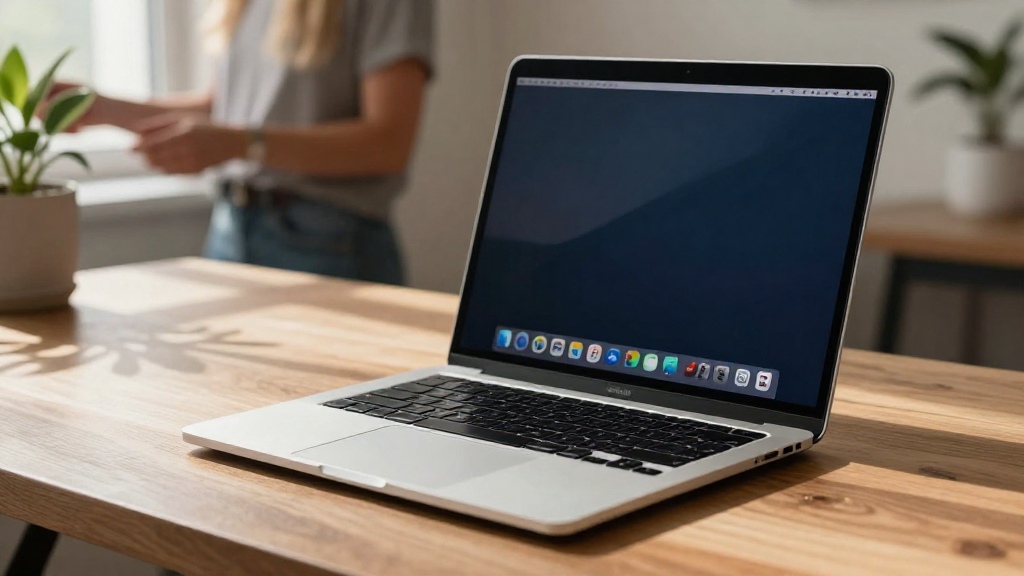
If you’re wondering how to reset Dock to default on Mac, you’re not alone. Many users prefer to restore their Dock settings to the defaults after making multiple customizations or encountering issues. In this guide, we’ll explore the steps to easily reset your Dock to its original settings with clear instructions.
Why Would You Want to Reset Your Dock?
Over time, your Mac’s Dock can accumulate items and settings that may not serve your needs. Here are some reasons why you might want to reset your Dock:
- Accidental Changes: You may have unintentionally rearranged applications or removed important ones.
- Performance Issues: Sometimes, a cluttered Dock can slow down your Mac.
- Visual Clutter: A personalized Dock can become overwhelming if you’ve added too many items.
- Return to Default: You might just want a clean slate or to regain the default look.
No matter what your motivation is, this article will guide you through how to reset Dock to default Mac settings effectively.
What Steps Should You Follow to Reset the Dock?
Resetting your Dock can be done in several ways, either through System Preferences or via the Terminal. Here’s how to reset the Dock using both methods.
Method 1: Using System Preferences
-
Open System Preferences: Click on the Apple menu in the top-left corner of your screen, then select System Preferences.
-
Access Dock & Menu Bar: Look for the Dock & Menu Bar icon and click on it.
-
Reset Dock: In the Dock & Menu Bar settings, you have limited options for resetting.
– You can manually adjust settings back to default, such as size, magnification, and positioning. -
Close System Preferences: After making your adjustments, simply close System Preferences.
This method allows for a semi-reset; however, if you’re looking for a complete reset, proceed to the next method.
Method 2: Using Terminal for a Complete Reset
-
Open Terminal: Click on Launchpad in your Dock, type “Terminal” in the search bar, and open the Terminal application.
-
Input Reset Command: In the Terminal window, type the following command:
bash

    defaults delete com.apple.dock; killall Dock
Note: If you want to make any backups of your current Dock settings, you should do so before running this command. -
Execute the Command: Press Enter. This command deletes your custom Dock settings and restarts the Dock process.
-
Check Your Dock: Your Dock should now be reset to its original state, featuring default applications like Safari, Mail, and Finder.
Using Terminal is the most effective way to achieve a full reset of the Dock, allowing users to start anew.
What to Expect After Resetting Your Dock?
After completing the process of how to reset Dock to default Mac, your Dock will return to its factory settings. Here’s what you can expect:
-
Default Applications: The Dock will include default icons such as Safari, Mail, Finder, and others, depending on your macOS version.
-
Small Size: The icons will be set to the default size, making everything uniform.
-
Removed Customizations: Any custom folders, downloads, or non-default applications previously added to the Dock will be removed.
-
No Magnification: If you previously had the magnification feature enabled, it will be turned off.
Can You Restore Your Previous Dock Settings?
In case you want to revert to your previous Dock setup after resetting, here’s what you can do:
-
Back Up Before Resetting: It’s always a good practice to back up your Dock preferences. You can do this by running:
bash

cp ~/Library/Preferences/com.apple.dock.plist ~/Desktop/BackupDock.plist -
Restore from Backup: To restore your previous Dock settings, simply copy the BackupDock.plist back to its original location, and then restart the Dock by using:
bash

killall Dock -
Confirm Settings: Check your Dock to ensure your previous preferences have been restored.
Are There Any Alternatives to Resetting the Dock?
If you’re not keen on resetting everything, you can manage your Dock settings more selectively:
-
Remove Individual Applications: Right-click on any app in the Dock and select Options > Remove from Dock.
-
Rearrange Icons: Click and drag the Dock icons to rearrange them to your preference.
-
Hide/Show Dock: In the Dock & Menu Bar preferences, you can check the box to automatically hide and show the Dock.
These alternatives can often address specific concerns without a full reset.
Conclusion
Resetting the Dock on your Mac can bring clarity and simplicity back to your workspace. By following the above steps, you now know exactly how to reset Dock to default Mac settings.
Whether you opted for the System Preferences method for a partial reset or the Terminal method for a complete reset, your Dock should now reflect a clean state.
If you run into further issues or decide that a different layout suits you better, remember that you can always personalize your Dock again after the reset.
Feel free to revisit this guide whenever you need a reminder on how to reset Dock to default Mac in the future, and enjoy a more streamlined Mac experience!