Choosing the right duplicator can save hours during SSD upgrades, system migrations, and backup workflows. The best models for Windows balance speed, compatibility, and simple offline operation.
Below, we focus on practical options for cloning SATA and some NVMe drives, along with docks that make everyday drive handling easier for Windows users.
Best 10 Hard Drive Duplicators for Windows Picks for 2026
Image Library Cloner
StarTech SATA Duplicator with Image Manager

- Standalone 1:1 SATA duplicator with image library manager
- 4 copy modes including sector-by-sector duplication
- Supports 2.5/3.5-inch SATA HDDs and SSDs
Best For: IT teams managing backup images and deployments
Dual-Bay Dock Cloner
SABRENT USB 3.0 Hard Drive Dock
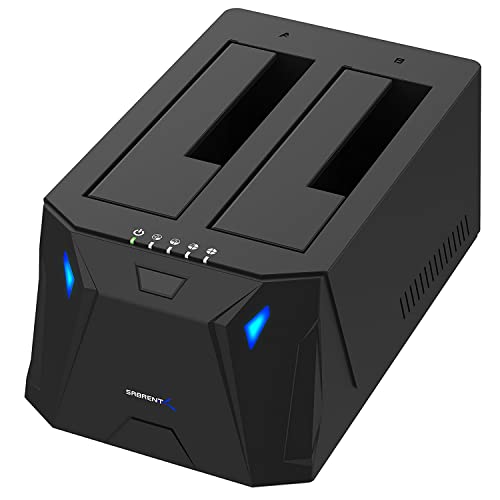
- Offline cloning without a computer
- Supports 2.5/3.5-inch SATA HDDs and SSDs
- USB 3.0 dock with plug-and-play setup
Best For: Quick, no-driver SATA cloning and everyday drive docking
Duplication and Wipe Station
StarTech SATA Duplicator Eraser

- Clones and securely erases SATA drives
- Includes Copy & Compare verification
- Up to 14 GB/min sector-by-sector copying
Best For: IT and recovery workflows that also require secure wiping
High-Capacity Dock Cloner

- Offline clone function with button-activated copying
- Supports up to 44TB across two bays
- Works with Windows, Mac, Linux, Android, and more
Best For: Mixed-platform users needing a large-capacity cloning dock
Standalone SATA Cloning Dock
StarTech Dual-Bay 2.5/3.5in SATA Duplicator Dock
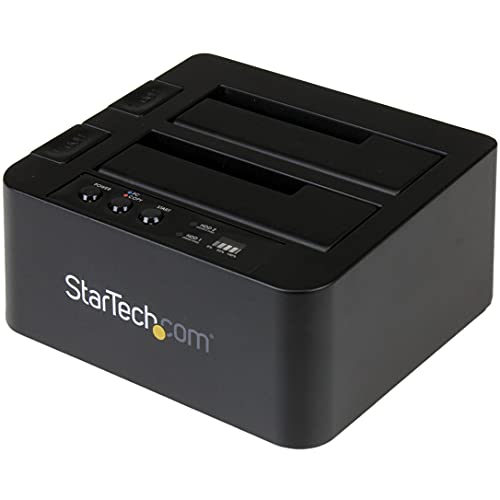
- No-PC sector-by-sector cloning
- Dual-bay support for 2.5/3.5-inch SATA drives
- Also works as a USB-to-SATA dock
Best For: IT users who want a no-PC SATA duplicator with dock mode
Triple-Bay Mixed-Drive Cloner
Rosewill M.2 NVMe & SATA SSD / HDD Dock

- Handles M.2 NVMe, SATA SSDs, and 2.5/3.5-inch HDDs
- Offline cloning without a host computer
- Tool-free, USB 3.2 Gen 2x1 docking station
Best For: Users who need one compact cloner for mixed drive formats
Standalone 1:1 Duplicator and Eraser
Systor HDD/SSD Hard Drive Duplicator

- Standalone cloning and erasing with no PC needed
- Supports 2.5-inch and 3.5-inch SATA HDDs/SSDs
- DoD 5220.22-M sanitization support
Best For: Users who need cloning and secure erasure in one standalone unit
Dual-Bay Offline Cloner

- Offline clone mode without a computer
- Supports 2.5-inch and 3.5-inch SATA drives
- USB 3.0, cooling, and tool-free setup
Best For: Windows users who want simple offline drive duplication and dock use
Standalone Sanitizer

- Standalone copy and erase tool
- Supports 3.5-inch and 2.5-inch drives
- Up to 90MB/s, 5.4GB per minute
Best For: Technicians needing standalone duplication and data sanitization
USB-C Clone Dock

- USB 3.0 and USB-C connectivity
- Offline clone support for SATA drives
- Tool-free setup with UASP up to 6Gbps
Best For: Windows users wanting a dual-bay dock with USB-C and cloning
Image Library Cloner – StarTech SATA Duplicator with Image Manager
If you need hard drive duplicators for windows-adjacent IT workflows but want a standalone unit that does more than simple cloning, this StarTech model is built around disk imaging, restore, and 1:1 SATA duplication. It can manage multiple host disk images on a single drive, making it useful for system setup, deployments, and backup recovery without relying on a PC.
Best For: IT professionals and system integrators who need a standalone cloner with image library management.
Pros:
- Built-in image library manager for backup and restore workflows
- Supports 4 duplication modes, including sector-by-sector copying
- 6 GB/min copy speed with LCD and LED status indicators
- Works with 2.5/3.5-inch SATA HDDs and SSDs of any capacity
Cons:
- Designed for SATA drives, with adapter support sold separately for other interfaces
- Single-drive 1:1 design is less flexible than multi-bay imaging systems
- Best suited to professional workflows rather than casual home use
This is a strong pick if your priority is organized imaging and repeatable deployment rather than basic dock-style cloning. The combination of duplication modes and image library management gives it a clear edge for hands-off IT use.
Dual-Bay Dock Cloner – SABRENT USB 3.0 Hard Drive Dock
For buyers comparing hard drive duplicators for windows systems, this SABRENT dual-bay dock is a simple offline cloning option that also works as a USB 3.0 docking station. It supports standard 2.5/3.5-inch SATA hard drives and SSDs, so you can duplicate drives without installing drivers or connecting to cloning software.
Best For: Users who want an easy dual-bay dock with offline cloning for SATA drives.
Pros:
- Offline cloning support with no computer required
- Works with 2.5-inch and 3.5-inch SATA HDDs or SSDs
- USB 3.0 connection with up to 5Gbps transfer speed
- Plug-and-play design with no drivers needed
Cons:
- Cloning speed is listed at up to 60Mbps, which is modest
- More of a dock-plus-cloner than a dedicated imaging workstation
- Limited to two drives at a time
This is a practical choice if you want a straightforward desktop dock that can also clone drives offline. It focuses on convenience and broad SATA compatibility rather than advanced duplication features.
Duplication and Wipe Station – StarTech SATA Duplicator Eraser
If you need hard drive duplicators for windows environments that also handle secure drive cleanup, this StarTech unit combines cloning and erasing in one standalone box. It supports 2.5/3.5-inch SATA HDDs and SSDs and offers multiple copy and wipe modes for backup, recovery, deployment, and data sanitization.
Best For: IT pros who need both drive cloning and secure erasure in one standalone tool.
Pros:
- Combines duplicator and eraser functions in a single device
- 3 duplication modes and 4 erase modes, including secure erase
- Copy & Compare feature helps verify cloned drives
- Up to 14 GB/min sector-by-sector duplication speed
Cons:
- Only supports 1:1 SATA drive workflows
- Adapters for eSATA, mSATA, IDE, and M.2 SATA are sold separately
- Primarily aimed at IT and recovery use cases, not casual users
This model stands out if drive disposal and data sanitization matter as much as duplication. It is a useful all-in-one choice for teams that need cloning, verification, and secure wiping from one standalone device.
High-Capacity Dock Cloner – ORICO Dual Bay SATA Dock
For users comparing hard drive duplicators for windows, this ORICO dual-bay dock is a flexible offline clone and USB 3.0 storage solution with broad platform support. It works with 2.5/3.5-inch SATA HDDs and SSDs, supports UASP and Trim, and can clone one drive to another without a computer.
Best For: Users who want a high-capacity dual-bay dock with offline cloning and broad device compatibility.
Pros:
- Supports up to 44TB total capacity across two drives
- Offline cloning works without connecting to a computer
- Compatible with Windows, Mac, Linux, Android, and iPad OS
- USB 3.0 with UASP and Trim for up to 5Gbps transfer speeds
Cons:
- Target disk must be larger than the source disk for cloning
- Supported devices quantity is listed as 1, so it is not a multi-host tool
- Works best as a dock and cloner, not a full-featured imaging station
This ORICO model is a good fit if you want a dock that doubles as a simple offline duplicator. Its broad OS and device compatibility make it especially convenient for mixed-platform households or small offices.
Standalone SATA Cloning Dock – StarTech Dual-Bay 2.5/3.5in SATA Duplicator Dock
If you need hard drive duplicators for windows-compatible storage work but want to avoid software setup entirely, this StarTech dock is built around standalone SATA cloning. It handles 2.5-inch and 3.5-inch SATA HDDs and SSDs, copies sector by sector, and can also work as a USB-to-SATA dock for quick drive access when you are not cloning.
Best For: IT users who want a no-PC dual-bay SATA duplicator that also doubles as a USB docking station.
Pros:
- Standalone cloning with no computer required
- Supports 2.5/3.5-inch SATA HDDs and SSDs
- Copies the full drive sector by sector, including empty sectors
- USB dock mode adds convenient drive access over USB
Cons:
- Target drive must be equal to or larger than the source drive
- IDE support requires a separate adapter
- Designed specifically for SATA drives, not broader format support
This is a strong pick if your priority is dependable offline cloning with straightforward dock functionality. The 28 GB/min rating and dual-bay design make it practical for routine duplication tasks without adding Windows software into the process.
Triple-Bay Mixed-Drive Cloner – Rosewill M.2 NVMe & SATA SSD / HDD Dock
Among hard drive duplicators for windows users, this Rosewill dock stands out because it can handle M.2 NVMe, SATA SSDs, and 2.5-inch or 3.5-inch HDDs in one compact unit. It supports offline cloning without a host computer and also serves as a docking station, making it useful when you need one device for multiple drive types.
Best For: Users who want a compact triple-bay cloner for mixed M.2, SATA, and HDD workloads.
Pros:
- Supports M.2 NVMe, SATA SSDs, and 2.5/3.5-inch HDDs
- Offline cloning works without a host computer
- USB 3.2 Gen 2×1 connection rated up to 10Gbps
- Tool-free design simplifies drive installation and removal
Cons:
- Bulky feature set may be more than needed for simple SATA-only cloning
- Best value depends on using its multi-format support
- Not a pure standalone duplicator-only device because it also serves as a dock
This model is a good fit if you work across different storage formats and want a single station to duplicate and read them. Its versatility is the main advantage, especially when you need offline cloning plus everyday drive access in one unit.
Standalone 1:1 Duplicator and Eraser – Systor HDD/SSD Hard Drive Duplicator
If you want hard drive duplicators for windows-related backup and drive prep tasks but prefer a fully standalone workflow, this Systor unit is built for copying and erasing SATA drives without a computer or software. It supports 2.5-inch and 3.5-inch HDDs and SSDs, and it can copy systems and files or clone the whole drive.
Best For: Users who need standalone 1:1 cloning plus secure drive erasure in one unit.
Pros:
- No computer or software required
- Supports both 2.5-inch and 3.5-inch SATA HDDs and SSDs
- Can copy only data or the entire drive
- Includes DoD 5220.22-M compliant sanitization support
Cons:
- Transfer speed is limited to 5.4GB/min
- Only supports SATA-connected drives
- Single-purpose design may not suit users wanting a dock-style reader
This is a practical choice when duplication and secure erasure matter more than extra features. The standalone design keeps the workflow simple, and the sanitization support makes it especially useful for retiring or reusing drives responsibly.
Dual-Bay Offline Cloner – UGREEN Dual-Bay Dock
If you want hard drive duplicators for windows that double as a simple dock, this UGREEN dual-bay station is built for offline cloning and everyday SATA access. It supports 2.5-inch and 3.5-inch drives, works over USB 3.0, and keeps the process tool-free for fast swaps and copying.
Best For: Windows users who want a dual-bay dock with offline clone support and broad SATA compatibility.
Pros:
- Offline cloning lets you duplicate two drives without connecting to a computer.
- Supports 2.5-inch and 3.5-inch SATA III drives, with backward compatibility to SATA II/I.
- USB 3.0 connection supports up to 5Gbps for quicker file transfers.
- Includes 360° cooling, a dust cover, and anti-slip pads for added protection.
Cons:
- Clone mode requires the target drive capacity to be equal to or larger than the source.
- Max speed is 5Gbps, so it is not the fastest dock in this group.
For Windows-based buyers who want a straightforward dual-bay dock with offline duplicator function, this model is practical and easy to use. It is a good fit when you value cloning convenience more than advanced software features.
Standalone Sanitizer – Systor 1:5 HDD/SSD Duplicator
Among hard drive duplicators for windows, this Systor unit stands out for standalone copying and sanitizing rather than being a dock for regular file transfers. It can duplicate or erase HDDs and SSDs without a computer, and it is designed to handle both 3.5-inch and 2.5-inch drives.
Best For: IT teams and technicians who need standalone cloning plus secure erasure for SATA drives.
Pros:
- Completely standalone with no computer or software required.
- Copies systems/files or whole drives, and also supports sanitization.
- Compatible with both 3.5-inch and 2.5-inch drives without an adapter.
- Rated up to 90MB/s, or 5.4GB per minute.
Cons:
- Bulky at 26 pounds, so it is not a portable option.
- Specified capacity is listed at 3TB, which is lower than some dual-bay docks.
This is the most purpose-built duplicator in the lineup if you need repeatable standalone cloning and erasure workflows. It makes more sense for service desks and bench use than for casual home file copying.
USB-C Clone Dock – WAVLINK Dual-Bay Dock
If you are shopping hard drive duplicators for windows and also want a flexible dock, this WAVLINK dual-bay model combines USB 3.0 and USB-C connectivity with offline cloning. It supports 2.5-inch and 3.5-inch SATA HDDs and SSDs, making it a practical choice for simple drive copying and regular external access.
Best For: Windows users who want USB-C plus offline clone support in a dual-bay dock.
Pros:
- Supports offline cloning from a source disk to a target disk.
- Works with 2.5-inch and 3.5-inch SATA HDDs and SSDs.
- USB 3.0 with UASP supports up to 6Gbps transfer speeds.
- Tool-free installation and no drivers needed for the dock itself.
Cons:
- Offline cloning is not online cloning, so it must be used in the dock’s clone mode.
- Target disk must be equal to or larger than the source disk for cloning.
- Online cloning is not supported.
This dock is a strong middle-ground option if you want both everyday drive access and occasional offline duplication. Its USB-C support and wide OS compatibility make it especially convenient for Windows setups.
How We Picked the Best Hard Drive Duplicators for Windows
We prioritized Hard Drive Duplicators for Windows that are easy to use, support common 2.5-inch and 3.5-inch SATA drives, and offer dependable offline cloning without requiring extra software. We also favored models with clear status indicators, broad capacity support, and enough speed to make large drive copies realistic for regular use.
Quick Comparison
In this lineup, the fastest options are best for frequent cloning jobs and larger SSDs, while simpler dual-bay docks suit users who mainly need readable external access and occasional duplication. Multi-bay systems are better for technicians or small offices that manage many drives at once. If you need a straightforward Windows-friendly setup, look for USB 3.0 or USB-C connectivity, UASP support, and clear clone/erase controls.
Key Buying Factors for Hard Drive Duplicators for Windows
Drive Type and Interface
Check whether the unit supports SATA HDDs, SATA SSDs, M.2 NVMe, or both. Many Hard Drive Duplicators for Windows handle 2.5-inch and 3.5-inch SATA drives well, but only some support newer NVMe drives.
Clone Speed and Workflow
Higher duplication speeds matter when you copy large capacities often. For occasional use, a slower unit may be fine if it offers stable, error-free cloning and simple one-touch operation.
Offline Cloning and Erasing
Offline duplication is useful because it works without a PC connection. If you also sanitize drives, choose a model with erase modes that fit your process, such as quick erase or full erase.
Windows Compatibility
Even though these tools are hardware-based, Windows compatibility still matters for docks used as external enclosures. Look for plug-and-play support, UASP, and reliable USB 3.x or USB-C connections for smoother transfers.
Who Should Buy Which Hard Drive Duplicators for Windows?
Choose a 1:1 duplicator if you want simple, direct drive cloning for upgrades and repairs. Pick a dual-bay dock if you need a mix of cloning and day-to-day drive access. Go with a multi-bay or higher-speed model if you manage many drives, work in IT, or want a faster workflow for repeated cloning tasks. For mixed SSD and HDD use, especially in a Windows environment, flexibility and drive compatibility should outweigh extra features you may not need.