A KVM extender lets you operate a desktop computer from a more convenient location while sending video, keyboard, and mouse signals over standard Ethernet cabling. That makes it useful for quieter work areas, control rooms, server closets, classrooms, and multi-room office layouts.
This roundup compares 10 KVM extenders for desktops across resolution, transmission distance, USB support, display compatibility, and installation features. Use the guide below to narrow the list based on your monitor setup, cable infrastructure, and required working range.
Best 10 Kvm Extenders for Desktops Picks for 2026
Best Budget Pick
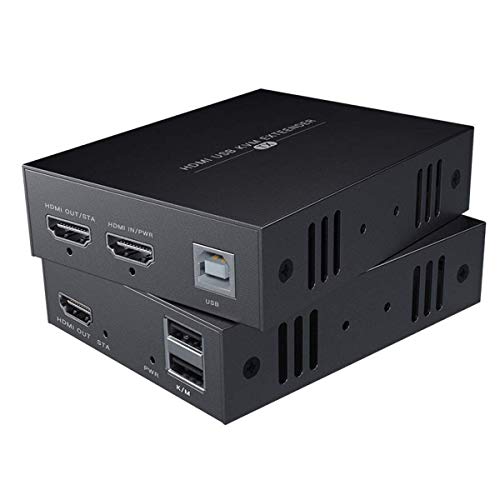
- 1080p at 60Hz
- Up to 50m over Cat6/7
- Remote keyboard and mouse control
Best For: Affordable full-HD desktop extensions
Best Dual-Monitor Switch

- 8K60 and 4K120 support
- Dual-monitor copy or extend modes
- Four-port USB 3.0 hub
Best For: Shared two-computer dual-monitor workstations
Best 4K Long-Range Pick
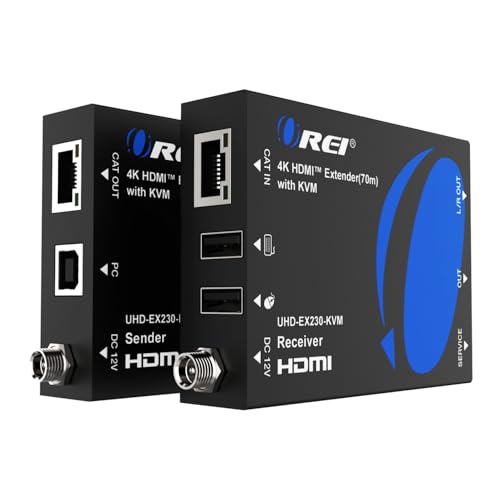
- 4K60 over up to 230 feet
- USB keyboard and mouse extension
- HDMI loop-out and audio extraction
Best For: Long-distance 4K desktop and AV installations
Best Networked Option
AV Access 390ft 4K KVM Extender

- Up to 390ft over Cat5e
- Uses existing IP networks
- Supports up to 16 extender sets
Best For: Scalable offices, server rooms, and control centers
Best Long-Range VGA Pick
TESmart 984ft USB VGA KVM Extender

- VGA support up to 1920×1200 at 60Hz
- Transmits USB control over CAT5e/CAT6
- Reaches up to 984 feet
Best For: Long-distance VGA desktop control
Best 1080p Value
AV Access HDMI USB KVM Extender
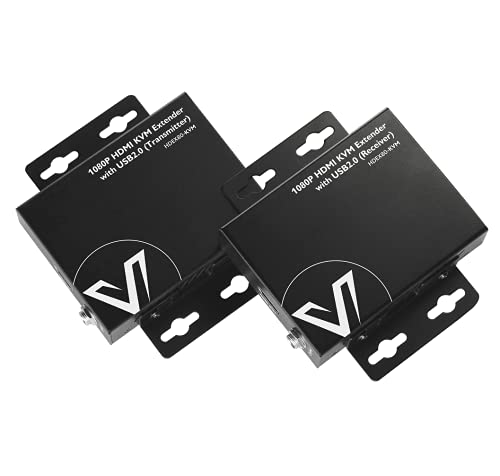
- 1080p at 60Hz up to 260 feet
- Extends USB 2.0 for keyboard and mouse
- Works with Windows, Mac OS, and Linux
Best For: Everyday 1080p desktop and NVR control
Best 4K Feature Set
4K HDMI KVM Extender With Loop Out
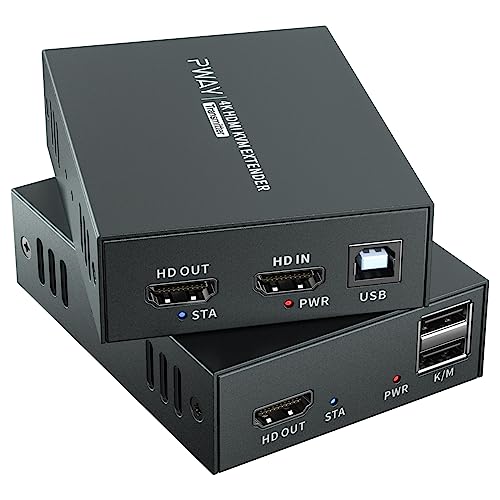
- Supports 4K at 60Hz over CAT6/CAT7
- Includes USB keyboard-and-mouse control
- Adds HDMI loop out and single-power POC
Best For: 4K systems needing local and remote displays
Best Dual-Monitor Value

- Dual 1080p video at 60Hz up to 197 feet
- Four receiver-side USB 2.0 ports
- Plug-and-play with one-way PoC
Best For: Dual-monitor desktop workstations and gaming PCs
Best 4K Performance
AV Access 4K60 HDMI KVM Extender
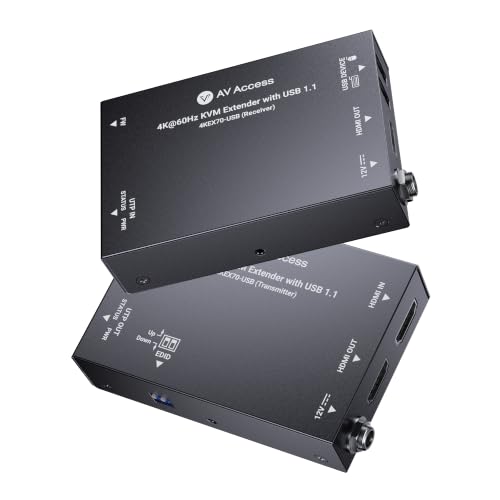
- 4K60 video with 4:4:4 and HDCP 2.3
- Up to 230 feet over Cat6/6A/7
- PoC, multichannel audio, and mounting brackets
Best For: Professional 4K desktop and AV installations
Best Long-Range 1080p Option

- Extends 1080p video up to 400 feet
- HDMI loop-out and status indicators
- Supports standard USB keyboards and mice
Best For: Long-distance classroom, conference-room, and home-theater links
Best Budget Pick – 50m 1080p HDMI KVM Extender
This compact HDMI KVM extender is a practical choice for desktops that need remote keyboard and mouse control over a moderate distance. It sends 1080p video at up to 60Hz over Cat5e, Cat6, or Cat7 cable, with the best stated distance reaching 50m over Cat6/7.
Best For: Home offices, basic workstation extensions, and users who need straightforward 1080p control over a single Ethernet cable run.
Pros:
- Supports 1080p at 60Hz for smooth full-HD output.
- Extends HDMI and USB KVM signals up to 50m over Cat6/7.
- Compatible with Windows, Mac OS, and Linux systems.
Cons:
- Resolution is limited to 1080p rather than 4K.
- Cat5e distance is listed at up to 40m, shorter than Cat6/7 performance.
- The transmitter requires a power adapter for operation.
If your desktop setup does not require 4K or unusually long cable runs, this model keeps the installation simple while providing useful remote USB control and full-HD video.
Best Dual-Monitor Switch – 8K HDMI KVM for Two Computers
Among kvm extenders for desktops, this unit is better suited to switching between two computers at a shared dual-monitor workstation. It supports independent extended displays, high-refresh 4K, and up to 8K at 60Hz, while its four-port USB 3.0 hub shares peripherals between both systems.
Best For: Dual-monitor desktop users who need to share displays, keyboard, mouse, and USB accessories between two computers.
Pros:
- Supports 8K at 60Hz and 4K at 120Hz, with backward compatibility.
- Offers copy and extended-display modes for two monitors.
- Includes four USB 3.0 ports and a 12V power supply for stable peripheral use.
Cons:
- Each computer needs two HDMI outputs to use dual-monitor extension.
- It cannot create dual-monitor functionality from a computer that supports only one display.
- Switching is handled by panel buttons or the wired controller; hotkeys are not supported.
This is a strong desktop-focused option when image quality and dual-screen productivity matter, but buyers should verify their computers provide the required two HDMI outputs before choosing it.
Best 4K Long-Range Pick – OREI 230ft HDMI KVM Extender
This OREI model is designed for desktop or AV installations that need 4K video and remote USB control over a long Cat6/7 run. It extends 4K at 60Hz up to 230 feet, adds an HDMI loop-out for a local display, and provides audio extraction at the receiver.
Best For: Long-distance 4K desktop, conference-room, control-room, and AV setups requiring remote keyboard and mouse access.
Pros:
- Transmits 4K at 60Hz up to 70m/230ft over Cat6/7 cable.
- Supports HDR formats including HDR10, HDR10+, Dolby Vision, and HLG.
- Includes USB KVM, HDMI loop-out, EDID pass-through, and 3.5mm audio output.
Cons:
- The stated 230-foot distance is specified for high-quality Cat6/7 cable.
- It is an extender rather than a multi-computer KVM switch.
- The package uses a US plug, although an adapter/converter is included for international use.
With its combination of long reach, 4K60 output, local loop-out, and receiver-side audio, this is a well-equipped choice for users prioritizing installation flexibility over basic point-to-point functionality.
Best Networked Option – AV Access 390ft 4K KVM Extender
For installations that need greater reach or existing network infrastructure, this AV Access extender sends HDMI, audio, and USB signals over Ethernet. It reaches up to 390 feet over Cat5e, or 492 feet over Cat6/6a/7, and can operate through a network switch for distributed desktop, server, or control-room setups.
Best For: Offices, server rooms, control centers, classrooms, and other multi-location environments that need scalable remote desktop control.
Pros:
- Supports 4K at 30Hz and 1080p at 120Hz over long cable runs.
- Can use an existing IP network instead of dedicated KVM cabling.
- Provides three USB 2.0 peripheral ports and supports up to 16 matched extender sets.
- Works with Windows, macOS, and Linux without drivers.
Cons:
- 4K output is limited to 30Hz.
- Network-based deployment may require more configuration than a direct point-to-point extender.
- USB ports use USB 2.0 speeds rather than USB 3.0.
This model stands out when distance, network integration, and multiple installation points are more important than 4K60 performance. Its pairing switches and broad operating-system support also make it practical for professional deployments.
Best Long-Range VGA Pick – TESmart 984ft USB VGA KVM Extender
For desktops that need a VGA connection over a long cable run, this TESmart model is one of the more capable kvm extenders for desktops. It sends VGA video and USB keyboard-and-mouse data over a single CAT5e or CAT6 cable, with support for distances up to 984 feet.
Best For: Remote desktop control where VGA equipment must be positioned far from the computer.
Pros:
- Supports resolutions up to 1920×1200 at 60Hz.
- Extends VGA and USB signals up to 984 feet over compatible CAT5e/CAT6 cable.
- Includes 8KV ESD protection, smart gain control, and common-mode noise suppression.
- Backed by a one-year hardware warranty and lifetime technical support.
Cons:
- Uses VGA rather than HDMI, so it is better suited to legacy displays and computers.
- Requires CAT5e/CAT6 cable following the EIA/TIA 568B standard.
This is a practical choice when maximum range matters more than newer video connectivity. Verify that your desktop and monitor support VGA before buying.
Best 1080p Value – AV Access HDMI USB KVM Extender
This AV Access unit is a straightforward option for kvm extenders for desktops using HDMI. It carries 1080p video and USB 2.0 signals over one CAT5e, CAT6, CAT6a, or CAT7 cable for up to 260 feet, with plug-and-play operation and no software or driver installation.
Best For: Offices, NVRs, and desktop setups needing reliable 1080p video plus remote keyboard-and-mouse access.
Pros:
- Extends 1080p at 60Hz up to 260 feet.
- Provides two USB 2.0 ports with speeds up to 480Mbps.
- Supports Windows, Mac OS, and Linux systems.
- Two-way PoE can allow the set to use one power supply.
Cons:
- Limited to 1080p rather than 4K video.
- USB extension is USB 2.0, not a faster USB standard.
Its compact metal enclosure, surge and ESD protection, and broad operating-system compatibility make it a balanced choice for everyday remote desktop access at 1080p.
Best 4K Feature Set – 4K HDMI KVM Extender With Loop Out
For newer desktops and displays, this 4K model stands out among kvm extenders for desktops by combining HDMI video, USB keyboard-and-mouse control, and a local HDMI loop-out port. It supports up to 4K at 60Hz over a single CAT6 or CAT7 cable, with a stated range of 196 feet.
Best For: 4K desktop, presentation, security, and control-room installations that need both local and remote viewing.
Pros:
- Supports 4K at 60Hz and other common HDMI resolutions.
- Extends HDMI video and USB control up to 196 feet.
- HDMI loop out supports a local monitor near the source.
- POC technology requires only one power adapter.
Cons:
- Requires CAT6 or CAT7 cabling for the stated extension setup.
- Its 196-foot range is shorter than some lower-resolution extenders.
The loop-out connection and single-power design make this a flexible installation choice, especially when a source needs to remain visible locally while also driving a remote 4K display.
Best Dual-Monitor Value – Dual 1080p HDMI KVM Extender
For desktops that need two remote displays and USB control, this KVM extender for desktops sends dual 1080p video and USB 2.0 over one Cat5e/6/6a/7 cable. It supports up to 197 feet, requires no drivers, and includes one-way PoC to simplify installation.
Best For: Dual-monitor office workstations and gaming PCs that need 1080p video plus several remote USB devices.
Pros:
- Extends dual 1080p video at 60Hz up to 197 feet.
- Four receiver-side USB 2.0 ports support keyboards, mice, printers, scanners, cameras, and hard drives.
- Plug-and-play compatibility with Windows, Mac OS, and Linux.
- One-way PoC can power the transmitter from the receiver.
Cons:
- Limited to 1080p rather than 4K video.
- USB connectivity is USB 2.0.
This is a practical choice when dual-screen support matters more than 4K resolution. Its multiple USB ports and simplified power arrangement make it especially convenient for a distributed desktop setup.
Best 4K Performance – AV Access 4K60 HDMI KVM Extender
This KVM extender for desktops is designed for modern displays, sending 4K video at 60Hz and USB keyboard/mouse signals up to 230 feet over a single Cat6/6A/7 cable. HDR10 support, multichannel audio passthrough, PoC, and mounting brackets suit professional AV installations.
Best For: Conference rooms, classrooms, kiosks, signage systems, security stations, and desktop setups requiring 4K60 video.
Pros:
- Supports 4K at 60Hz with 4:4:4 chroma and HDCP 2.3.
- Extends HDMI and USB 1.1 keyboard/mouse control up to 230 feet.
- Passes Dolby Atmos, DTS:X, and PCM 7.1 audio.
- Compact housing, mounting brackets, and bi-directional PoC support tidy installations.
Cons:
- USB support is specified for keyboard and mouse signals rather than broader USB 2.0 peripherals.
- A Cat6/6A/7 cable is required for the stated long-distance installation.
Choose this model when image quality and installation flexibility are priorities. It offers the strongest video capability in this group, while its slim chassis and single-power design help in structured AV environments.
Best Long-Range 1080p Option – 400ft HDMI KVM Extender
When cable distance is the main concern, this KVM extender for desktops reaches up to 400 feet over Cat5e/6/7 UTP cable while maintaining 1080p video at 60Hz. It adds a local loop-out connection, status indicators, and remote keyboard-and-mouse control without requiring software.
Best For: Classrooms, conference rooms, home theaters, and desktop installations where the display is far from the source.
Pros:
- Provides up to 400 feet or 120 meters of 1080p transmission.
- Includes HDMI loop-out for monitoring the local display connection.
- Supports standard USB keyboards and mice with plug-and-play operation.
- Offers reset functionality and connection-status indicators.
Cons:
- USB 1.1 support is limited to standard keyboards and mice; gaming peripherals and switches are not supported.
- Both transmitter and receiver require separate power connections.
- Supports 1080p rather than 4K video.
This extender stands out for reach rather than peripheral versatility. Its 400-foot range and loop-out function make it useful for remote-display layouts, provided dual-end power and compatible standard USB devices fit your installation.
How We Picked These Kvm Extenders for Desktops
We focused on the specifications that most directly affect everyday desktop use: supported video resolution and refresh rate, maximum transmission distance, USB keyboard and mouse connectivity, display configuration, cable requirements, and installation features such as loop-out, EDID, and power over cable. The selection includes basic 1080p models, 4K solutions, dual-monitor options, and long-range extenders for different workspace layouts.
Because real-world performance depends on cable quality, interference, connected displays, and source hardware, published distance ratings should be treated as maximum targets rather than guaranteed results in every installation.
Quick Comparison
- Best for 1080p basics: Choose a straightforward HDMI-and-USB extender when you need reliable remote keyboard, mouse, and video control without 4K requirements.
- Best for 4K desktops: Look for 4K at 60Hz support if you want sharp text and smooth general productivity on a modern monitor.
- Best for high-refresh displays: Models supporting 4K at 120Hz or 8K at 60Hz are better suited to compatible gaming, design, or high-resolution workstations.
- Best for long cable runs: Long-range VGA or HDMI units can cover several hundred feet, but cable quality and installation conditions become increasingly important.
- Best for multiple displays: Select a dual-monitor KVM extender or a dual-monitor KVM switch if your desktop workflow depends on two extended screens.
Key Buying Factors for Kvm Extenders for Desktops
Resolution, Refresh Rate, and HDR
Match the extender to the highest resolution your computer and monitor use. A 1080p model is sufficient for office applications, while 4K at 60Hz is a better fit for detailed documents, media, and design work. Check HDR support separately, and do not assume that a product rated for 4K also supports 4K at 120Hz.
Transmission Distance and Cabling
Most products use Cat5e, Cat6, Cat6a, or Cat7 cable, but the recommended distance varies. Cat6 or better is generally preferable for demanding 4K signals and longer runs. Keep the cable path within the manufacturer’s rating and avoid unnecessary couplers, patch panels, and sources of electrical interference.
USB and Peripheral Support
Confirm that the unit carries the USB functions you need. Basic keyboard-and-mouse control is enough for office work, while USB 3.0 hubs are more useful for storage devices and other peripherals. If you need webcams, printers, audio, or specialized USB equipment, verify compatibility before buying.
Installation Features
Loop-out can preserve a local display, EDID management can help prevent resolution conflicts, and plug-and-play designs simplify setup. Also check whether the transmitter and receiver use separate power adapters or support power over cable.
Who Should Buy Which Kvm Extenders for Desktops?
Choose a compact 1080p extender for routine remote desktop access and budget installations. Pick a 4K model for modern productivity systems, especially when clear text matters. A dual-monitor option is the practical choice for analysts, creators, and multitaskers who need an extended desktop at the remote location. For server rooms, classrooms, or offices separated by long cable paths, prioritize the required distance first, then confirm the supported resolution and USB features. Finally, users with premium displays should choose an extender whose refresh rate, HDR capability, and HDCP version match the entire system.