Choosing the right pen display for Mac Studio can make drawing, retouching, and digital note-taking feel far more precise and natural. The best options balance screen quality, pen performance, and workspace fit.
Below, we focus on displays that suit creative Mac users who want reliable input, strong color, and a setup that matches their workflow, whether that means portability, speed, or a larger canvas.
Best 10 Pen Display for Mac Studio Picks for 2026
Premium 16-inch Pick
Wacom Cintiq 16 for Mac Studio Artists

- 16-inch 2.5K IPS display
- Pro Pen 3 with 8192 levels
- 99% DCI-P3 / 100% sRGB color
Best For: Artists and designers who want a high-end pen display for Mac Studio
Apple-First Creative Monitor
Apple Studio Display for Mac Studio
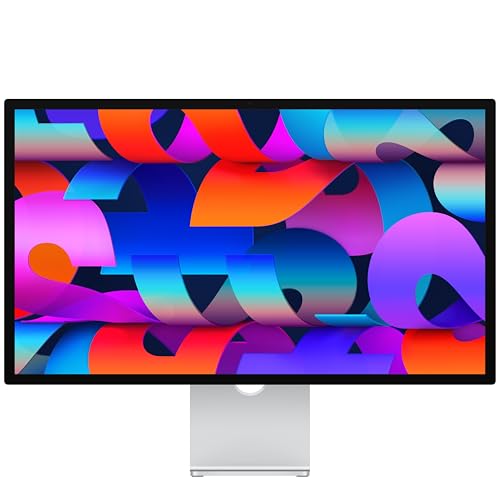
- 27-inch 5K Retina panel
- 12MP camera with Desk View
- Thunderbolt 5 and USB-C ports
Best For: Mac Studio users who want a premium Apple monitor with built-in camera and audio
Budget Starter Choice
Wacom One HD Pen Display for Mac Studio

- 13.3-inch Full HD screen
- 4096 pressure levels
- Customizable pen shortcut button
Best For: Beginners and students who want an affordable pen display for Mac Studio
Portable ProArt Option
ASUS ProArt 15.6-inch 4K Pen Display

- 15.6-inch 4K UHD IPS panel
- Wacom EMR pen with touch support
- 100% sRGB and Delta E < 2 calibration
Best For: Photo and design work in a compact 4K pen display for Mac Studio
Beginner-Friendly Compact Pick
XPPen Artist 12 3rd 11.9" Drawing Tablet with Screen

- 16K pressure stylus with 0.3mm nib travel
- Full-laminated anti-glare etched glass
- One-cable USB-C plus 8 shortcut keys
Best For: Beginners and students who want a compact, easy-to-use pen display for Mac Studio-compatible workflows.
Budget FHD Starter Display
XP-PEN Artist12 11.6 Inch FHD Drawing Monitor

- 11.6-inch FHD IPS panel with strong color coverage
- Battery-free pen with eraser end and extra nibs
- 6 hotkeys plus programmable touch bar
Best For: Budget buyers, students, and teachers who want an entry-level pen display for Mac Studio with basic creative controls.
Large Workflow Upgrade
XPPen Artist 16 3rd 15.4" Pen Display

- 15.4-inch laminated display with anti-glare glass
- 16K pressure stylus with low activation force
- Dual scroll wheels, 8 hotkeys, and strong color coverage
Best For: Artists and illustrators who want a larger, more capable pen display for Mac Studio work.
Editor’s Pick
Xencelabs Pen Display 16 Bundle for Mac Studio

- 4K OLED panel with 1.07 billion colors
- Quick Keys included with up to 40 shortcuts per app
- Thin 12mm body and single USB-C cable setup
Best For: Portable creatives who want a compact, color-accurate pen display for Mac Studio
Professional Large Screen
XPPen Artist Pro 22 Gen2 for Mac Studio
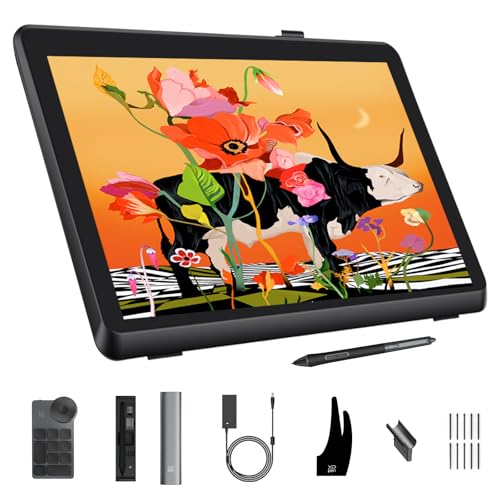
- 21.5-inch 2.5K display with Calman Verified color
- 99% Adobe RGB and Delta E<1 for accurate work
- Includes wireless keydial with 40 customizable keys
Best For: Studio artists who want a large, color-accurate pen display for Mac Studio
Portable Premium
Wacom Movink 13 for Mac Studio

- 13.3-inch OLED touchscreen with 10-bit color
- Extremely thin and lightweight for portability
- Pro Pen 3 offers 8k pressure sensitivity
Best For: Creators who want a lightweight premium pen display for Mac Studio on the go
Premium 16-inch Pick – Wacom Cintiq 16 for Mac Studio Artists
If you want a pen display for Mac Studio with a larger workspace and premium pen response, the Wacom Cintiq 16 is built for serious creative work. Its 16-inch 2.5K display, strong color coverage, and USB-C connectivity make it a practical fit for digital art, design, animation, and 3D workflows on modern Mac setups.
Best For: Artists, designers, and animators who want a sharp 16-inch pen display with Wacom’s latest pen tech on Mac Studio.
Pros:
- 16-inch IPS screen with 2560 x 1600 resolution for detailed work
- Pro Pen 3 with 8192 pressure levels and tilt support
- 99% DCI-P3 and 100% sRGB coverage for wide-color creative work
- USB-C connection supports Mac computers with Thunderbolt 3/4 or DisplayPort Alt Mode
Cons:
- Computers without DP Alt Mode or Thunderbolt need additional cables
- Only 3 shortcut keys on the display
- Built-in legs offer a fixed 20-degree angle unless you buy a separate stand
Overall, this is the most capable drawing-focused option here if you want a larger, more refined pen display for Mac Studio and don’t mind a more workstation-style setup.
Apple-First Creative Monitor – Apple Studio Display for Mac Studio
For Mac Studio users who want a pen display for Mac Studio-adjacent creative work and a premium companion monitor, the Apple Studio Display delivers a large 27-inch 5K Retina panel with Apple-focused integration. It’s not a pen tablet, but it stands out for its sharp image, strong brightness, and built-in camera, audio, and ports for a clean desk setup.
Best For: Mac Studio owners who want a premium 27-inch Apple display for visual work, video calls, and a polished studio setup.
Pros:
- 27-inch 5K Retina display with 14.7 million pixels
- 600 nits brightness and P3 wide color
- 12MP Center Stage camera, three-mic array, and six-speaker sound
- Thunderbolt 5 plus USB-C ports for accessories and charging
Cons:
- Does not include pen input
- Tilt-adjustable stand only; height-adjustable and VESA options are separate
- Much more monitor-focused than a true drawing display
This is the best choice if your priority is a premium Mac Studio display rather than stylus work, especially for users who value Apple styling and built-in conferencing features.
Budget Starter Choice – Wacom One HD Pen Display for Mac Studio
If you’re looking for an entry-level pen display for Mac Studio, the Wacom One HD is a straightforward way to get drawing input and an on-screen canvas without moving up to a larger or pricier model. Its 13.3-inch full HD display and simple pen controls make it a sensible pick for hobbyists, note-taking, editing, and casual creative work.
Best For: Beginners, students, and casual creators who want an affordable pen display for Mac Studio.
Pros:
- 13.3-inch Full HD display for a compact creative area
- 4096 pressure levels for pen input
- Works with Mac, PC, and Chromebook
- Pen button can be customized for shortcuts like undo or copy/paste
Cons:
- Older 2019-generation model
- Uses HDMI connectivity rather than USB-C only
- Lower pressure sensitivity than newer premium pen displays
This model makes sense when you want the basics done well: a screen to draw on, simple setup, and broad software compatibility, without paying for advanced display features.
Portable ProArt Option – ASUS ProArt 15.6-inch 4K Pen Display
The ASUS ProArt Display PA169CDV is a strong pen display for Mac Studio if you want 4K detail in a compact portable format. With a 15.6-inch UHD panel, Wacom EMR pen input, touch support, and factory-calibrated color accuracy, it is aimed at creators who value precision and useful shortcut tools.
Best For: Photo editors, designers, and mobile creators who want a compact 4K pen display for Mac Studio.
Pros:
- 15.6-inch 4K UHD IPS panel with anti-glare finish
- Wacom EMR pen technology for paper-like writing and drawing
- 100% sRGB, Calman Verified, and factory pre-calibrated to Delta E < 2
- 10-point multitouch plus ASUS Dial and Virtual Control Panel support
Cons:
- Smaller display than full-size pen displays
- Compatibility depends on devices with HDMI or USB-C ports
- More of a compact creator monitor than a large studio canvas
For Mac Studio users who want sharper-than-HD resolution and flexible controls in a compact footprint, this ASUS model is a polished, feature-rich option.
Beginner-Friendly Compact Pick – XPPen Artist 12 3rd 11.9" Drawing Tablet with Screen
If you want a pen display for Mac Studio that keeps the setup simple, the XPPen Artist 12 3rd is built around easy connection and beginner-friendly controls. Its 11.9-inch full-laminated screen, one-cable USB-C option, and 16K stylus make it a practical entry point for drawing, note-taking, and light creative work.
Best For: Beginners, students, and casual creators who want a compact pen display with a tidy one-cable setup on compatible Mac systems.
Pros:
- 16,384 levels of pressure with the X4 Smart Chip stylus for responsive line control
- Full-laminated AG+AF nano-etched glass helps reduce glare and adds paper-like resistance
- One-cable USB-C connection supports a cleaner desk layout when compatible
- 8 customizable shortcut keys plus included foldable stand for easier workflow and posture support
Cons:
- Smaller 11.9-inch display may feel cramped for users who want more canvas space
- USB-C one-cable use depends on compatible hardware and setup
- Designed more for beginner and study use than large professional studio workflows
This is a solid compact choice if you value simplicity, portability, and a paper-like drawing feel over a larger workspace. For Mac Studio users who want a straightforward pen display for getting started quickly, it covers the essentials well.
Budget FHD Starter Display – XP-PEN Artist12 11.6 Inch FHD Drawing Monitor
The XP-PEN Artist12 is a straightforward pen display for Mac Studio users who want an affordable FHD screen and basic creative controls. With an 11.6-inch 1920×1080 IPS display, battery-free pen, and customizable shortcut keys, it is aimed at drawing, sketching, editing, and teaching tasks.
Best For: Students, teachers, and budget-conscious users who need a simple pen display for general creative or educational work.
Pros:
- 11.6-inch FHD IPS display with 72% NTSC and 100% sRGB color gamut
- Battery-free P06 stylus with eraser end and 8 replacement nibs included
- 6 customizable shortcut keys plus programmable touch bar for zoom and scrolling
- Works with Mac 10.10 or later and common creative and teaching software
Cons:
- Requires HDMI and USB-A connections, so some Mac Studio setups may need adapters
- Lower 8192 pressure levels than newer higher-end models
- Smaller display and older design make it less suited to larger professional workflows
If you mainly need a reliable entry-level screen tablet for drawing or presentation work, this model covers the basics without much complexity. It makes sense as a value-focused option, especially if your Mac Studio setup already has the needed ports or adapters.
Large Workflow Upgrade – XPPen Artist 16 3rd 15.4" Pen Display
For Mac Studio users who want more screen room and a more refined drawing feel, the XPPen Artist 16 3rd steps up with a 15.4-inch fully laminated display, 16K stylus pressure, and dual scroll wheels. It is built for artists who need a more comfortable workspace for illustration, animation, and color-aware creative tasks.
Best For: Artists and illustrators who want a larger pen display for Mac Studio with more control and a smoother workflow.
Pros:
- 15.4-inch fully laminated FHD display with anti-glare etched glass and low parallax
- 16,384 pressure levels and ultra-low 2g initial activation force for precise lines
- 99% sRGB, 98% Adobe RGB, and 97% Display P3 coverage for color-focused work
- 2 scroll wheels, 8 hotkeys, and included foldable stand for faster navigation and comfort
Cons:
- Larger footprint may be less ideal for very small desks or highly portable setups
- Feature-rich controls may be more than casual users need
- Best value comes when you actually use the advanced color and shortcut features
This model is the most well-rounded choice here if you want a serious upgrade in workspace size and control. For Mac Studio owners looking to do more detailed creative work, it offers the strongest balance of display quality, pen precision, and workflow tools.
Editor’s Pick – Xencelabs Pen Display 16 Bundle for Mac Studio
If you want a pen display for Mac Studio that feels genuinely premium, the Xencelabs Pen Display 16 Bundle is built around accuracy, portability, and a polished creative workflow. Its 4K OLED panel, tuned pressure curve, and single-cable USB-C setup make it a strong fit for artists who want a compact but serious drawing display.
Best For: Designers and illustrators who want a portable 16-inch pen display with strong color and bundled shortcut controls.
Pros:
- 16-inch 4K OLED display with 1.07 billion colors for rich visual detail
- Super AG etched surface gives a smooth, paper-like drawing feel
- Includes Quick Keys plus two battery-free pens for flexible control
- Single USB-C cable connectivity and a lightweight 12mm design support portability
Cons:
- Smaller than full-size studio displays if you want a larger canvas
- Portable design may appeal more to mobile workflows than permanent desk setups
This is the most balanced option here if you value display quality and bundle value over sheer screen size. For Mac Studio users who need a refined pen display with serious color and useful workflow tools, it stands out as the most versatile pick.
Professional Large Screen – XPPen Artist Pro 22 Gen2 for Mac Studio
The XPPen Artist Pro 22 Gen2 is a strong pen display for Mac Studio if your priority is workspace and color accuracy. Its 21.5-inch 2.5K panel, Calman Verified tuning, and bundled wireless keydial make it a practical choice for artists who want a larger desktop display with pro-focused specs.
Best For: Artists and designers who want a large, color-accurate pen display with plenty of room to work.
Pros:
- 21.5-inch 2560 x 1440 display offers a spacious drawing area
- Calman Verified color with 99% Adobe RGB and Delta E<1
- 16K pressure stylus with tilt support for detailed line control
- Includes ACK05 wireless keydial with 40 customizable keys
Cons:
- Larger footprint makes it less portable than compact pen displays
- Designed more for desk use than travel or quick mobile setup
If you want a Mac Studio companion that feels closer to a full creative workstation, this model delivers. The combination of size, calibrated color, and shortcut hardware makes it especially appealing for color-sensitive and high-production workflows.
Portable Premium – Wacom Movink 13 for Mac Studio
The Wacom Movink is an easy-to-move pen display for Mac Studio users who want a premium portable screen without giving up color quality. Its OLED panel, slim build, and Pro Pen 3 make it a practical pick for artists who split time between the studio, campus, and home.
Best For: Mobile creators who want a lightweight OLED pen display with Wacom pen performance.
Pros:
- 13.3-inch OLED touchscreen with 10-bit color and high contrast
- Very thin and lightweight design for travel-friendly use
- Pro Pen 3 includes 8k pressure sensitivity and three side switches
- Customizable touch gestures, ExpressKeys, and hardware color presets
Cons:
- Smaller 13.3-inch screen may feel limited for expansive desktop workflows
- Only two ExpressKeys are built in, so shortcut capacity is more modest than larger bundles
For Mac Studio owners who prioritize portability and Wacom’s pen feel, this is a compelling compact option. It trades screen size for mobility and polish, which makes sense if you move between setups often.
How We Picked the Best Pen Display for Mac Studio
We looked for models that pair well with Mac Studio setups and deliver the basics that matter most: responsive stylus tracking, accurate color, low parallax, comfortable viewing angles, and dependable connectivity. We also weighed screen size, resolution, pen technology, and whether a display is better suited to studio desks or portable workflows.
Quick Comparison
For a compact desk or travel-friendly setup, 11.6-inch to 13.3-inch models are easiest to place and carry. If you want a more natural drawing surface with less cramped hand movement, 15.4-inch to 16-inch options are a stronger middle ground. Larger 22-inch displays suit artists who keep a Pen Display for Mac Studio at the center of a dedicated workstation.
Resolution also matters. Full HD can work for sketching and light illustration, but 2.5K, 4K, or OLED panels usually feel better for detailed art, photo work, and color-critical projects.
Key Buying Factors for a Pen Display for Mac Studio
Screen Size and Workspace
Match the display to your desk and your hand movements. Smaller panels save space and cost less, while larger panels reduce zooming and feel more like a drafting surface.
Pen Technology and Pressure Sensitivity
Look for battery-free pens, strong pressure levels, and good tilt support. These features help strokes feel smoother and more predictable in illustration, masking, and retouching apps.
Color Accuracy and Panel Quality
If you edit photos or video, prioritize wide color gamut coverage, calibration support, and higher resolution. Creative work benefits from displays that keep tones consistent and details sharp.
Connectivity and Mac Compatibility
Check that your chosen Pen Display for Mac Studio supports the ports on your setup and has stable macOS driver support. Some models are plug-and-play oriented, while others need more careful setup for full pen and shortcut functionality.
Extras That Improve Workflow
Shortcut keys, dial controls, etched anti-glare glass, and stand options can make a big difference during long sessions. These features often matter more than raw specs once you are working for hours at a time.
Who Should Buy Which Pen Display for Mac Studio?
If you want portability, choose a compact 13-inch class display. If you want the best balance for most creators, a 15.4-inch or 16-inch model is often the sweet spot. If you need the most immersive editing space, a 22-inch display is the better long-term studio choice. And if you value premium image quality above all, look for higher-resolution or OLED options.
In short, the best Pen Display for Mac Studio is the one that matches your desk space, your workflow, and how much precision you need day to day.