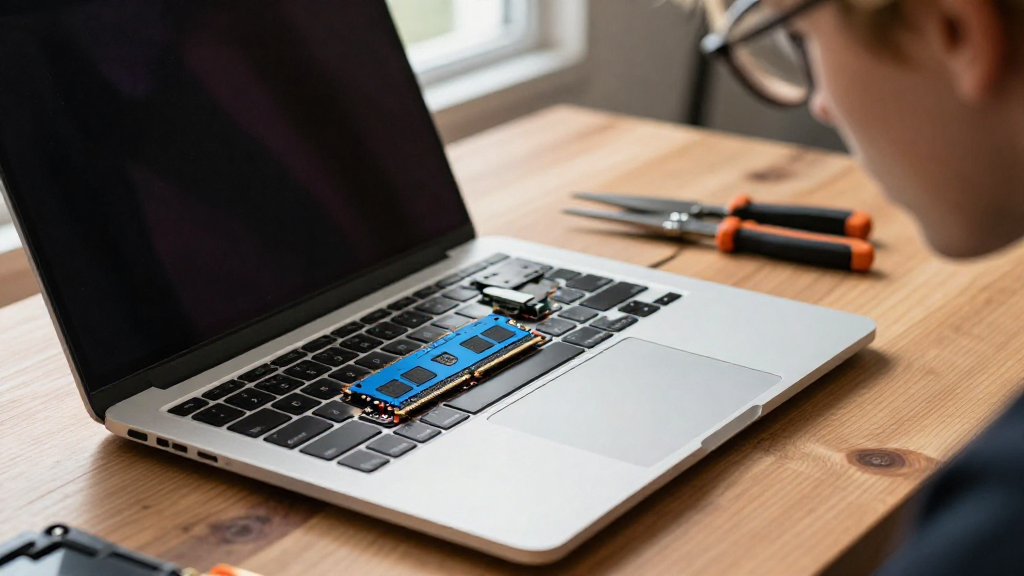
If you’re wondering how to upgrade RAM on Mac, you’re not alone.
Many Mac users seek to improve their device’s performance through a RAM upgrade, especially when running heavy applications or multitasking.
In this guide, we’ll walk you through the process step-by-step, so you can enhance your Mac’s performance seamlessly.
Why Should You Upgrade RAM on Your Mac?
Upgrading your RAM can significantly improve your Mac’s performance. Here are some key reasons why you should consider this upgrade:
- Increased Speed: More RAM means your Mac can handle more tasks simultaneously. This results in smoother performance while multitasking and faster application loading times.
- Better Multitasking: Do you often run multiple applications at once? Increased RAM allows your Mac to manage several tasks without dragging or crashing.
- Enhanced Gaming and Creative Work: If you’re an avid gamer or work with graphic design, additional RAM can improve your experience and allow for more complex projects to run smoothly.
How Do You Determine if Your Mac Needs More RAM?
Before you dive into how to upgrade RAM on Mac, it’s essential to know if your device genuinely requires an upgrade.
Here are some signs indicating that your Mac might need more RAM:
- Slow Performance: If your Mac is sluggish when opening applications, it might be a sign you need more RAM.
- Frequent Spinning Beach Ball: Seeing the spinning wheel often indicates your Mac is struggling to manage active processes.
- Running Out of Memory Notifications: If you receive warnings about insufficient memory, it’s time to consider an upgrade.
- Utilizing Activity Monitor: Open Activity Monitor (found in Applications > Utilities) to check your RAM usage. If the memory pressure graph shows a lot of red, it’s time for an upgrade.
How Can You Check Your Current RAM Configuration?
Before you learn how to upgrade RAM on Mac, you need to know your current RAM specifications. Here is how to check:
- Click on the Apple Menu in the top left corner of your screen.
- Select ‘About This Mac’.
- Under the ‘Overview’ tab, you will see your RAM listed next to ‘Memory.’
- Click ‘System Report’ for more detailed information.
- Under the ‘Memory’ section, you can see individual RAM slots and their current configurations.
What Are the Steps to Upgrade RAM on Your Mac?
Once you’ve confirmed you need more RAM and gathered your current specs, you’re ready to explore how to upgrade RAM on Mac.
Let’s break it down into easy steps.
Step 1: Find Compatible RAM
RAM upgrades are not one-size-fits-all.
You need to ensure you choose the right type of RAM for your specific Mac model:
- Check Your Mac Model: Use the ‘About This Mac’ option to identify your model and year.
- Research Compatibility: Visit the manufacturer’s website or a reliable tech store to confirm compatible RAM types based on your model.
Types of RAM commonly used in Macs include:
– DDR3
– DDR4
Step 2: Gather Tools
Before starting the upgrade process, it’s essential to have the right tools. You may need:
- A Clean, Flat Workspace: Prevent any static electricity damage.
- A Small Phillips Screwdriver: Or any other specific tool needed for your Mac model.
- Anti-Static Wrist Strap: This helps prevent electrostatic discharge that could damage components.
Step 3: Power Down and Prepare Your Mac
Ensure your Mac is powered down and unplugged.
Complete the following:
- Remove Any Connected Accessories: Disconnect USB devices, external monitors, etc.
- Field-Test Your Mac: Leave it overnight to cool down completely if it’s been in use.
Step 4: Open Your Mac
Opening your Mac may differ based on the model, but here’s a general guide:
- Locate and Remove the Back Cover: For iMacs, it’s usually on the back, while for MacBooks, it’s the underside.
- Keep Screws in a Safe Place: Organize them so you can easily reattach the cover.
Step 5: Install New RAM
Now comes the crucial part of how to upgrade RAM on Mac.
- Locate the RAM Slots: In most cases, they are easily accessible.
- Remove Existing RAM (if necessary): If replacing, gently push the clips on the sides of the module to free the old RAM.
- Insert New RAM: Align the RAM notch with the slot and gently push it into place until you hear a click.
Step 6: Reattach the Back Cover
After successfully installing the new RAM:
- Carefully reattach the back cover or underside of your Mac.
- Screw it in securely, being cautious not to over-tighten.
Step 7: Power Up and Test
Finally, power up your Mac.
- Turn on Your Mac: Press the power button and hear the startup chime.
- Check RAM Recognition: Go back to ‘About This Mac’ to confirm the new RAM is detected.
- Run Performance Tests: Open applications to see if there’s a noticeable speed improvement.
What Should You Keep in Mind Post-Upgrade?
After you’ve followed the full process of how to upgrade RAM on Mac, it’s essential to monitor how your device performs.
- Regular Maintenance: Keep your Mac updated and regularly check for unnecessary files or apps consuming RAM.
- Consider Other Upgrades: If RAM isn’t the only performance issue, you may want to assess your storage option, such as upgrading to an SSD.
Conclusion
Upgrading RAM on your Mac can be a straightforward process if done right.
By understanding how to upgrade RAM on Mac and following the steps outlined in this article, you can significantly enhance your device’s performance.
Remember to research beforehand, choose the compatible RAM, and handle all components with care.
With patience and attention to detail, you’ll ensure your Mac operates smoothly for years to come.
By referring to this guide, you can confidently execute your RAM upgrade and enjoy increased speed and performance. Say goodbye to sluggish performance and hello to a faster, more efficient Mac!